Create and Manage WinPE Environments in Quest SDA
Create Manage WinPE – Create and manage WinPE environments in Quest SDA with SDA Media Manager, Windows ADK, Samba credentials, network drivers and disk controller troubleshooting.
Appliance Configuration
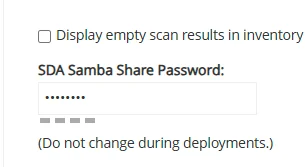
Samba Password
- On the appliance, configure the Samba password under “General Settings” in the “Control Panel”.
Installing
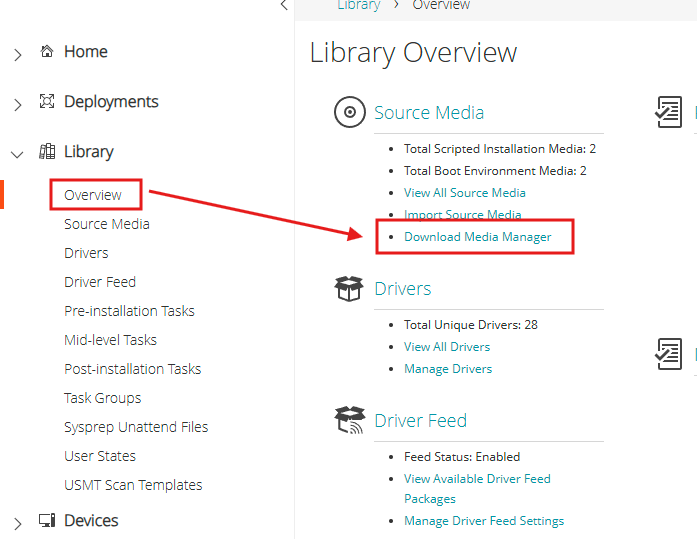
SDA Media Manager
Create Manage WinPE – Warning: You must reinstall the Media Manager after every new version or patch of the SDA.
- From the SDA interface, download and install “Media Manager”.
Windows ADK
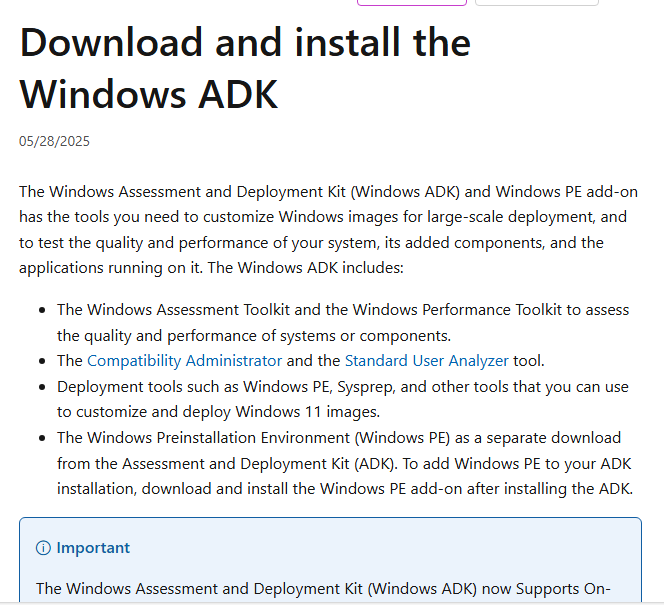
Create Manage WinPE – Download and install the Windows ADK from Microsoft Learn.
Download
Drivers in WinPE
Create Manage WinPE – Install the latest version of Windows ADK.
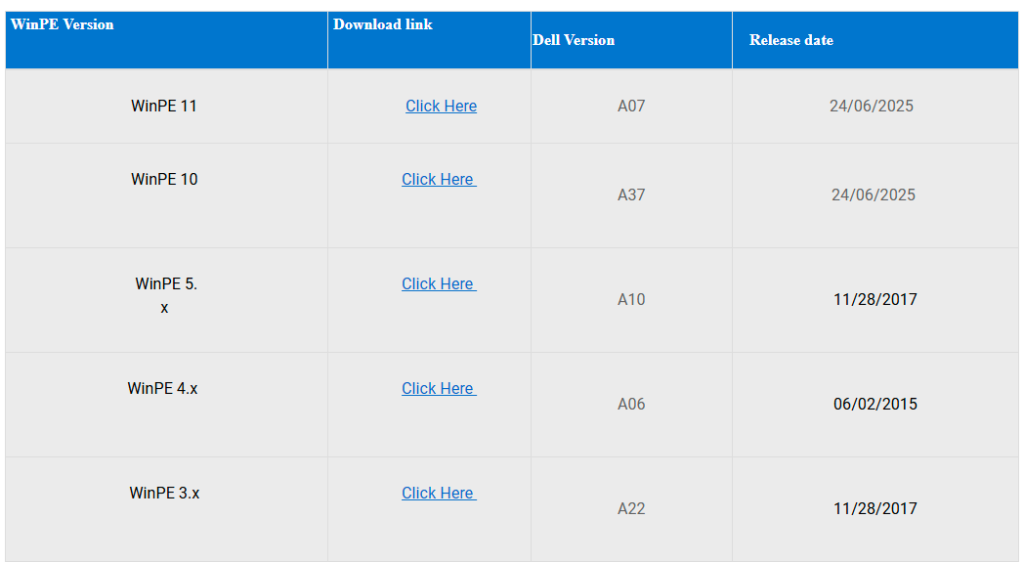
Create Manage WinPE – Get the drivers from: Dell WinPE Driver Packs
- Download the WinPE 1x drivers and extract them.
Creating WinPE Environments
General Settings
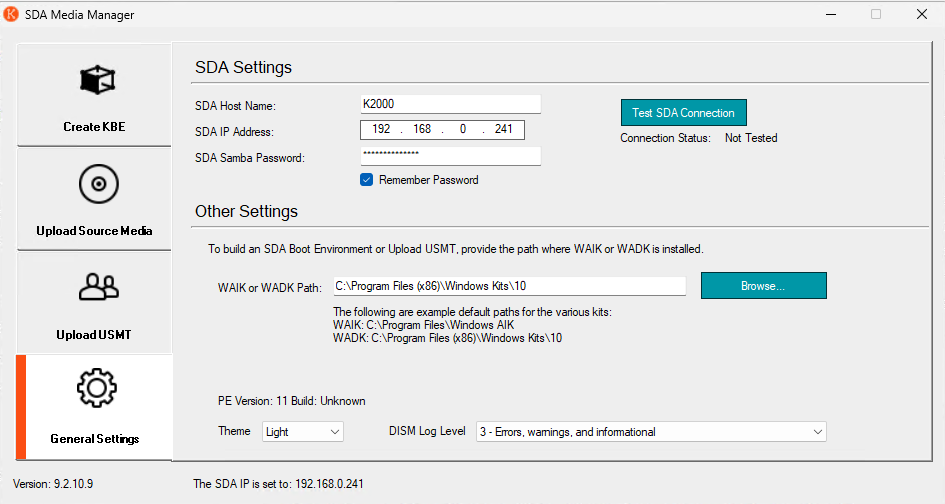
Create Manage WinPE – In the General Settings, configure the following:
- SDA IP Address
- SDA Samba Password
- Windows ADK Path
Driver Options
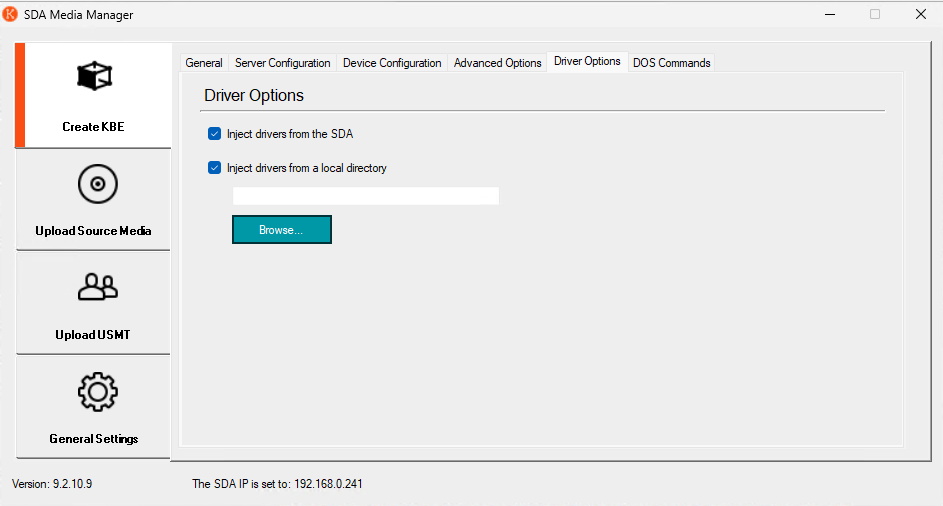
- In “Create KBE”, go to the “Driver Options” tab.
- Select the path where the WinPE drivers were downloaded.
Generate WinPE
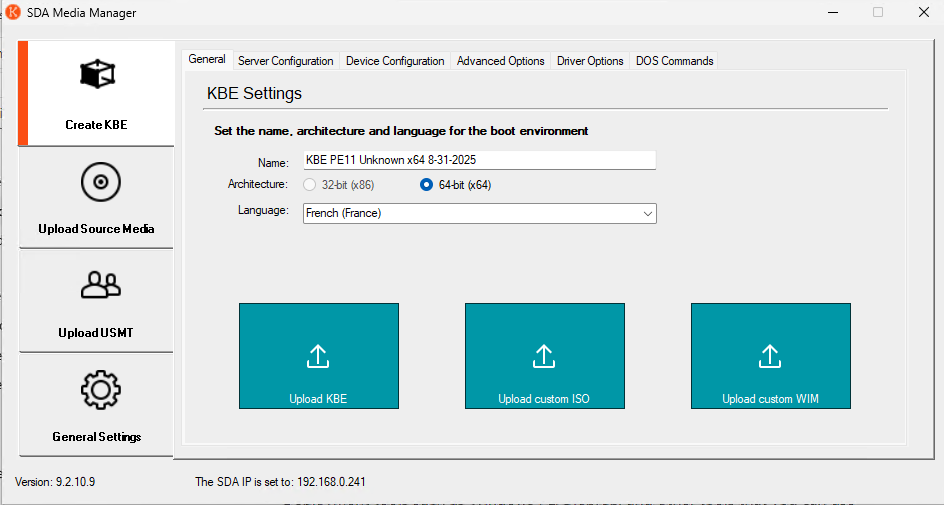
- In “Create KBE”, select “General”.
- Generate the KBE and upload it to the appliance.
Setting Default WinPE Environments
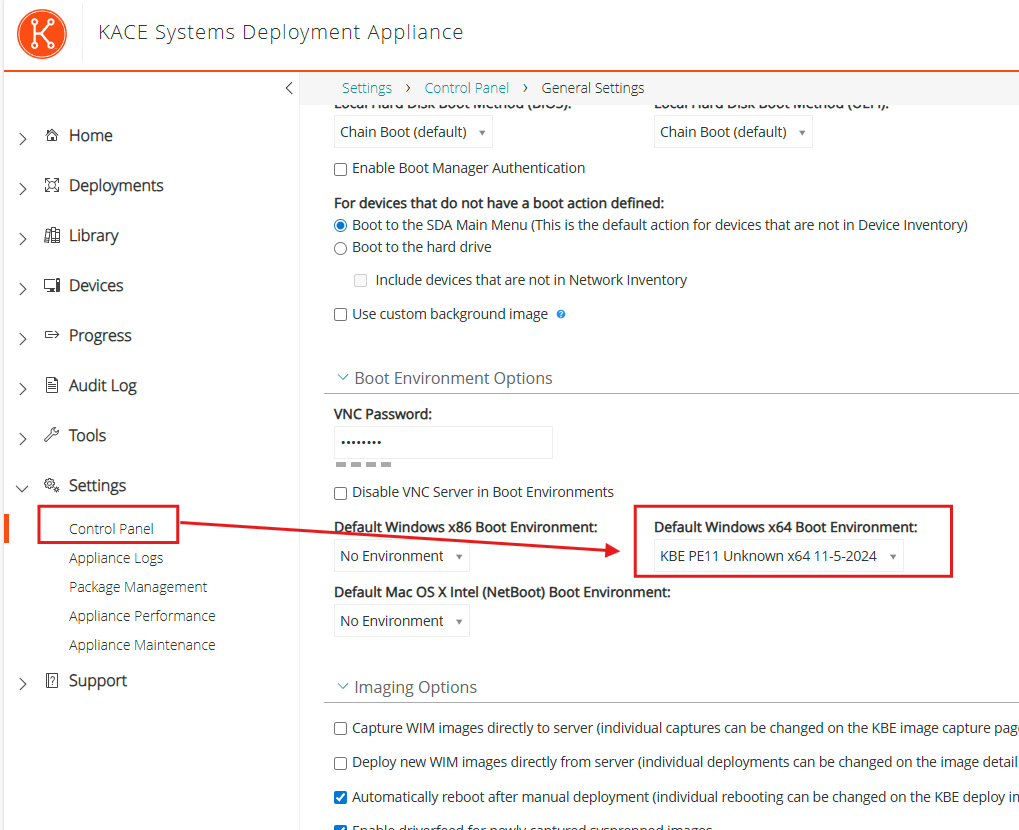
Create Manage WinPE – If no environment is available on your KACE Appliance, you must configure at least one default WinPE environment.
- Open the Control Panel from the Settings menu.
- Go to General Settings.
- Set the “Default SDA Boot Environment”.