
Manage Windows Release Upgrades with Quest SMA
Manage Windows 10 and Windows 11 release upgrades in Quest SMA with patch subscriptions, catalog downloads, schedules and workstation deployment targeting.
Useful external reference: Quest KACE resources.
This article provides detailed instructions on how to manage Windows release changes with the KACE Systems Management Appliance (SMA). Here is a summary of the key steps:
Useful external reference: Quest KACE resources.
Manage Windows Release Overview
Subscription
The first step is to define which Windows versions to download
Useful external reference: Quest KACE resources.
- Go to Security Windows Feature Updates Subscriptions
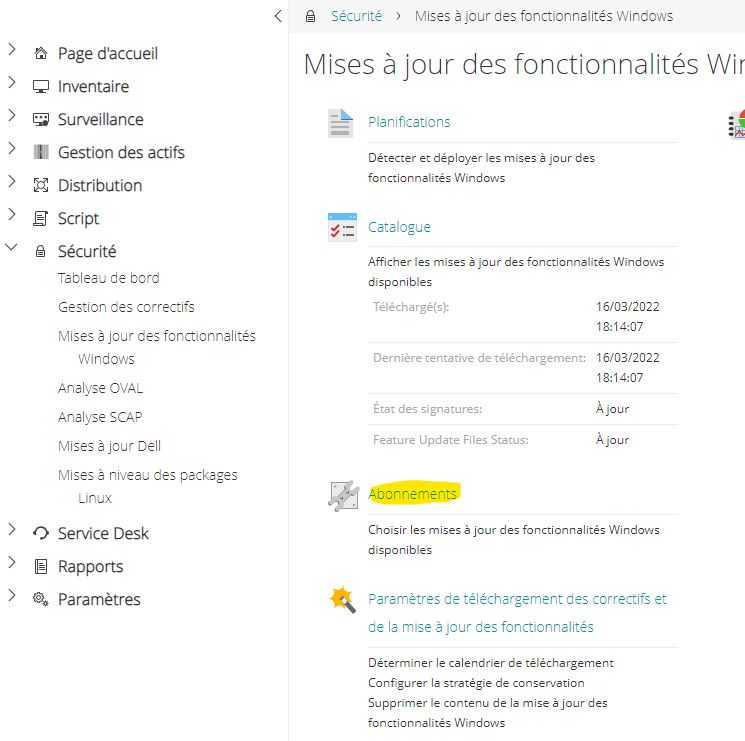
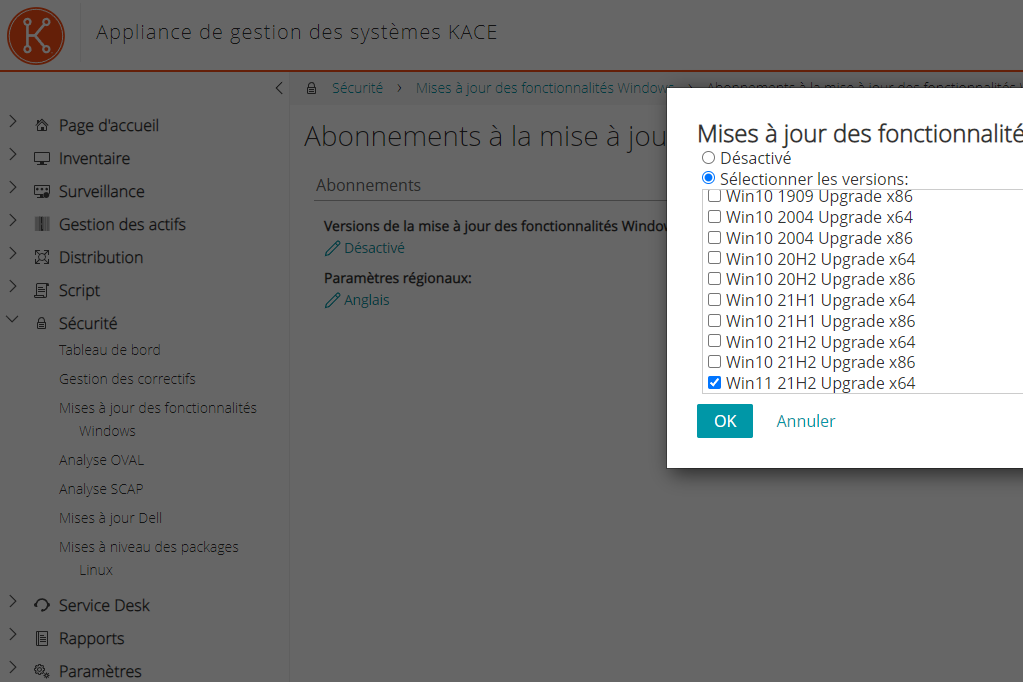
- Select the Windows 10 or Windows 11 versions to download
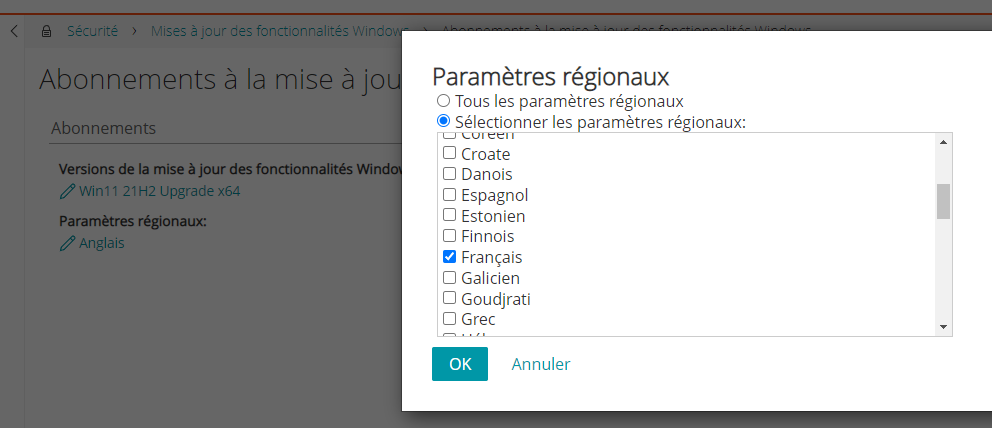
- Select the languages
Scheduling
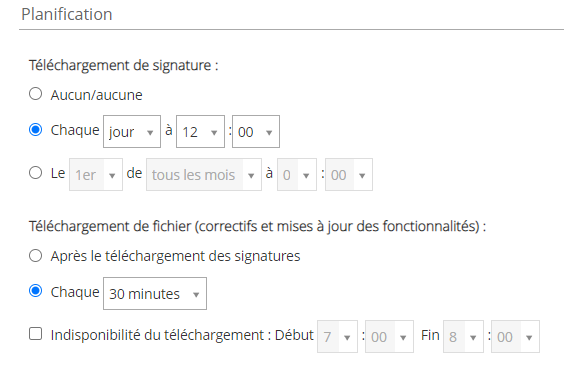
- In the patch download settings
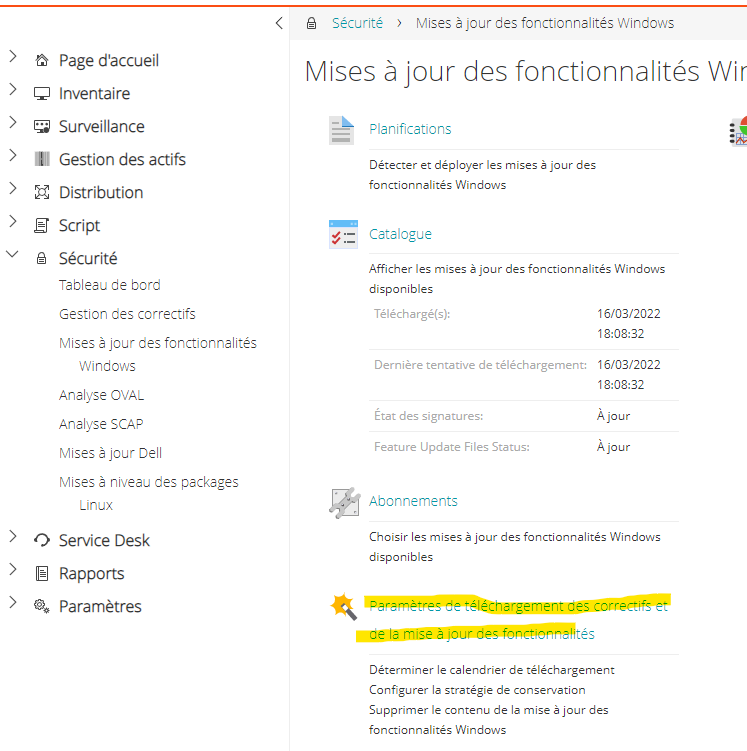
- Schedule the download of patches and features
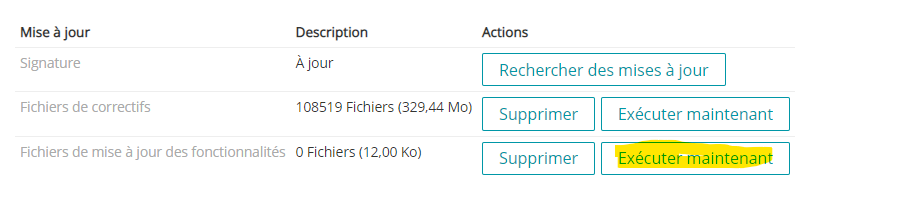
- You can force the download
Catalog
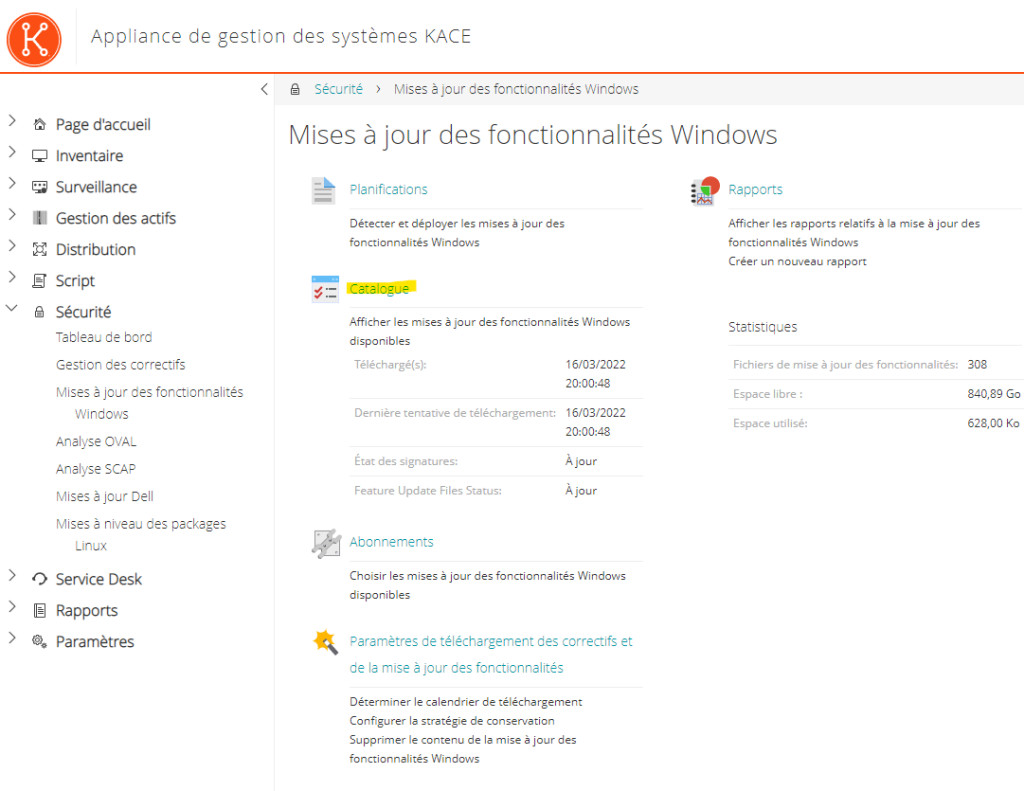
- Once the release download is complete, you can go to the Catalog
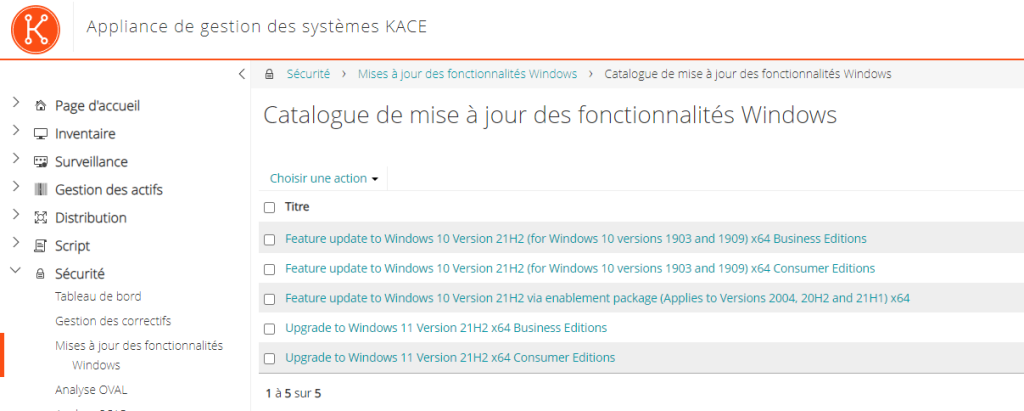
- The Windows 10 releases are available
Manage Windows Release Overview
Creating the Schedule
Next, create a schedule for the deployment of releases on the workstations
Useful external reference: Quest KACE resources.
- Go to Schedules
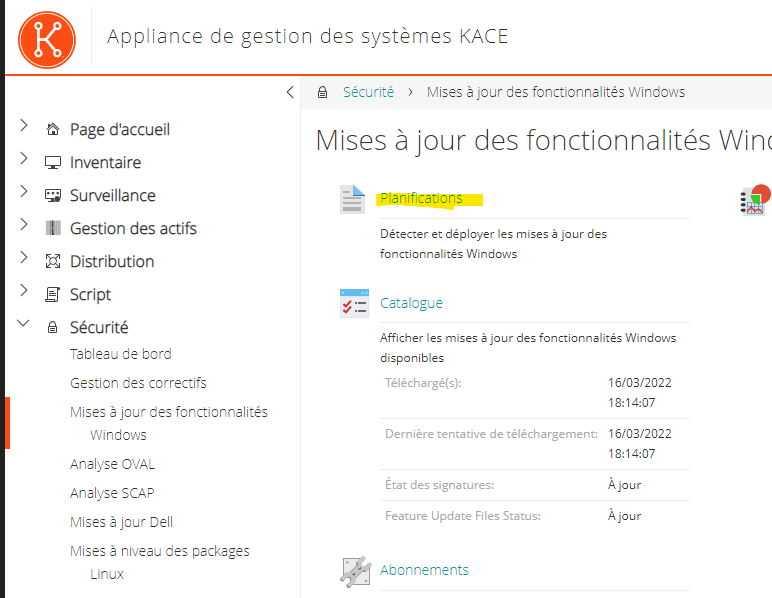
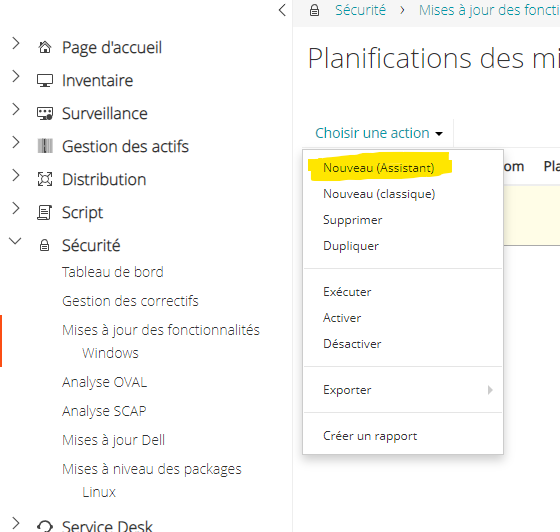
- Create a new schedule
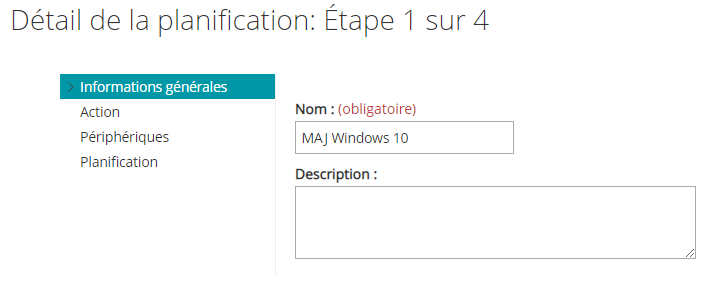
- Give it a name
- In the action area, select “Detect and Deploy”
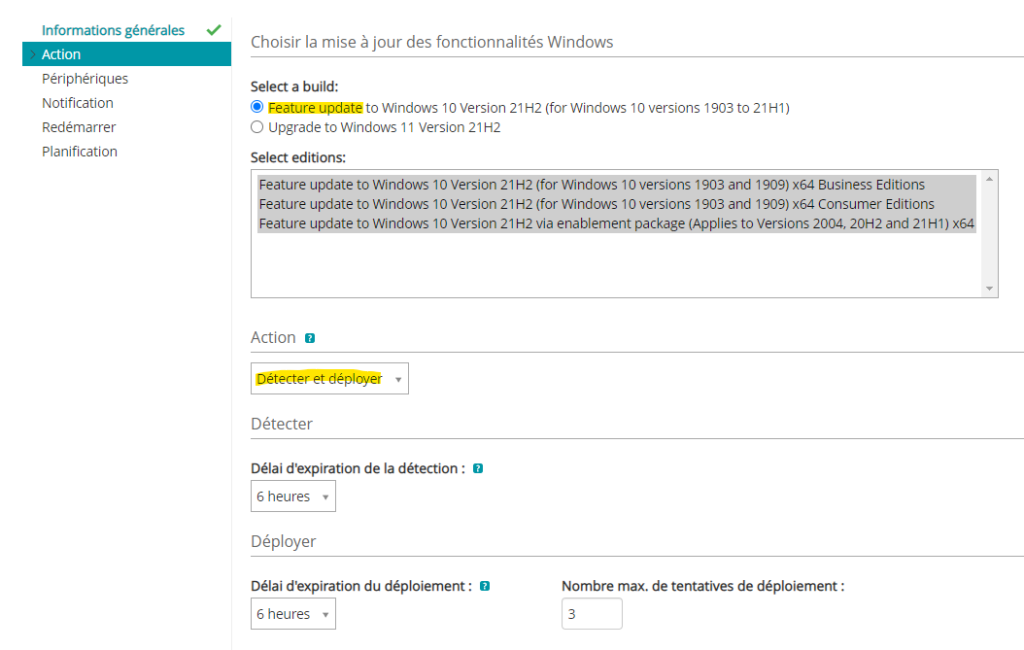
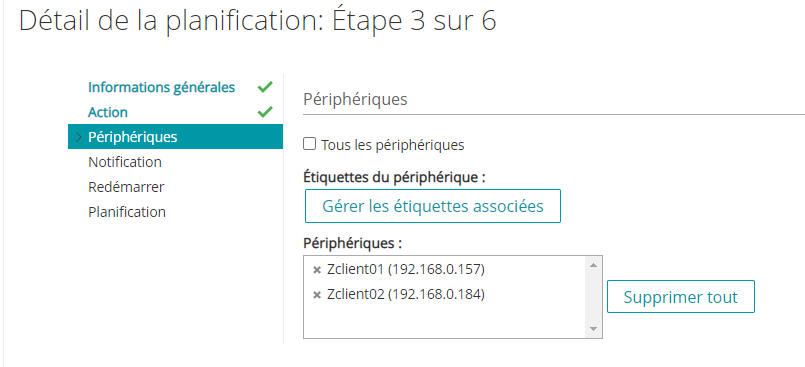
- Select the workstations for deployment
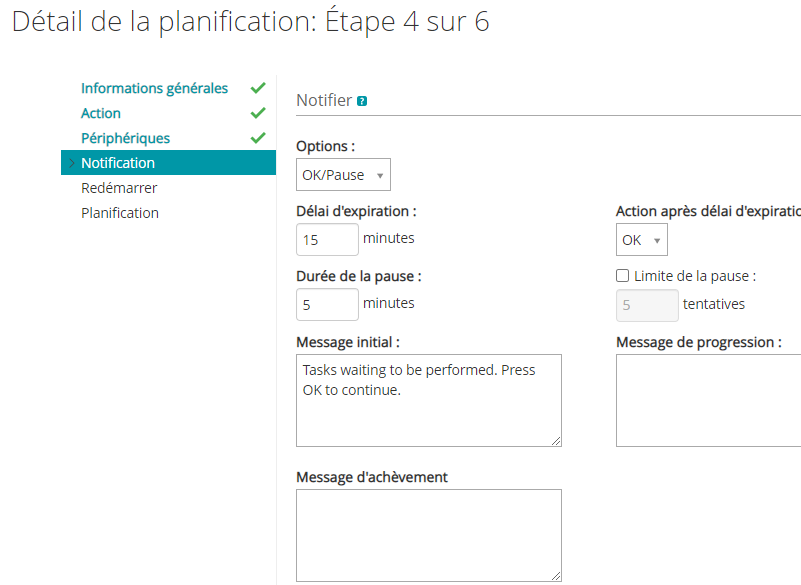
- Provide a notification if needed
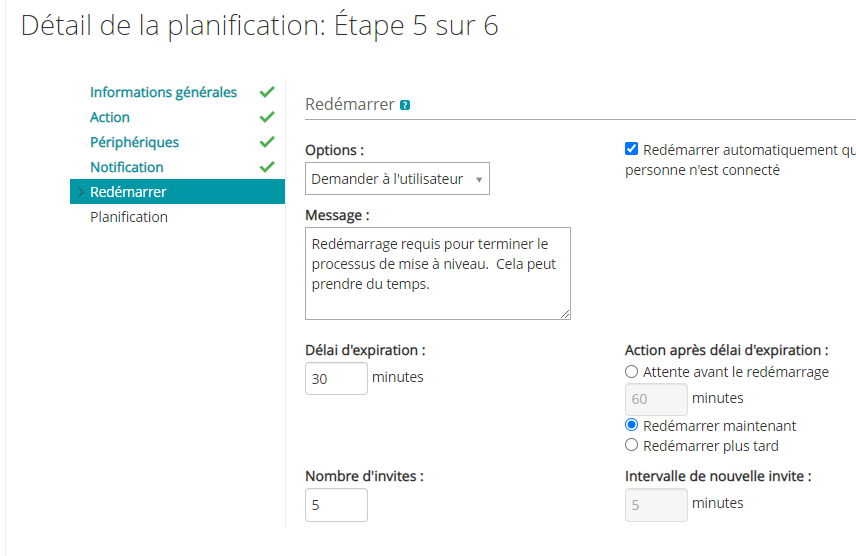
- Then specify the restart notification criteria
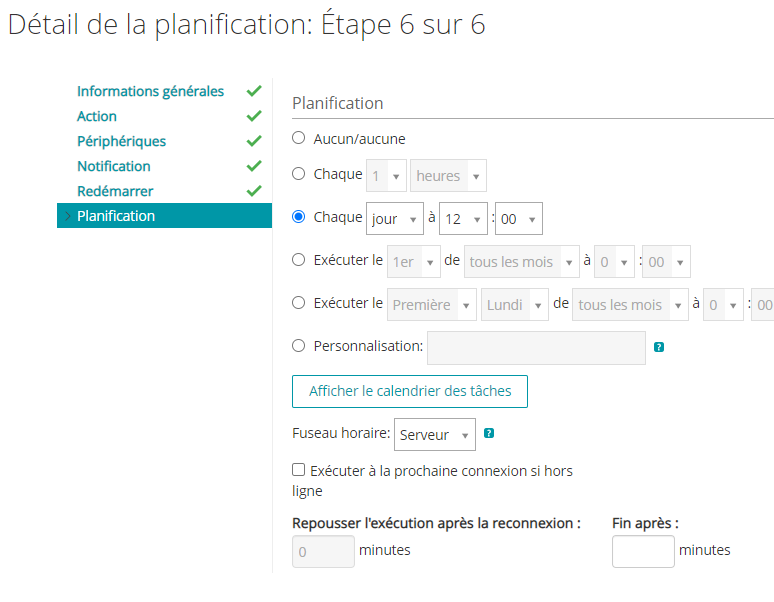
- Schedule the installation of the releases on the workstations
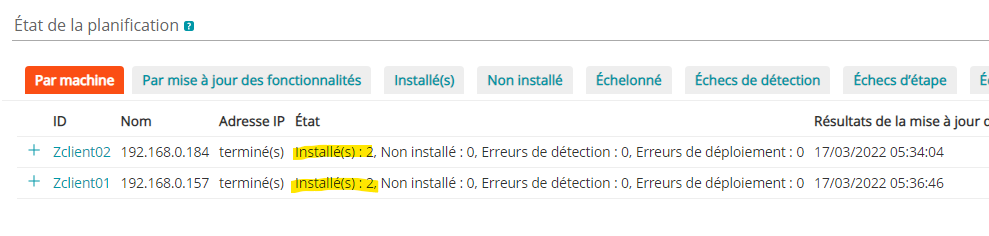
Schedule Status
At the bottom of the schedule task, you will find the result
Useful external reference: Quest KACE resources.
Useful external reference: Quest KACE resources.