
Configure the Quest SMA HelpDesk Module
Configure Quest SMA – Configure the Quest SMA HelpDesk module with ticket categories, support groups, SMTP and POP3 mail settings, user labels and ticket management options.
Useful external reference: Quest KACE resources.
Prerequisites
Configure Quest SMA – When setting up the KACE SMA HelpDesk module, several elements need to be configured to ensure optimal ticket management. Here is how to proceed:
Useful external reference: Quest KACE resources.
- An SMTP server (anonymous if you have Exchange)
- A POP3 server
- An email address for communication with users
Configure Quest SMA – Emails will be read using POP3. A specific email address for KACE is necessary; otherwise, KACE will create a mail item for every email in the mailbox and delete all emails.
Useful external reference: Quest KACE resources.
Mail Configuration
Configure Quest SMA – POP3 and SMTP will be used to send emails to users, who can then respond to these emails to update their tickets.
Useful external reference: Quest KACE resources.
Activating POP3
- Activate POP3 in the network settings (from the control panel), and then restart.
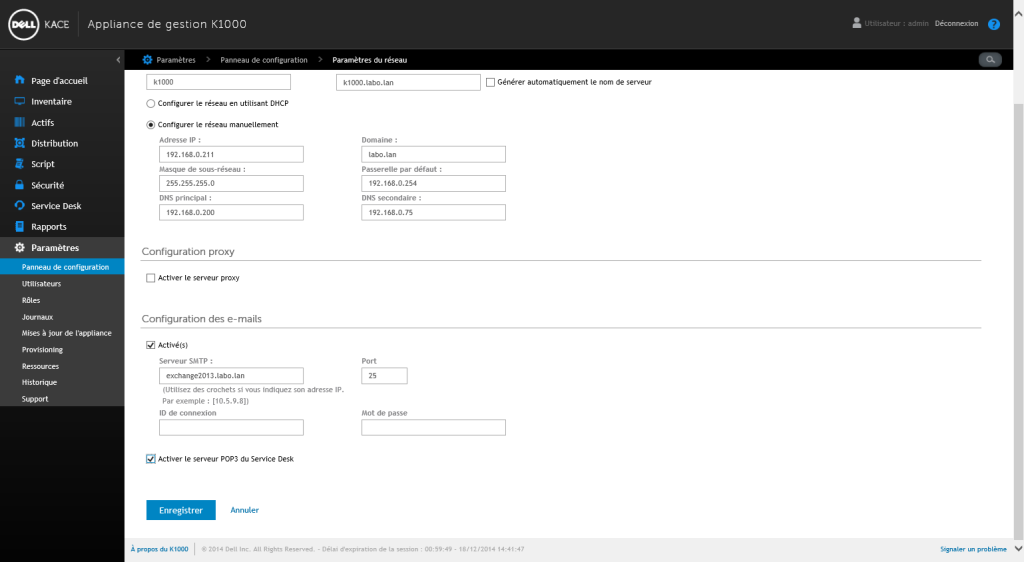
Configure Quest SMA – In most cases, there will be a single queue. Categories will be used to differentiate services (Developer, Proximity, Administrator, etc.).
POP3 and SMTP Configuration
- In “Service Desk” select “Configuration”.
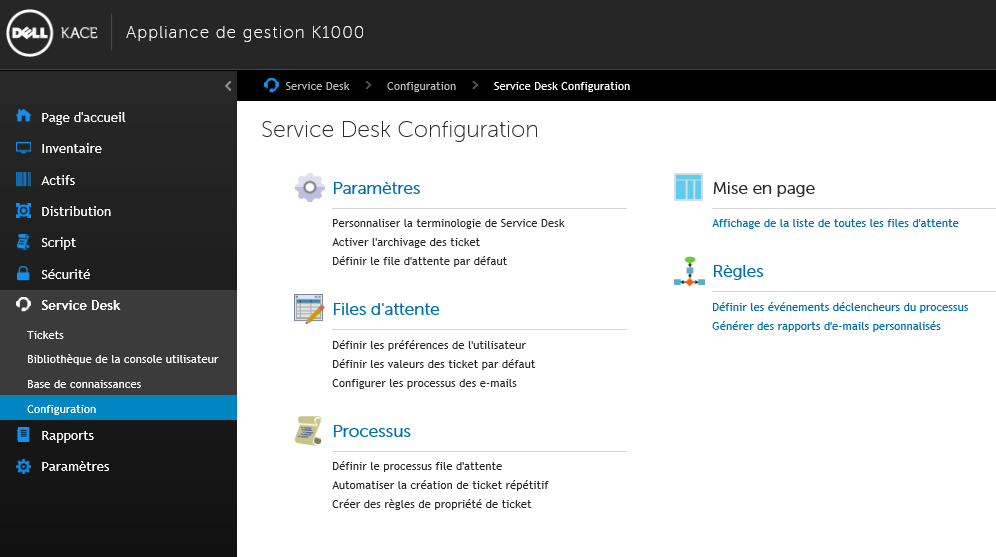
- Configure the queue with the information for POP3 and SMTP.
Configure Quest SMA – From now on, your users can:
Useful external reference: Quest KACE resources.
- Create a ticket by logging onto the KACE portal (http://K1000).
- Send an email to Support (or whichever email address you have selected).
- And call support.
Categories
Overview
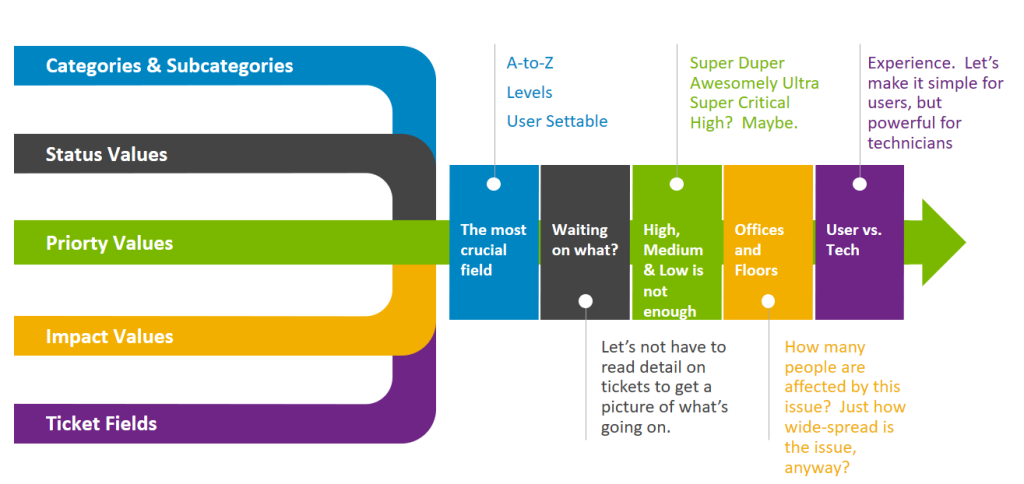
Configure Quest SMA – Categories will allow for the classification of tickets, and can be configured so that based on the category, the ticket is automatically assigned to the correct support group.
Useful external reference: Quest KACE resources.
Creating Categories
- Here is an example of category creation that we will configure in this tutorial:
- Account – Creation => Admin Support
- Account – Password Issue => Level 1
- Application – Business => Business Support
- Application – Office Software => Level 1
- Printer – Toner => Proximity
- Printer – Replacement => Proximity
- We will then create the categories.
- In the queue configuration, select “Customize these values”.
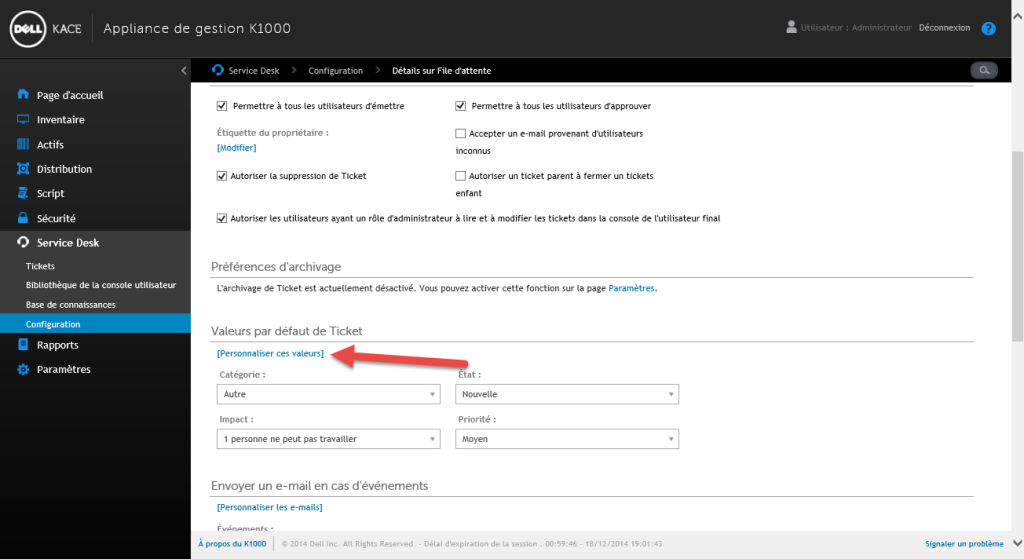
- To create subcategories use (colon colon):
- Continuing with the example:
- Account::Creation
- Account::Password Issue
- Application::Business
- Application::Office Software
- Printer::Toner
- Printer::Replacement
Configure Quest SMA – Tip: For subcategories, create a first category called “Select…” to prompt users to make a choice.
Support Groups
Definition
- Owner => The person who resolves the incident
- Issuer => The person who has the problem
Configure Quest SMA – The goal is to automatically assign tickets to support personnel based on their categories.
Useful external reference: Quest KACE resources.
Creating Groups
Configure Quest SMA – I will continue with my example, for which I will need the following groups (with the members of my support team):
Useful external reference: Quest KACE resources.
- Admin Support
- Luke Sky
- David Miel
- Level 1
- Arnold Swa
- Luc Legrand
- Business Support
- Marcel Lepetit
- R2D2
- Proximity
- Damien Rome
- Herve Paff
Configure Quest SMA – Creating Groups
Useful external reference: Quest KACE resources.
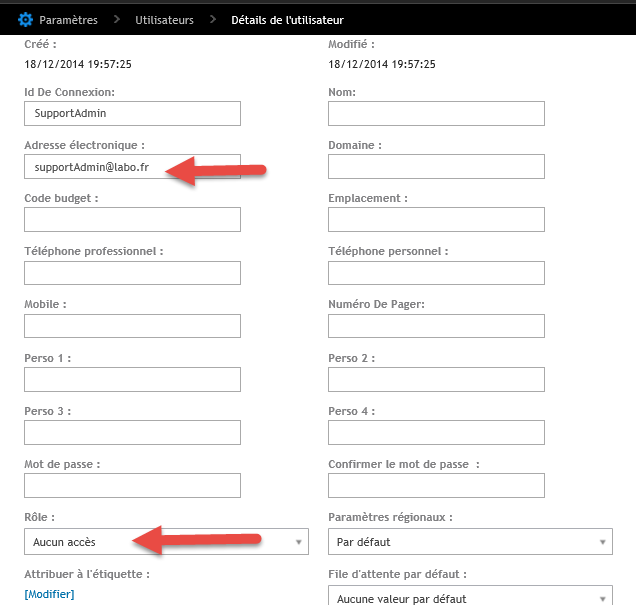
Configure Quest SMA – We will create a user in KACE for each group with “No Access”.
Useful external reference: Quest KACE resources.
- Admin Support
- Level 1
- Business Support
- Proximity
Configure Quest SMA – Each group (user without access in KACE) will correspond to an email ALIAS (to be configured on your mail server).
Useful external reference: Quest KACE resources.
Labels
Creating Labels
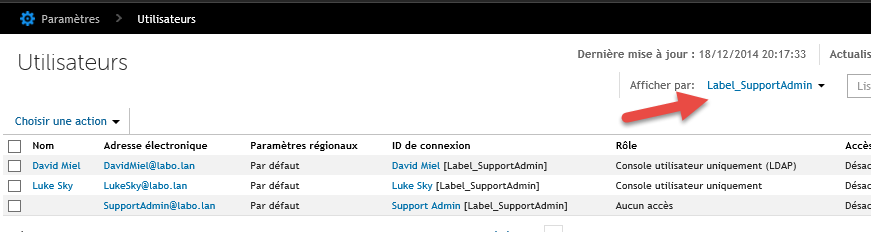
Configure Quest SMA – We will create a label for each group. The group and its members will be applied to this label.
Useful external reference: Quest KACE resources.
Configure Quest SMA – Example:
Useful external reference: Quest KACE resources.
Configure Quest SMA – Label_SupportAdmin
Useful external reference: Quest KACE resources.
- Admin Support
- Luke Sky
- David Miel
Configure Quest SMA – Label_Level1
Useful external reference: Quest KACE resources.
- Level 1
- Arnold Swa
- Luc Legrand
Configure Quest SMA – Label_BusinessSupport
Useful external reference: Quest KACE resources.
- Business Support
- Marcel Lepetit
- R2D2
Configure Quest SMA – Label_Proximity
Useful external reference: Quest KACE resources.
- Proximity
- Damien Rome
- Herve Paff
Configure Quest SMA – Creating the Global Label
Useful external reference: Quest KACE resources.
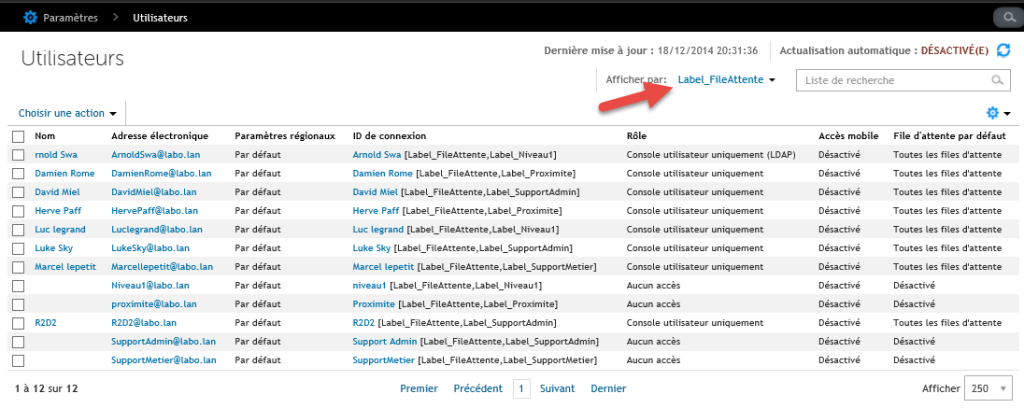
Configure Quest SMA – We will then create a label for all support personnel for our queue.
Useful external reference: Quest KACE resources.
Configure Quest SMA – Label_Queue
Useful external reference: Quest KACE resources.
- Admin Support
- Luke Sky
- David Miel
- Level 1
- Arnold Swa
- Luc Legrand
- Business Support
- Marcel Lepetit
- R2D2
- Proximity
- Damien Rome
- Herve Paff
Configure Quest SMA – Dynamic labels can be made based on groups in the AD.
Useful external reference: Quest KACE resources.
Global Labels
Configure Quest SMA – This label encompasses all IT service personnel and groups.
Useful external reference: Quest KACE resources.
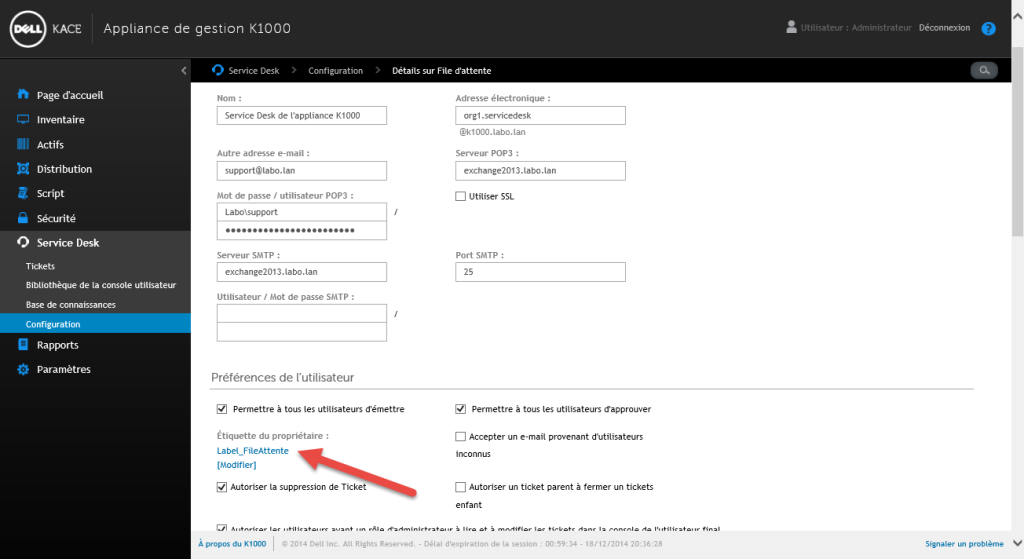
- In “Owner’s Label” from the queue configuration, select the global label (Label_Queue).
- This limits the people who can resolve incidents.
Owners
- Go back to categories and associate the category with the support level.
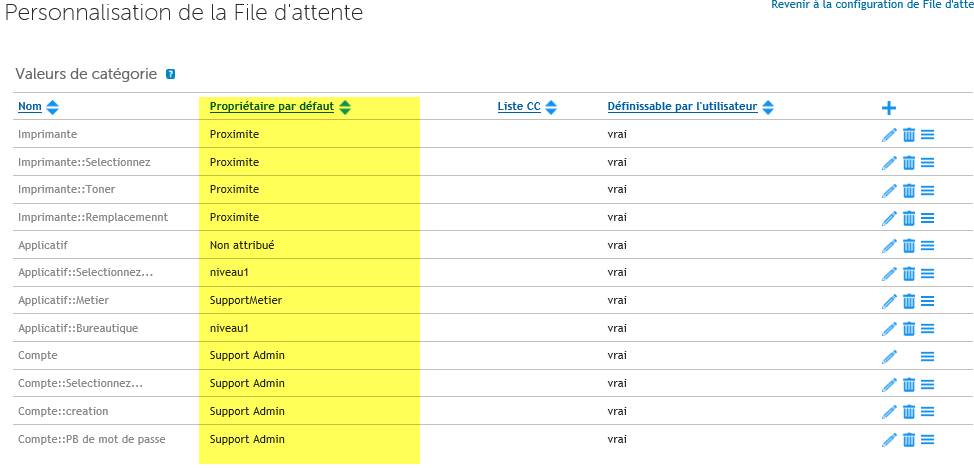
The Result
- When creating a ticket, I can select a category for my ticket which will have the effect of assigning it to the right group.
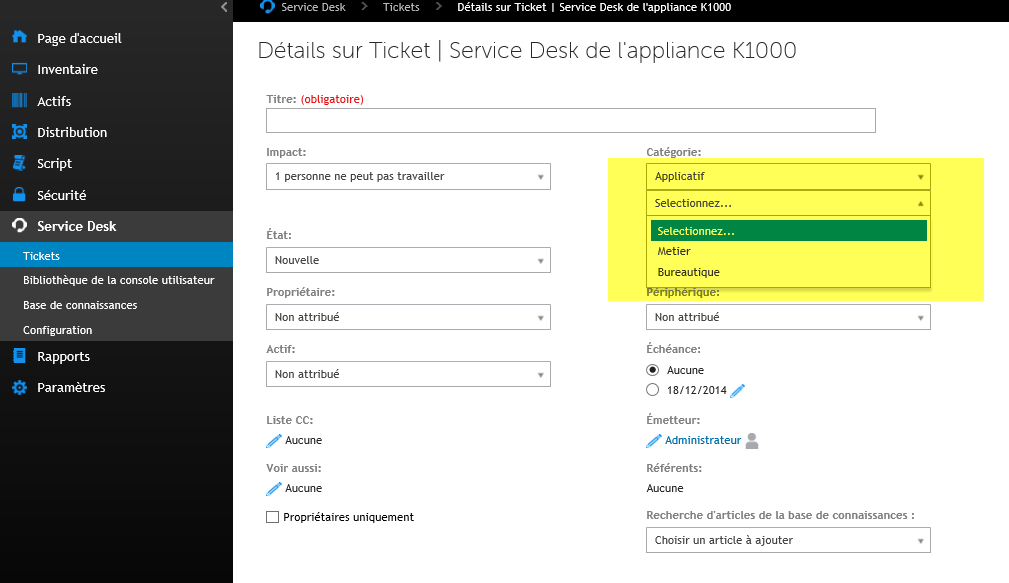
- And support can filter incidents by their group.