Configure Remote Control in Quest SMA
Configure Remote Control – Configure remote control in Quest SMA with UltraVNC, Windows Remote Assistance, managed installations, action buttons, security settings and GPO configuration.
Useful external reference: Quest KACE resources.
Configure Remote Control – Configure Remote Access
Useful external reference: Quest KACE resources.
- With UltraVNC
- With Remote Assistance
- Configuring Internet Explorer for VNC
With UltraVNC
UltraVNC Installation
Configure Remote Control – Example of creating an UltraVNC package: silent-install-ultravnc
Useful external reference: Quest KACE resources.
- Install UltraVNC on a computer then force an inventory update on the computer
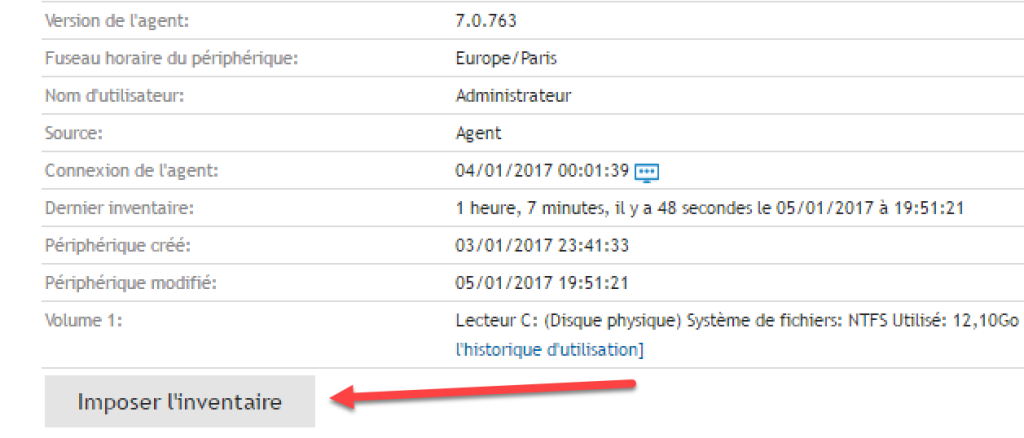
- In the inventory of the computer, search for UltraVNC in installed programs, then associate the zip containing the package sources
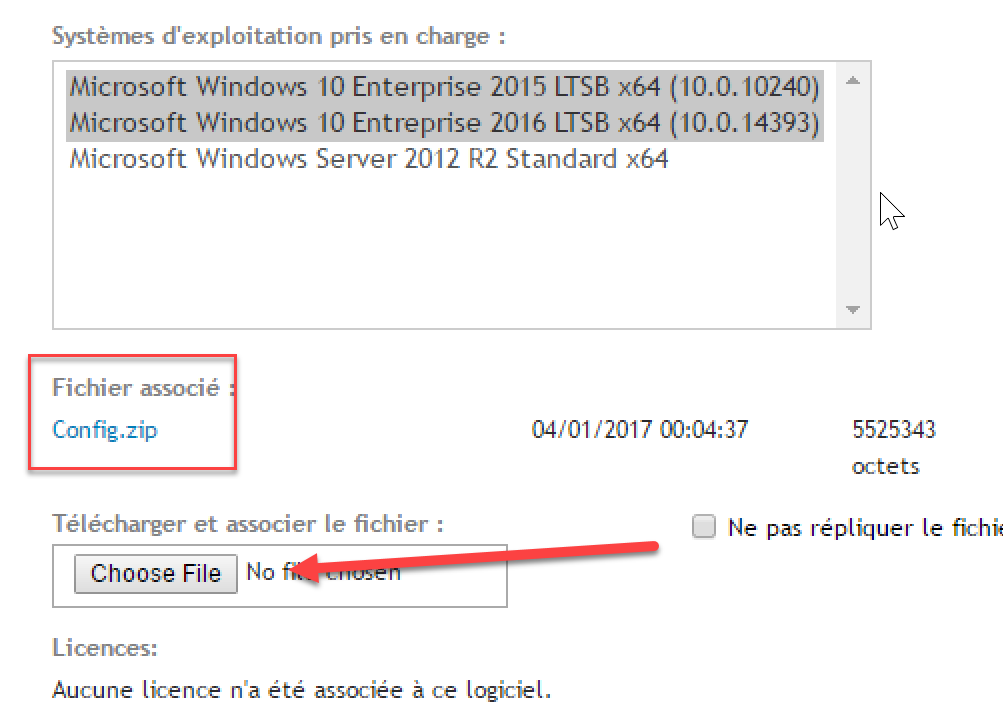
- Create a new managed installation
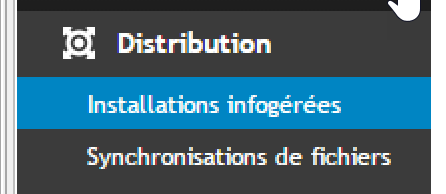
- Deploy UltraVNC to computers
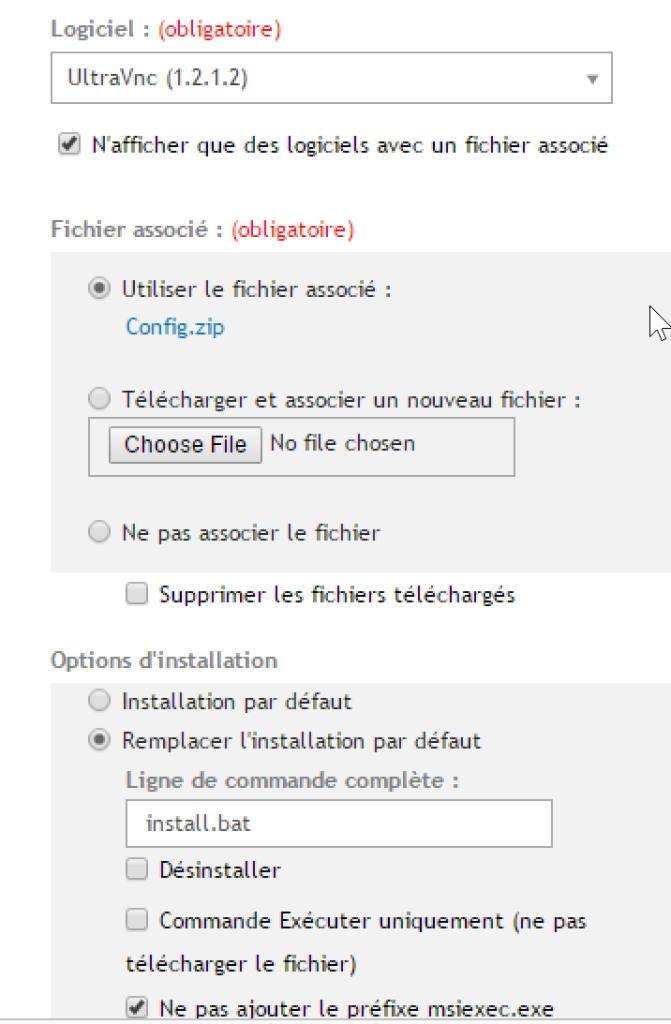
Configure Action Buttons
- In general settings
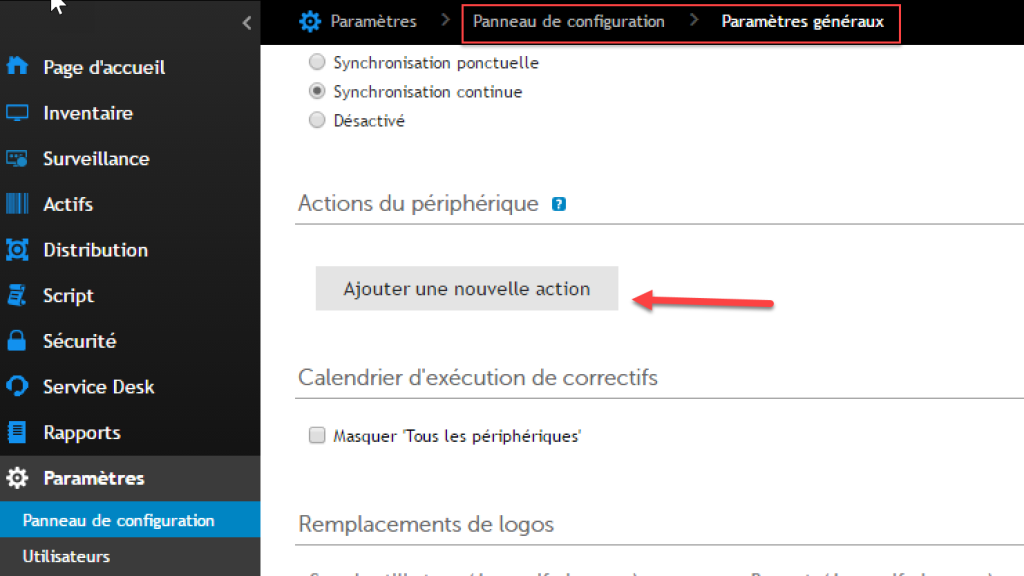
- Add a new action
"C:Program Filesuvnc bvbaultravncvncviewer.exe" KACE_HOST_NAME

Configure Remote Control – Note: ensure that UltraVNC is installed on your computer with the viewer (C:Program Filesuvnc bvbaultravncvncviewer.exe)
Configuring Internet Explorer for VNC
Configure Remote Control – In Internet Options, select the Security tab.
Useful external reference: Quest KACE resources.
- Click on “Trusted Sites” then on the “Sites” button
- Uncheck “Require server verification (https:)”
- Enter the address of your K1000 server and click “Add”
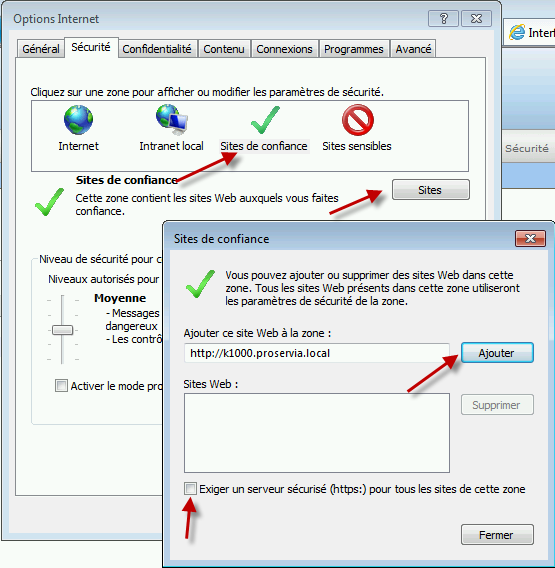
- Set the security level to “Medium”
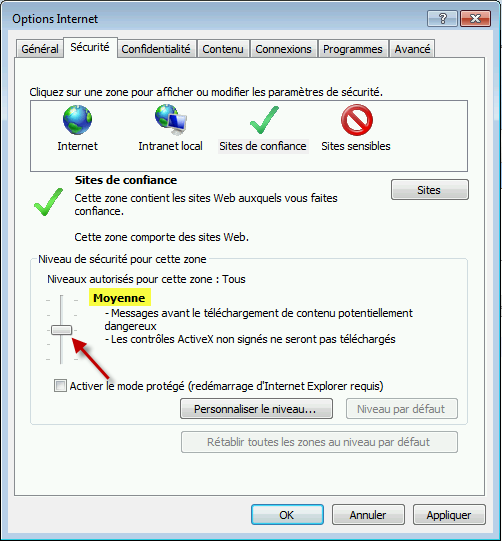
- Click on “Custom level”
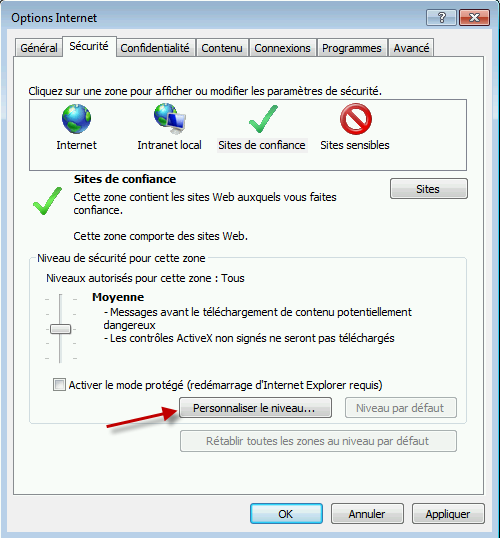
- Configure Internet Explorer as indicated in the screenshots
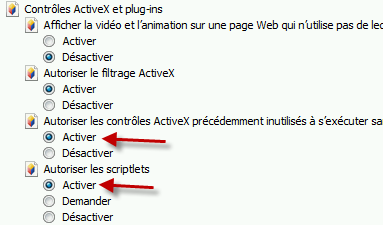
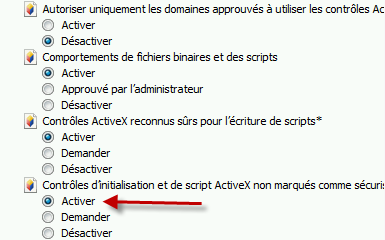
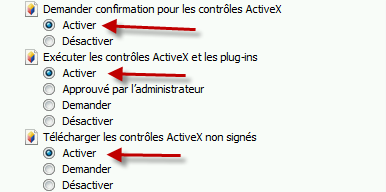

With Remote Assistance
Configure Remote Control – Windows Remote Assistance is usually used with an email invitation to take control of a computer. This email is not mandatory! Here’s how to configure it for QUEST SMA
Useful external reference: Quest KACE resources.
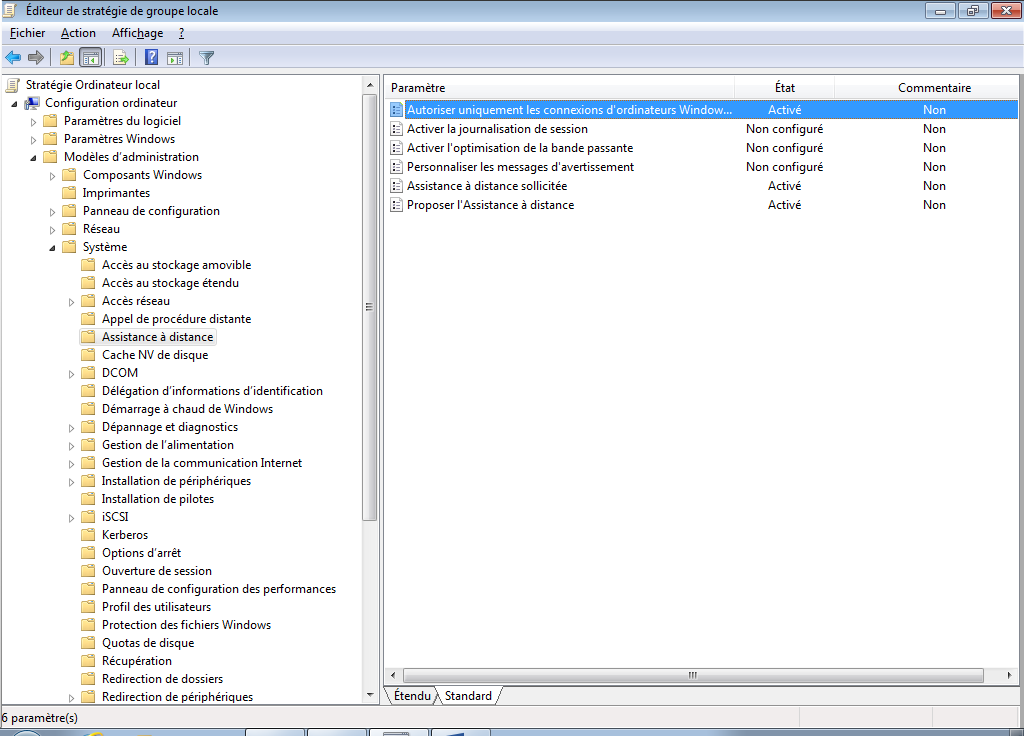
Creation of GPO
Configure Remote Control – To enable remote assistance:
Useful external reference: Quest KACE resources.
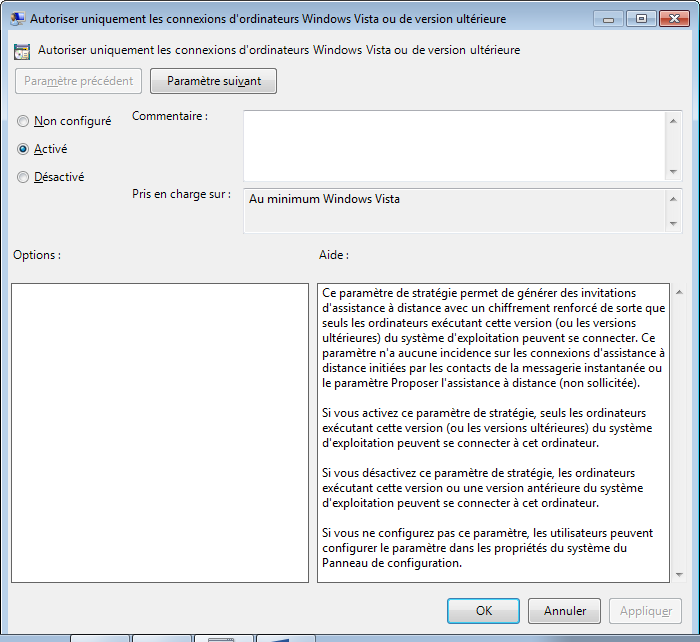
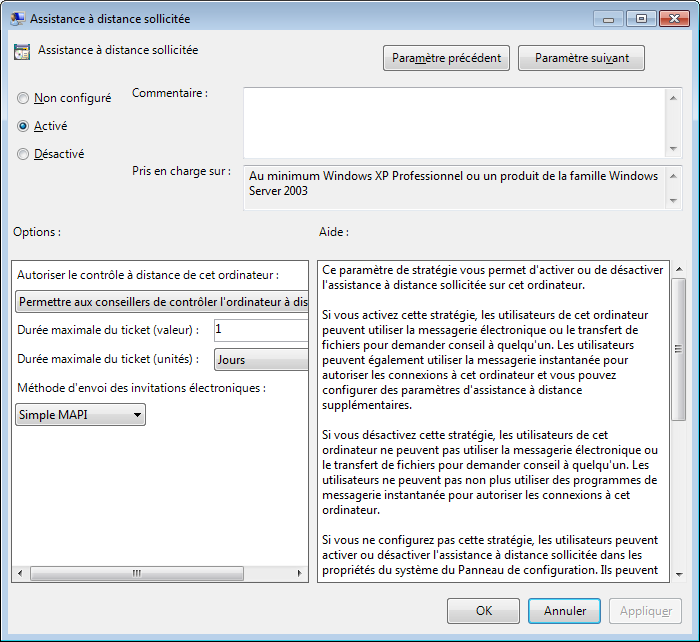
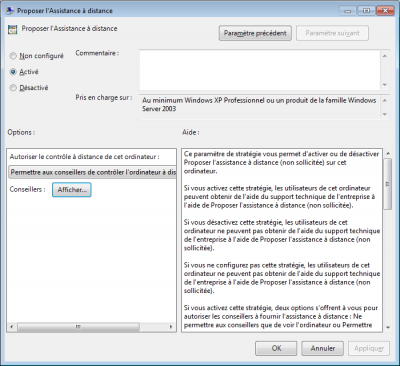
- Activate the following options
- Allow connections from Vista or later (secure connection)
- Allow solicited Remote Assistance (without sending an email)
- Enable Remote Assistance
Configure Remote Control – Specify the group that can take control of the computer
Useful external reference: Quest KACE resources.
Command to Use
- In general settings
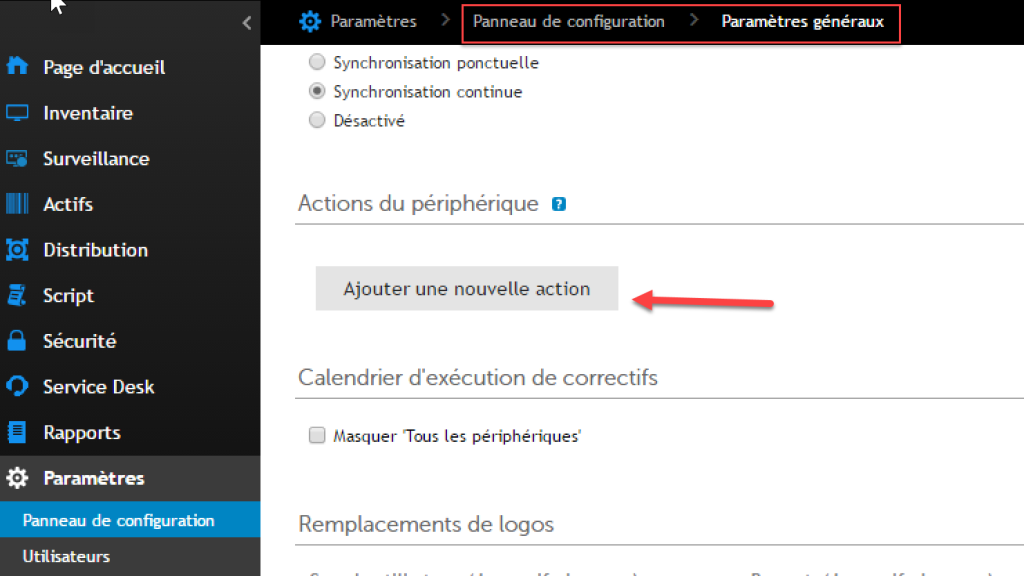
- Add a new action
Configure Remote Control – c:windowssystem32msra.exe /offerRA KACE_HOST_IP
Useful external reference: Quest KACE resources.
Result
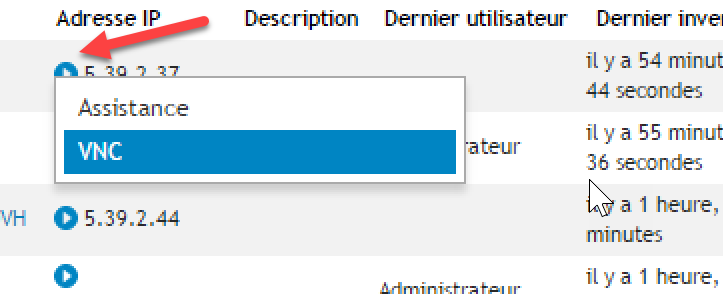
- For remote access on a computer, click the arrow in front of the computer
- Here is the remote assistance request made on an XP machine (showing that it also works on XP)
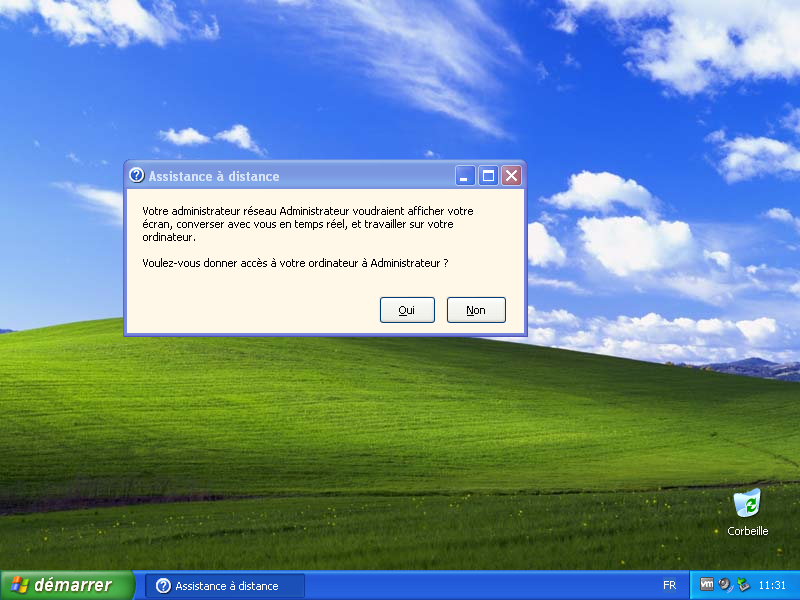
Configure Remote Control – Caution: with Remote Assistance, an initial request must be made to see the user’s screen, and a second request to take control of the computer.
Useful external reference: Quest KACE resources.
Configure Remote Control – Note: Configure Internet Explorer in the same way as for VNC
Useful external reference: Quest KACE resources.
Configure Remote Control –
Useful external reference: Quest KACE resources.