
Use Scripts in Quest SMA for Automation
Scripts Quest SMA – Use scripts in Quest SMA for IT automation, including local scripts, network path execution, dependencies, KACE variables and custom inventory actions.
Overview
Scripts Quest SMA – There are three methods available for using scripts in SMA:
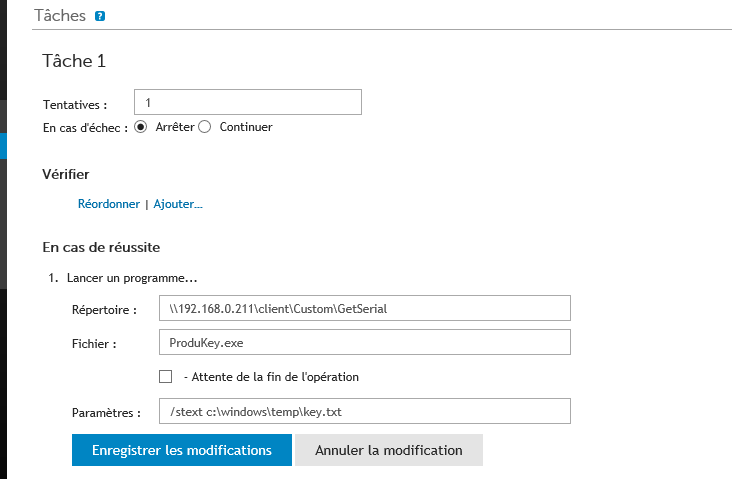
- Run a script or an executable located on a network path
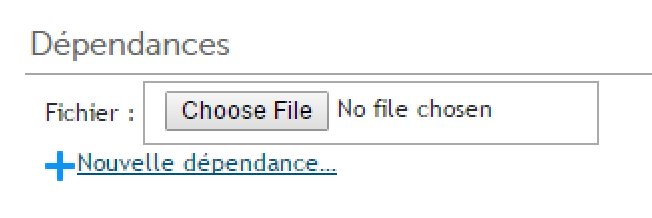
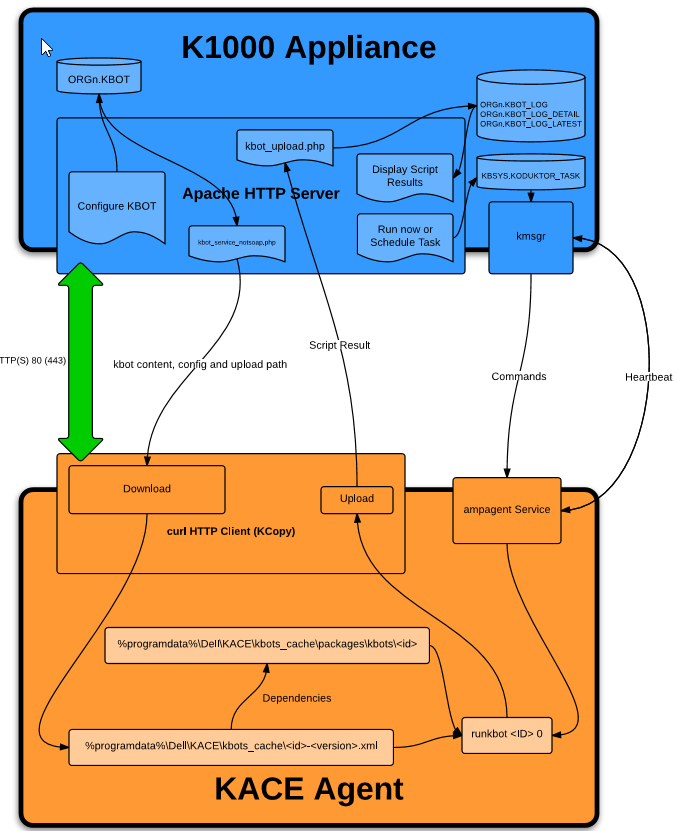
- Copy the script locally to the workstation
Scripts Quest SMA – In this case, you must add the files to “Dependencies.”
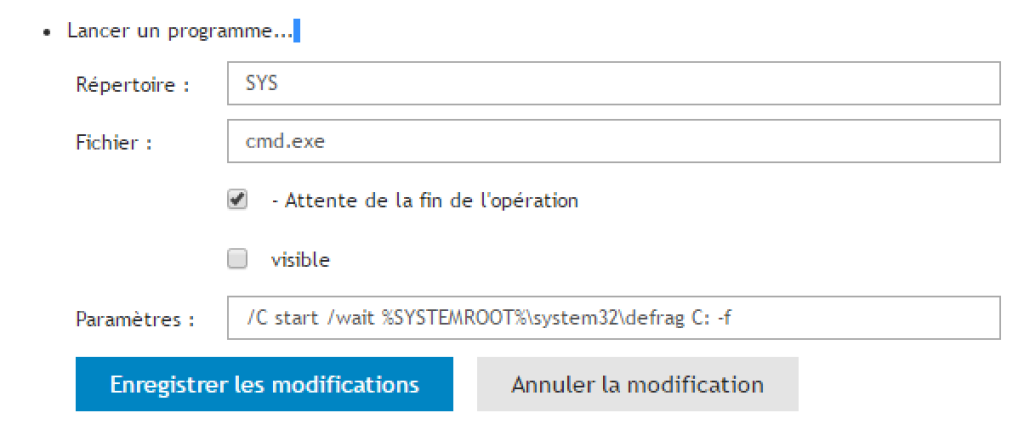
- Run an executable that is already on the workstation
Example 1: Retrieve User Profile Sizes
Scripts Quest SMA – In the examples, the goal is to run a script to display the result in the inventory of each workstation.
Tool
Scripts Quest SMA – VBS Script: https://github.com/dwbdav/LeBlogOSD/tree/main/kace/sma/get-size-profile
Note: the original example uses Sysinternals du.exe. The GitHub folder keeps the script and documentation only; download du.exe from Microsoft Sysinternals before adding it as a Quest SMA dependency.
Script
- Add the script to dependencies
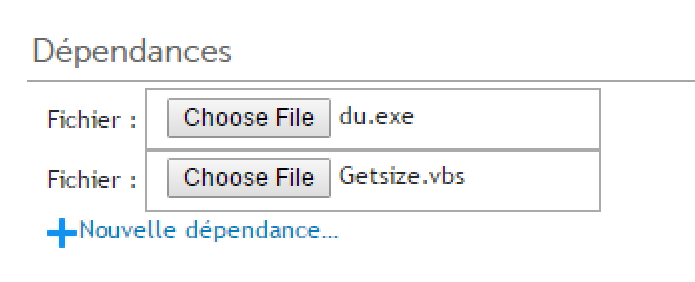
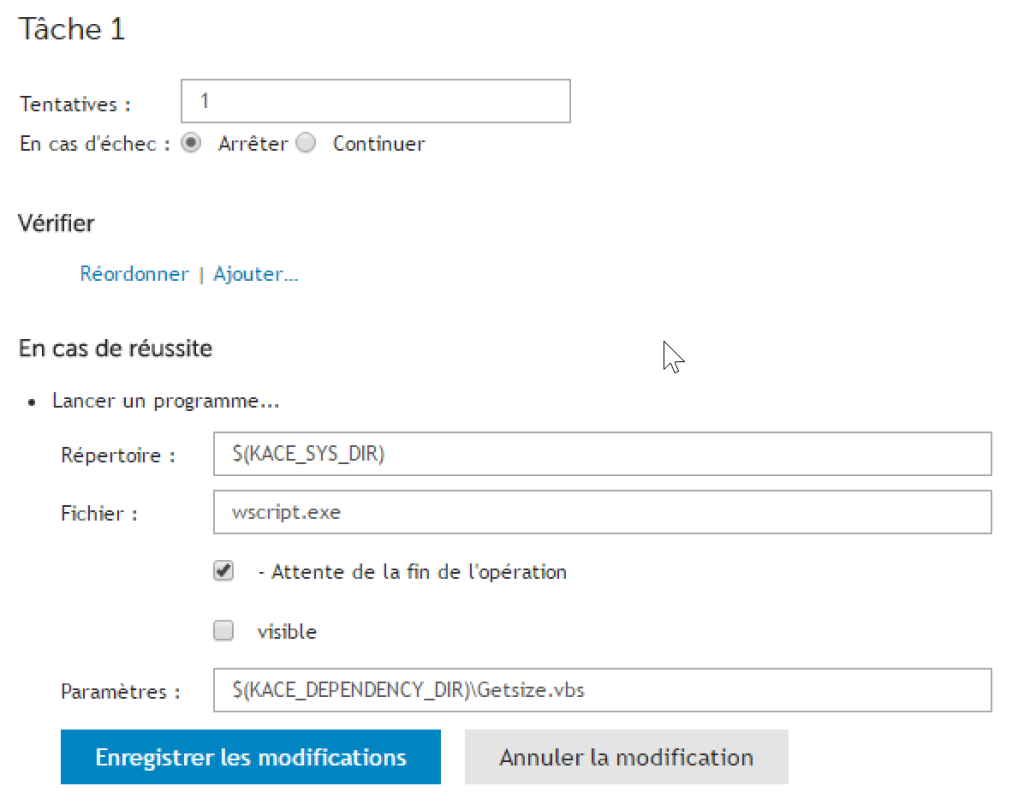
Scripts Quest SMA – Next, launch the VBS using KACE variables.
- Directory: $(KACE_SYS_DIR) => Corresponds to c:windowssystem32
- File: wscript.exe => I prefer wscript because it does not display a black (DOS) window on workstations, remember to remove all “wscript.echo”
- Parameter: “$(KACE_DEPENDENCY_DIR)Getsize.vbs” => Replace Getsize.vbs with your script. $(KACE_DEPENDENCY_DIR) refers to the folder where the script will be copied to the workstation
Custom Inventory
Scripts Quest SMA – The script will create the file c:WindowstempTailleProfils.log
- Create a new software
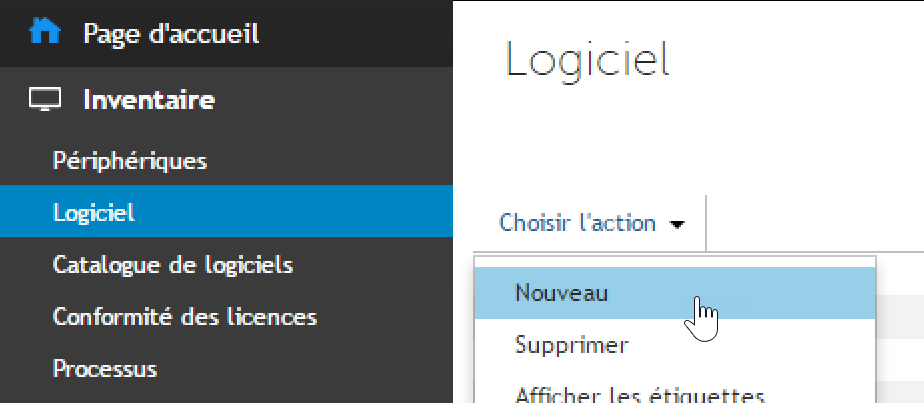
- Then enter the name (not very important) and the custom inventory rule
ShellCommandTextReturn(c:windowssystem32cmd.exe /c type c:WindowstempTailleProfils.log)
Scripts Quest SMA – Another example
ShellCommandTextReturn(cmd /c findstr "Monitor Name";"Serial Number " C:ProgramDataDellKacemon.mon)

Result
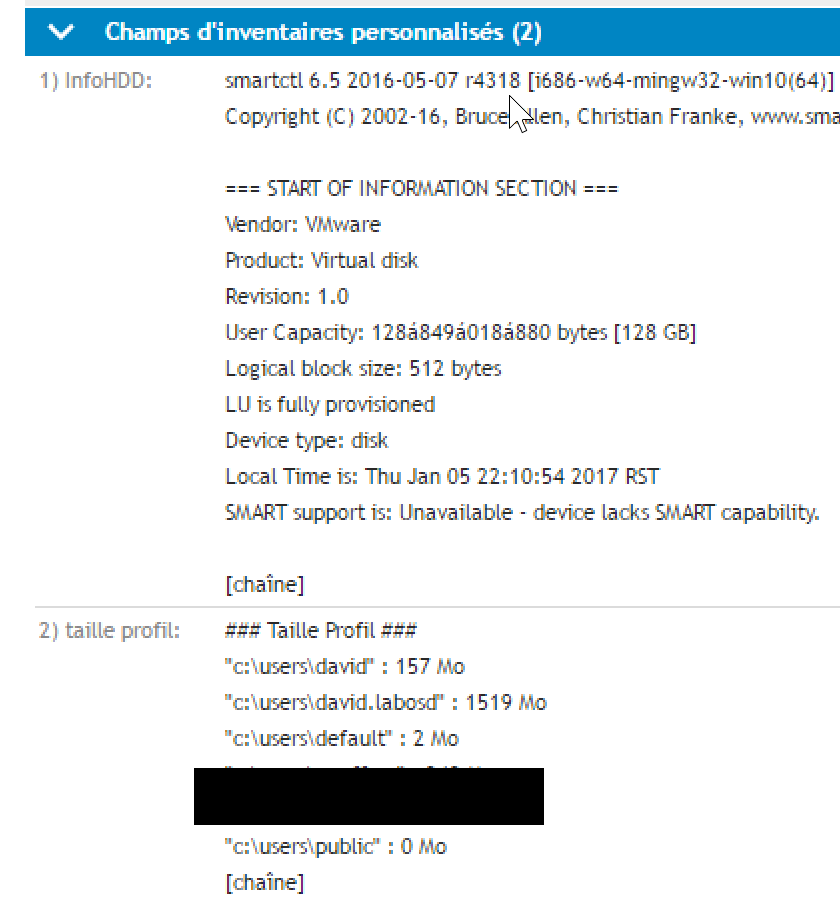
Scripts Quest SMA – Once the script has been run on the workstation and the inventory update has been carried out, the information will be available in the workstation inventory.
Example 2: Retrieve HDD Information
Tool
Scripts Quest SMA – A colleague gave me a small script to display disk information in KACE’s custom inventory.
Scripts Quest SMA – https://github.com/dwbdav/LeBlogOSD/tree/main/kace/sma/hdd-info-analyser
Note: the GitHub folder includes both ScanHDD.bat and smartmontools smartctl.exe, so the files can be added together as Quest SMA dependencies.
Script
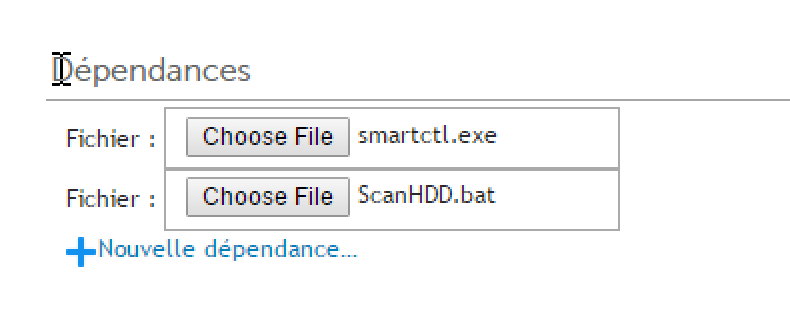
- Create a new script (do not forget to activate it) and then add the two files as dependencies
- Then configure the script launch
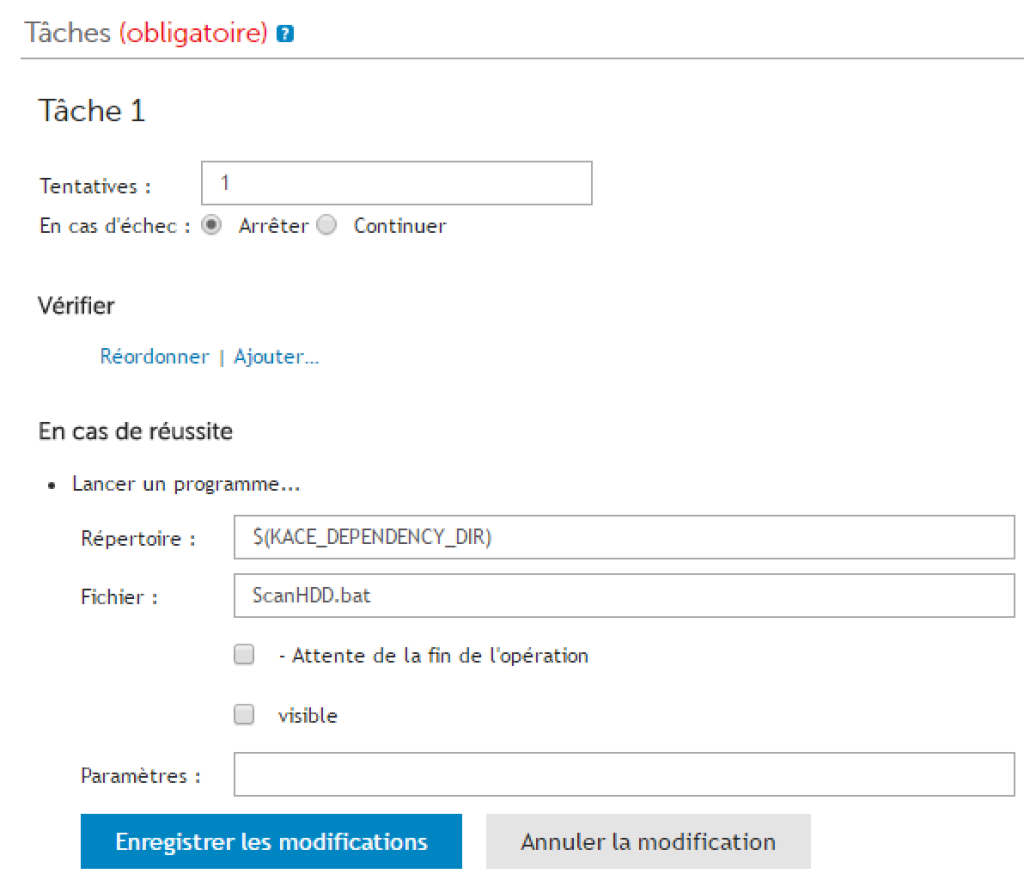
- Schedule or execute the KACE script, the file C:WindowsHDD-Info-Analyser.txt should be present on workstations
Custom Inventory
- Create a new software
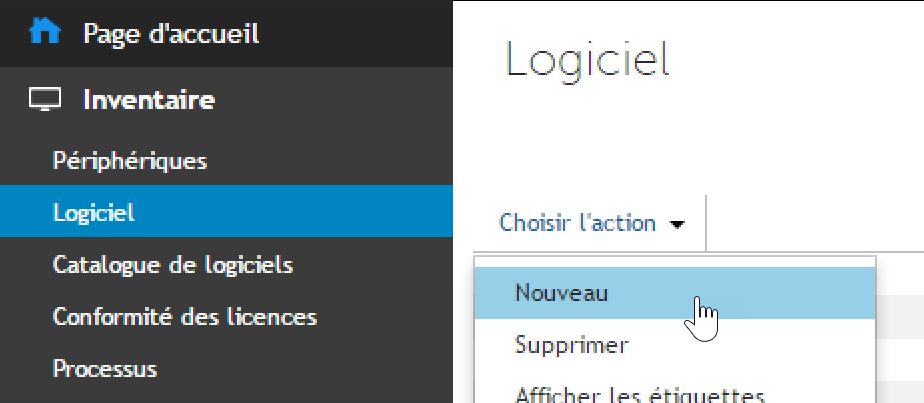
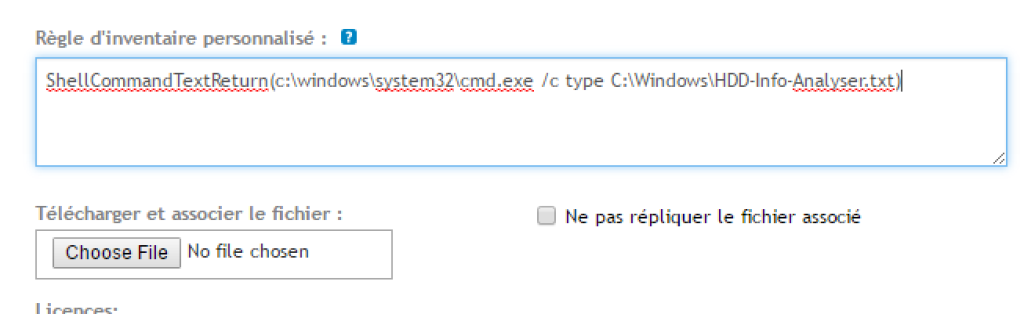
- Then enter the name (not very important) and the custom inventory rule
ShellCommandTextReturn(c:windowssystem32cmd.exe /c type C:WindowsHDD-Info-Analyser.txt)
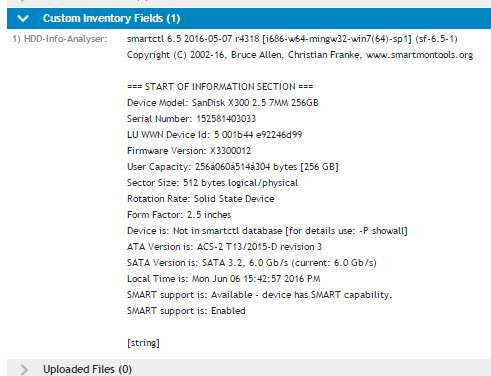
Result
Scripts Quest SMA – Once the script has been launched on the workstation and the inventory update has been performed, the information will be available in the workstation inventory.
Example 3: Retrieve Serial Numbers
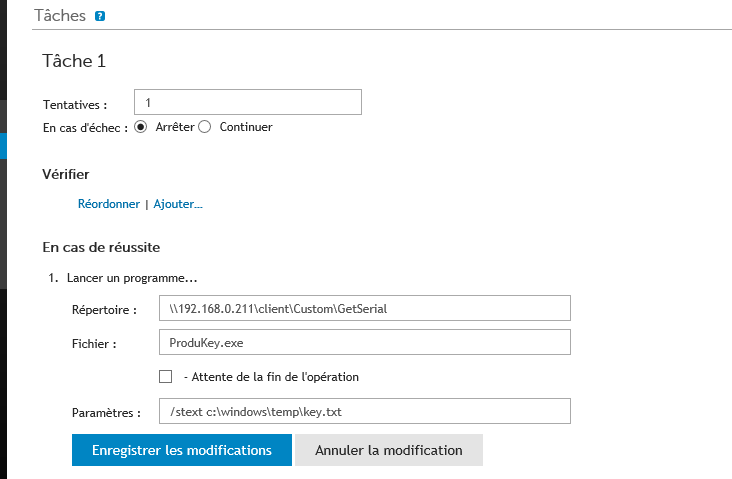
Scripts Quest SMA – The script will generate a text file c:windowstempkey.txt which will then be displayed in the inventory of each workstation where the script is run.
Tool
Scripts Quest SMA – I will use the tool productkey which I will copy to K1000clientdropCustomGetSerial

Script
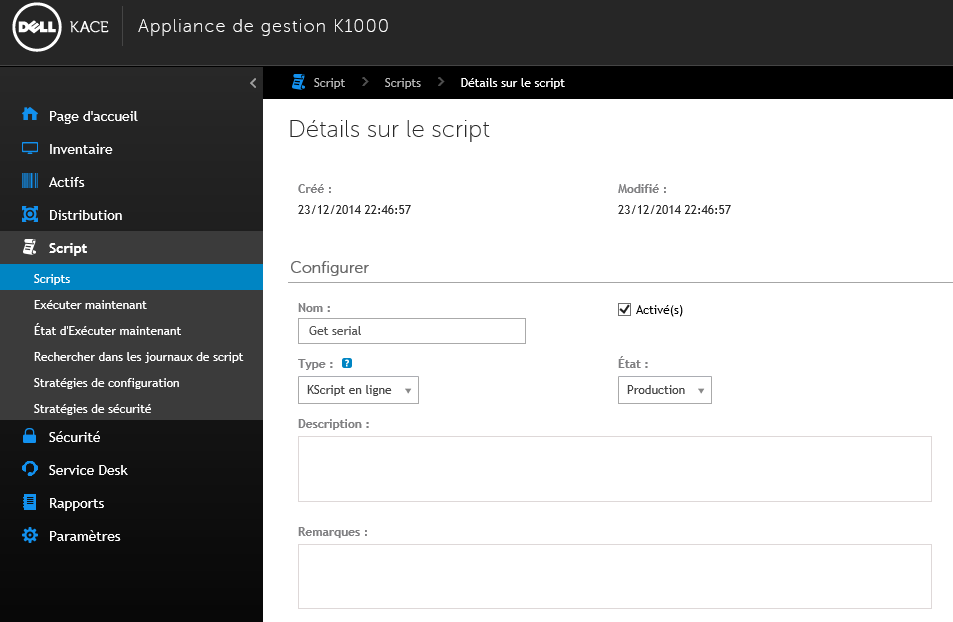
Scripts Quest SMA – Next, I will use scripts to launch the tool.
Custom Inventory
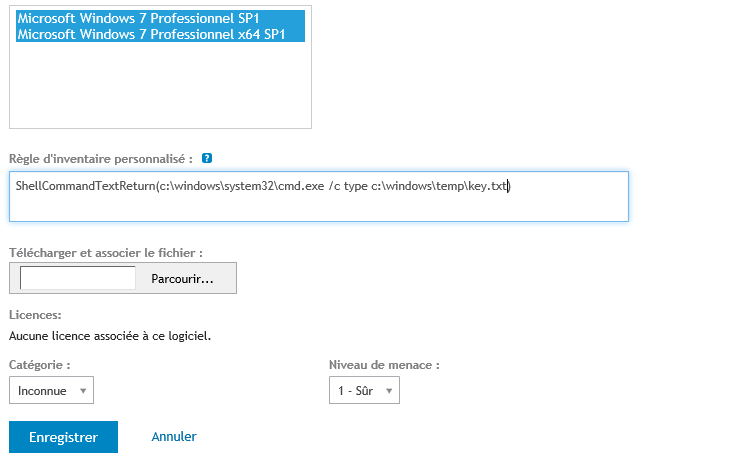
Scripts Quest SMA – Just display the text file in the workstation inventory.
ShellCommandTextReturn(c:windowssystem32cmd.exe /c type c:windowstempkey.txt)
Result
Scripts Quest SMA – Serial numbers are displayed in the workstation inventory.
Scripts Quest SMA – Be aware: in case of workstation formatting, there will be no history of serial numbers.
Appendix
SMA Variable
Scripts Quest SMA – Here is the link: quick-reference-to-scripts-variables or kb 111283
| $(KACE_DEPENDENCY_DIR) | This is the folder where any script dependencies for this script are downloaded to the client.5.2+ $(KACE_DATA_DIR)packageskbotsxxx.5.1 $(KACE_INSTALL)packageskbotsxxx. |
| $(KACE_INSTALL)$(KACE_INSTALL_DIR) $(KBOX_INSTALL_DIR) | Installation directory for executables, scripts, packages, etc.All are synonymous. Preferred: $(KACE_INSTALL)5.2+ Win7/Vista C:ProgramDataDellKACE5.2+ XP C:Documents and SettingsAll UsersDellKACE5.2+ Mac OS X /Library/Application Support/Dell/KACE/bin5.2+ Linux /opt/dell/kace5.1 Windows c:Program FilesKACEKBOX |
| $(KACE_SYS_DIR)$(KBOX_SYS_DIR) | agent machine’s system directory.Both are synonymous. Preferred: $(KACE_SYS_DIR)Windows C:WindowsSystem32Mac OS X /Linux / |
| $(KACE_MAC_ADDRESS)$(MAC_ADDRESS) $(KBOX_MAC_ADDRESS) | agent machine’s primary ethernet MAC address.All are synonymous. Preferred: $(KACE_MAC_ADDRESS) |
| $(KACE_IP_ADDRESS)$(KBOX_IP_ADDRESS) | agent’s local IP address (corresponds with network entry of KACE_MAC_ADDRESS) (http://kace.kbox.com:80)Both are synonymous. Preferred: $(KACE_IP_ADDRESS) |
| $(KACE_SERVER_URL) | combination of server, port, and url prefix (http://kace.kbox.com:80) |
| $(KACE_SERVER) | hostname of K1000 server. kbox |
| $(KACE_SERVER_PORT) | port to use when connecting to the K1000 server. (80/443) |
| $(KACE_SERVER_URLPREFIX) | web protocol to use when connecting to the K1000 server. (http/https) |
| $(KACE_COMPANY_NAME) | agent’s copy of the setting from server’s config page |
| $(KACE_KUID)$(KBOX_MACHINE_ID) | this is the unique Dell/KACE ID assigned to this agent.Both are synonymous. Preferred: $(KACE_KUID) |
| $(KACE_APP_DIR) | Installation directory the Dell/KACE agent and plugins.for older agents this is mapped to: $(KACE_INSTALL)5.2+ Windows C:Program FilesDellKACE or C:Program Files (x86)DellKACE5.2+ Mac OS X /Library/Application Support/Dell/KACE/bin5.2+ Linux /opt/dell/kace5.1 $(KACE_INSTALL) |
| $(KACE_DATA_DIR) | Installation directory for executables, scripts, packages, etc.for older agents this is mapped to: $(KACE_INSTALL)5.2+ Win7/Vista C:ProgramDataDellKACE5.2+ XP C:Documents and SettingsAll UsersDellKACE5.2+ Mac OS X /Library/Application Support/Dell/KACE/data5.2+ Linux /var/dell/kace5.1 $(KACE_INSTALL) |
| $(KACE_AGENT_VERSION) | substitutes the version number of the installed agent. »5.2.12345″5.2+ Only |
| $(KACE_AGENT_ARCH) | substitutes the architecture of the installed agent. »x86/x64″5.2+ Windows Only |
| $(KACE_HARDWARE_ARCH) | substitutes the architecture of the physical hardware. »x86/x64″5.2+ Windows Only |
| $(KACE_OS_FAMILY) | substitutes windows, mac, or linux depending on the operating system of the agent machine.5.2+ Only |
| $(KACE_OS_ARCH) | substitutes x86 or x64 depending on the architecture of the installed version of Microsoft Windows.5.2+ Windows Only |
Scripts Quest SMA –