Mastering Default App Configurations with Windows Master Images
Step-by-step guide to Mastering Default App Configurations with Windows Master Images, including configuration, deployment, troubleshooting and practical
Useful external reference: Microsoft Learn.
Useful external reference: Microsoft Learn.
Mastering Default App Overview
Manually configure applications on your computer.
Useful external reference: Microsoft Learn.
- In the control panel, set default programs
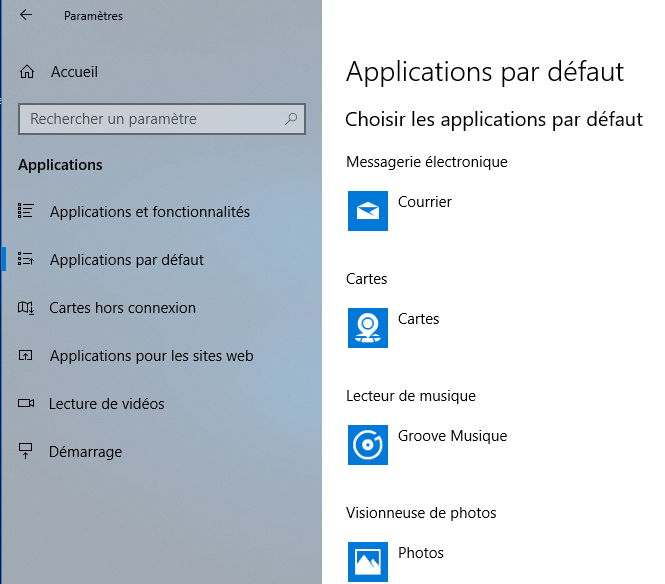
- And export the parameters with this command line
Dism /Online /Export-DefaultAppAssociations:c:appdefault.xml
- You can remove unwanted extensions from the XML to keep only the applications you want to configure.
Mastering Default App Overview
- Copy XML to Netlogon
C:WindowsSYSVOLsysvolDOMAINENAMEscripts on a domain controller
Useful external reference: Microsoft Learn.
- “Computer Configuration” “Administrative Template” “Windows Components” “File Explorer
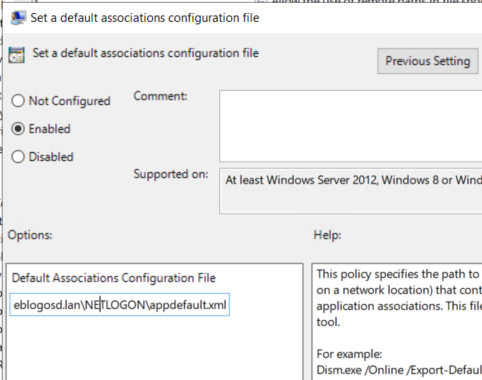
- Set a defaut associations Configuration file
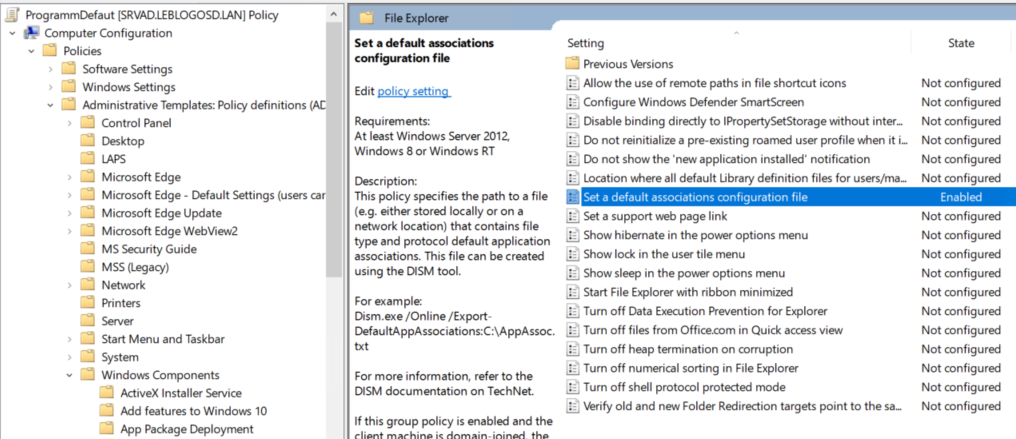
- Specify the path to the xml file