Configure Asset Intelligence in SCCM for Software Licensing
Configure Asset Intelligence – This guide explains how to configure Asset Intelligence in SCCM for software licensing, including certificate updates, the synchronization point, inventory classes, audit settings and reports.
Configure Asset Intelligence Overview
Configure Asset Intelligence – During the installation of SCCM, the certificate for Asset Intelligence synchronization is valid until March 2015. To extend this validity, you can download the updated certificate valid until 2017 from the following link: Microsoft Support.
Configuring Asset Intelligence
Step 1: Install the Asset Intelligence Synchronization Point Role
Configure Asset Intelligence – To get started, install the “Asset Intelligence Synchronization Point” role in SCCM:
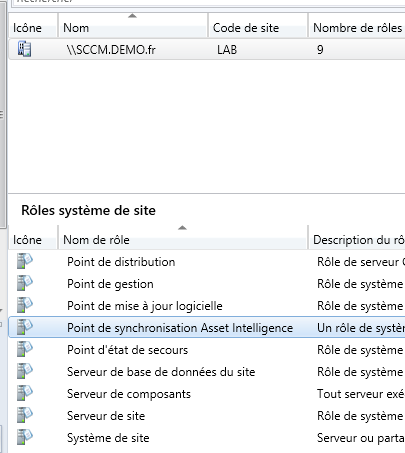
- Update the certificate for Asset Intelligence as mentioned above.
- Synchronize Asset Intelligence.
Step 2: Enable Inventory Classes
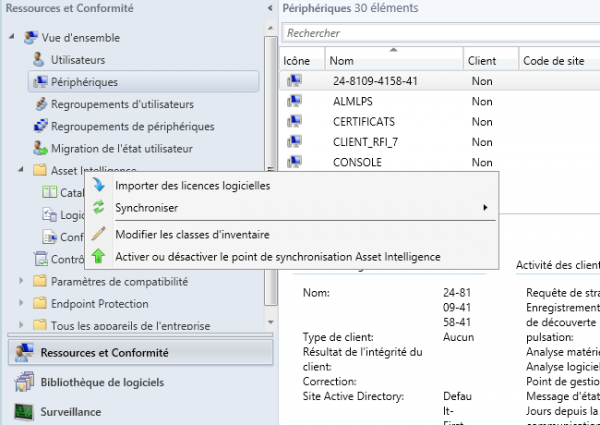
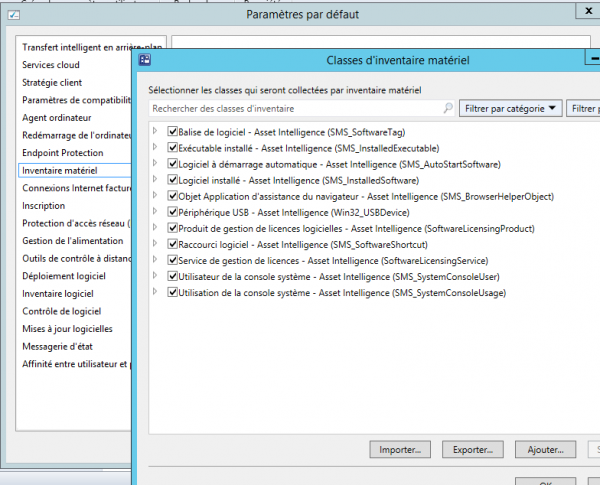
Configure Asset Intelligence – Next, activate the inventory classes for Asset Intelligence:
Configure Asset Intelligence – Ensure all classes are activated:
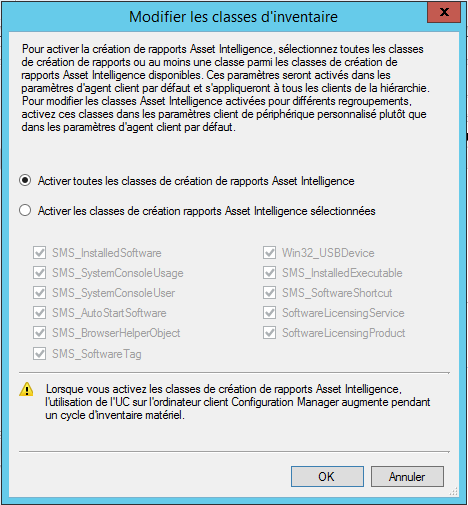
Configure Asset Intelligence – These classes can also be found in the hardware inventory agent settings:
Step 3: Create a GPO for Auditing
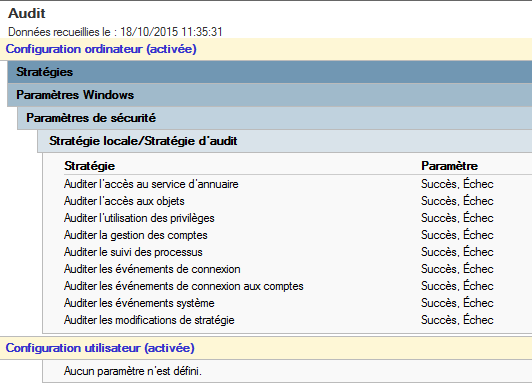
Configure Asset Intelligence – Create a Group Policy Object (GPO) to enable auditing on client machines:
Step 4: Verify Maintenance Tasks
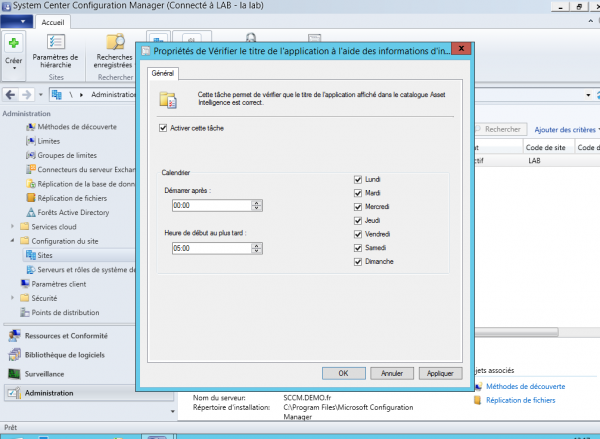
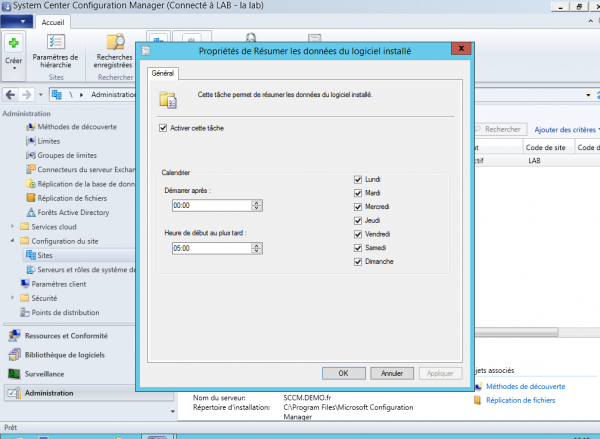
Configure Asset Intelligence – Ensure the following maintenance tasks are enabled (these are enabled by default):
Step 5: Wait for Synchronization
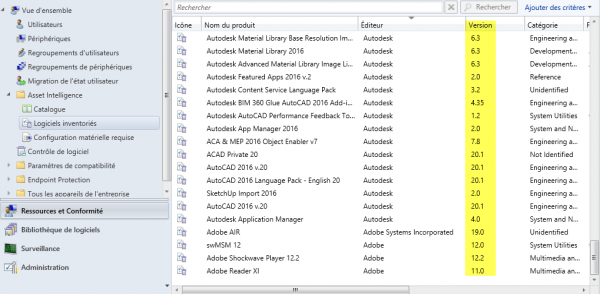
Configure Asset Intelligence – Be patient, as it may take several days for the synchronization to complete. Once done, you can view the software data:
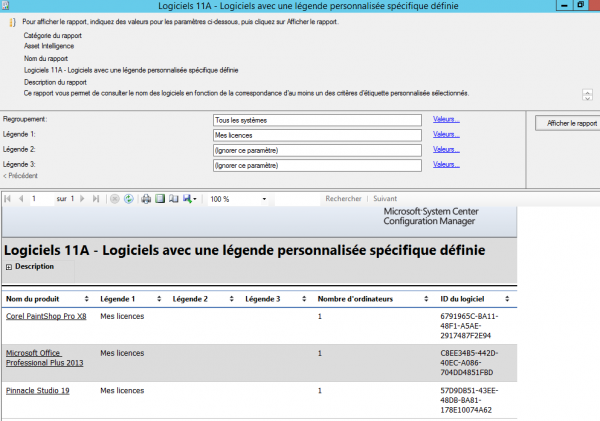
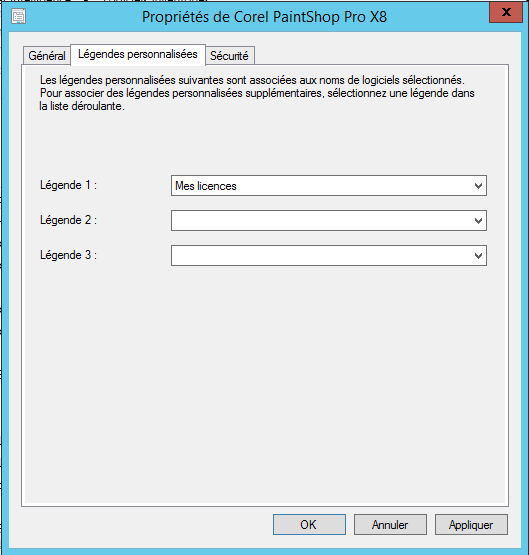
Configure Asset Intelligence – You can add legends to your reports:
Configure Asset Intelligence – Using these reports, you can count the licenses you need: