
Create a Bootable USB Drive from an ISO with Windows Master Images
Create Bootable USB – You don’t need to download any tools; DiskPart and File Explorer are sufficient for creating a bootable USB drive. Follow the steps below to format the USB
Useful external reference: Microsoft Learn.
Create Bootable USB – You don’t need to download any tools; DiskPart and File Explorer are sufficient for creating a bootable USB drive. Follow the steps below to format the USB drive and copy the contents of an ISO to it.
Useful external reference: Microsoft Learn.
Create Bootable USB – Format the USB Drive
Useful external reference: Microsoft Learn.
Create Bootable USB – In the example below, Disk 1 refers to the USB drive.
Useful external reference: Microsoft Learn.
# Open Command Prompt with administrative privileges
diskpart

# List all disks to identify the USB drive
list disk

# Select the USB drive (replace X with the appropriate disk number)
select disk X

# Clean the selected disk
clean

# Create a new primary partition
create partition primary

# Format the partition as NTFS (or FAT32 if required)
format fs=ntfs quick

# Assign a drive letter to the partition
assign letter=Y

# Exit DiskPart
exit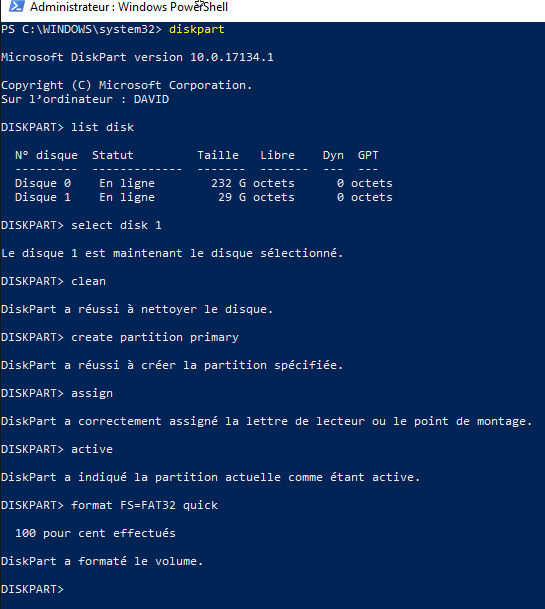
Create Bootable USB – Now the USB drive is ready. The next step is to copy the contents of a Microsoft ISO to the drive.
Useful external reference: Microsoft Learn.
Create Bootable USB – Mount the ISO and Copy Files
Useful external reference: Microsoft Learn.
Create Bootable USB – Use File Explorer to mount your ISO file and then copy its contents to the USB drive.
Useful external reference: Microsoft Learn.
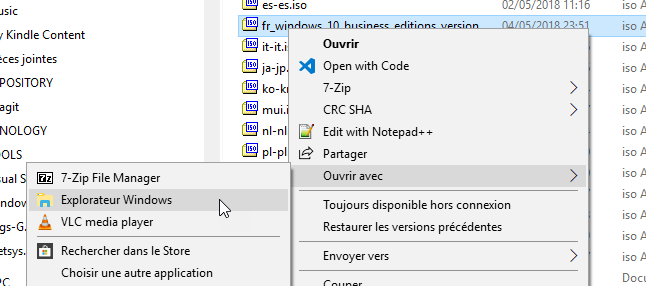
# In File Explorer, mount the ISO file by double-clicking it or right-clicking and selecting "Mount".

# Copy all files from the mounted ISO to the USB drive
# For example, if the ISO is mounted as drive D: and the USB drive is Y:
copy D:* Y: /E /H /F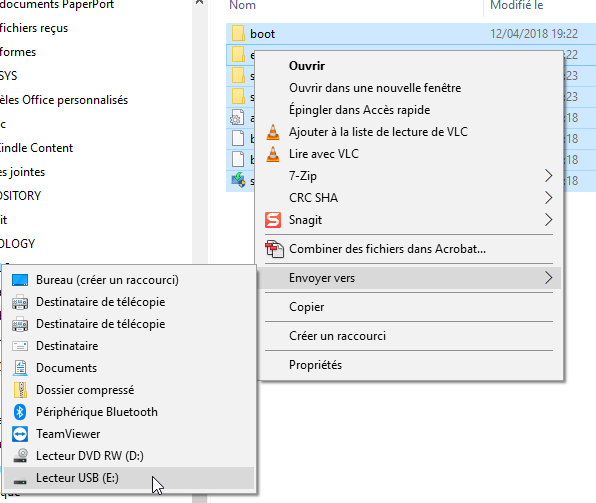
Create Bootable USB – Now you can boot your PC from the USB drive.
Useful external reference: Microsoft Learn.
Create Bootable USB –
Useful external reference: Microsoft Learn.