
Configure a Windows 10 as a Self-Service Kiosk with Windows Master Images
Configure Windows 10 – Enable Windows 10 Enterprise or LTSC embedded features, set a Shell Launcher, block touch gestures, and configure autologon.
Introduction
Configure Windows 10 – Windows 10 Enterprise and LTSC versions include embedded features that make it easy to configure devices for specific use cases like self-service kiosks. Unlike previous versions of Windows, there’s no need to deploy a special edition to access these features.
Activating Embedded Features
Configure Windows 10 – To activate the necessary embedded features, you can use the following script:
c:windowssysnativedism.exe /online /enable-Feature:Client-DeviceLockdown /NoRestart
c:windowssysnativedism.exe /online /enable-Feature:Client-EmbeddedShellLauncher /NoRestart
c:windowssysnativedism.exe /online /enable-Feature:Client-EmbeddedBootExp /NoRestart
c:windowssysnativedism.exe /online /enable-Feature:Client-EmbeddedLogon /NoRestart
c:windowssysnativedism.exe /online /enable-Feature:Client-KeyboardFilter /NoRestart
c:windowssysnativedism.exe /online /enable-Feature:Client-UnifiedWriteFilter /NoRestart
Activating the Shell Launcher
Configure Windows 10 – The Shell Launcher allows you to replace the default explorer shell with another program or script. You can customize it by modifying the following script, available at: setup-kiosk-digital-signage
# Define the user account for which the shell should be replaced
$Cashier_SID_supervision = Get-UsernameSID("w_supervision")

# Set the custom shell program
$ShellLauncherClass.SetCustomShell($Cashier_SID_supervision, "c:exploitsupervision.cmd", ($null), ($null), $restart_shell)
Configure Windows 10 – Replace "w_supervision" with the actual username and "c:exploitsupervision.cmd" with the path to your custom program or script.
Blocking Swipe Gestures
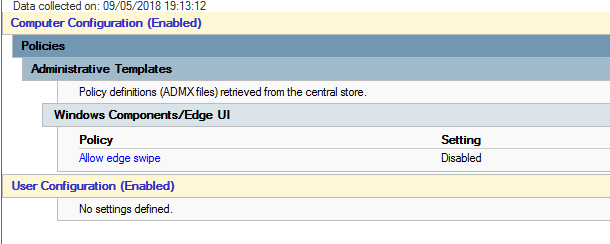
Configure Windows 10 – On touchscreens, swipe gestures can switch between programs, which is undesirable for a kiosk. You can disable this using a Group Policy:
Computer Configuration > Administrative Templates > Windows Components > Edge UI > Allow edge swipe > Disabled
Enabling Autologon
Configure Windows 10 – Windows 10 disables autologon after deployment. To re-enable it, you need to set it up post-deployment. Use the following script to configure autologon:
reg add "HKLMSOFTWAREMicrosoftWindows NTCurrentVersionWinlogon" /v AutoAdminLogon /t REG_SZ /d 1 /f
reg add "HKLMSOFTWAREMicrosoftWindows NTCurrentVersionWinlogon" /v DefaultUsername /t REG_SZ /d "your_username" /f
reg add "HKLMSOFTWAREMicrosoftWindows NTCurrentVersionWinlogon" /v DefaultPassword /t REG_SZ /d "your_password" /f
Configure Windows 10 – Replace "your_username" and "your_password" with the appropriate credentials.