Export Ivanti EPM Computers as Rundeck XML Nodes
Export Ivanti EPM – Guide to create Rundeck XML node definitions from Ivanti EPM inventory data with PowerShell, publish the XML file through IIS, and add the XML source in
Useful external reference: Ivanti resources.
Export Ivanti EPM – This guide explains how to create Rundeck XML node definitions from Ivanti EPM inventory data. The workflow uses PowerShell to generate an XML file, IIS to publish it, and Rundeck project node settings to consume the XML source.
Useful external reference: Ivanti resources.
Add XML Nodes in Rundeck
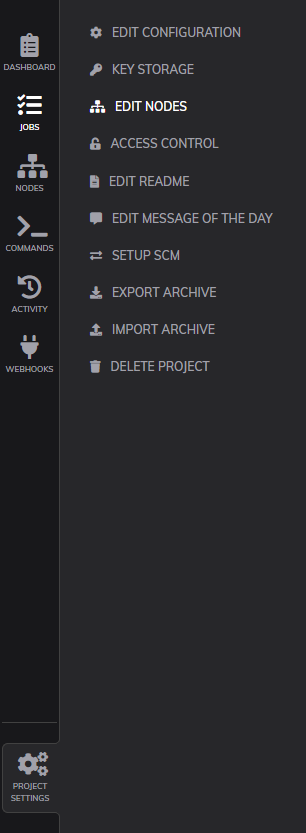
- In Project Settings, select Edit Nodes.
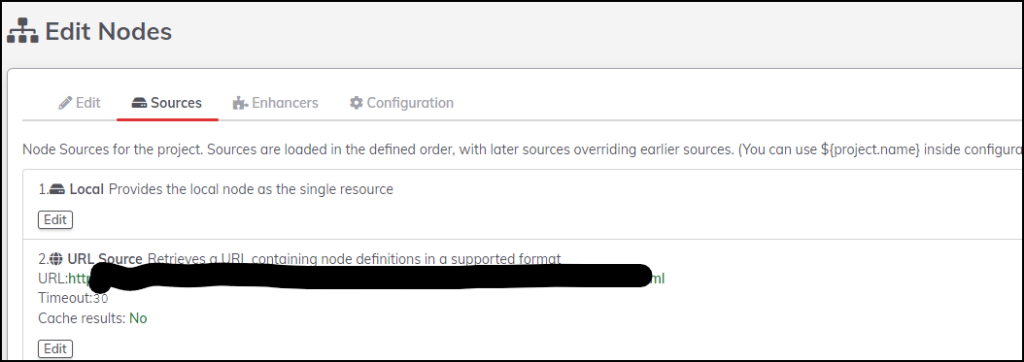
- Add a web file in XML format as a node source.
- Enable or disable result caching depending on how often the inventory XML changes.
Create an XML File with PowerShell
Export Ivanti EPM – If you manage inventory sources such as SCCM or Ivanti EPM, you can extract a computer list with PowerShell and generate a Rundeck-compatible XML node file.
Useful external reference: Ivanti resources.
$Xmlfile = "c:WebsiteRunDeck_nodes.xml"
if(test-path $Xmlfile) { remove-item $Xmlfile -force -recurse }

write-output "" | out-file -append -encoding utf8 $Xmlfile
foreach ($element in $table) {
    $Computer = $element.DISPLAYNAME
    $tagxml = "Demo"
    Write-output "" | out-file -append -encoding utf8 $Xmlfile
}

write-output "" | out-file -append -encoding utf8 $Xmlfile
Publish the XML File with IIS
- If your server is configured with IIS, create a virtual directory in the default website.
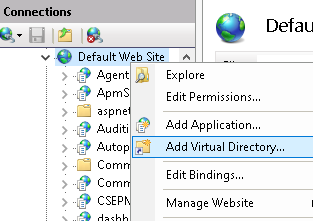
- Copy the XML file into the directory selected for the IIS virtual directory, for example
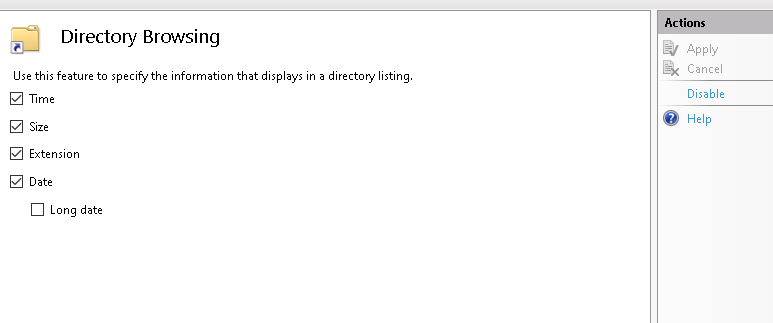
c:directoryChooseInVirtualDirectory. - Optionally enable Directory Browsing if you want to verify the file from a browser.