PPKG Install application with Windows Master Images
Step-by-step guide to PPKG Install application with Windows Master Images, including configuration, deployment, troubleshooting and practical administration
PPKG Install application Overview
- Download and install Windows ADK from Microsoft Learn.
- From the Start Menu, launch “Windows Configuration Designer”.
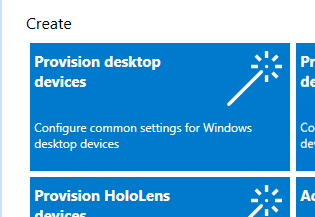
- Select “Provision Desktop Devices”.
- Select “Switch to Advanced Editor”.

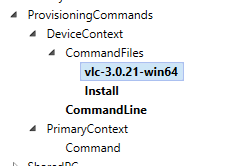
- Under “Provisioning Commands”, add the setup file and the install batch file.
- Example of a batch file.

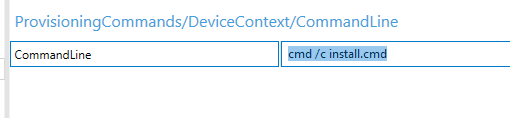
- Use the command line to execute the batch file.