
Create a dashboard with PswriteHTML with Ivanti EPM
Create dashboard PswriteHTML – The PSWriteHTML module is a powerful tool for creating HTML reports directly from PowerShell. It’s particularly useful for automating report generation and
Install PSWriteHTML Module
Create dashboard PswriteHTML – The PSWriteHTML module is a powerful tool for creating HTML reports directly from PowerShell. It’s particularly useful for automating report generation and visualizing data from sources like SQL. For details, see GitHub – EvotecIT/PSWriteHTML.
Install-Module PSWriteHTML
PowerShell Script Overview
Create dashboard PswriteHTML – This guide shows how to connect to SQL, run queries, and generate an HTML report with PSWriteHTML. Steps: import the module, establish a DB connection, run SQL, and output HTML.
Import Module
Write-Host "--- Importing PSWriteHTML module"
Import-Module -Name PSWriteHTML
Connect to SQL Database
Create dashboard PswriteHTML – Security note: The example below uses a plain-text password for demo purposes only. In production, prefer Windows Authentication, Windows Credential Manager, or a securely encrypted secret (e.g., DPAPI or a vault).
$Exporthtml = "C:tempdefault.htm"
$dataSource = "epm2024.monlab.lan"
$database   = "EPM"
$user       = "sa"

# DEMO ONLY — store secrets securely in production
$password = "Password1"
$creds    = New-Object System.Management.Automation.PSCredential `
    -ArgumentList $user, (ConvertTo-SecureString $password -AsPlainText -Force)

Write-Host "--- Connecting to SQL"

$connectionString = "Server=$dataSource;uid=$user;pwd=$($creds.GetNetworkCredential().Password);Database=$database;Integrated Security=False;"

$connection = New-Object System.Data.SqlClient.SqlConnection
$connection.ConnectionString = $connectionString

try {
    $connection.Open()
    Write-Host "------ Connected to Database: $database"
}
catch {
    Write-Error "------ Error connecting to Database: $database. $($_.Exception.Message)"
    return
}
SQL Query
Create dashboard PswriteHTML – See: Convert an EPM query into an SQL query to quickly build SQL statements.
Create dashboard PswriteHTML – We’ll use a helper to execute SQL and load results to a DataTable.
####################### DATA QUERIES ###############

function Get-SqlData {
    param(
        [Parameter(Mandatory)]
        $Connection,
        [Parameter(Mandatory)]
        [string]$Query
    )

    $command = $null
    $reader  = $null
    try {
        $command = $Connection.CreateCommand()
        $command.CommandText = $Query
        $reader  = $command.ExecuteReader()

        $table = New-Object System.Data.DataTable
        $table.Load($reader)
        return $table
    }
    finally {
        if ($reader)  { $reader.Close(); $reader.Dispose() }
        if ($command) { $command.Dispose() }
    }
}

# Query for Application1
$Application1 = @()
$query = @"
SELECT DISTINCT A0.DISPLAYNAME, A1.SUITENAME
FROM Computer A0 (nolock)
LEFT OUTER JOIN AppSoftwareSuites A1 (nolock) ON A0.Computer_Idn = A1.Computer_Idn
WHERE (A1.SUITENAME LIKE N'%Visual C++ 2022 X86%')
ORDER BY A0.DISPLAYNAME
"@
$table = Get-SqlData -Connection $connection -Query $query
foreach ($element in $table) {
    $Application1 += [PSCustomObject]@{
        DISPLAYNAME = $element.DISPLAYNAME
        SUITENAME   = $element.SUITENAME
    }
}

# Query for Application2
$Application2 = @()
$query = @"
SELECT DISTINCT A0.DISPLAYNAME, A1.SUITENAME
FROM Computer A0 (nolock)
LEFT OUTER JOIN AppSoftwareSuites A1 (nolock) ON A0.Computer_Idn = A1.Computer_Idn
WHERE (A1.SUITENAME LIKE N'%Edge%')
ORDER BY A0.DISPLAYNAME
"@
$table = Get-SqlData -Connection $connection -Query $query
foreach ($element in $table) {
    $Application2 += [PSCustomObject]@{
        DEVICENAME = $element.DISPLAYNAME
        SUITENAME  = $element.SUITENAME
    }
}

# Query for BitLocker details
$Bitlocker = @()
$query = @"
SELECT DISTINCT
    A0.DISPLAYNAME,
    A2.SECUREBOOTENABLED,
    A2.UEFIENABLED,
    A3.CONVERSIONSTATUS,
    A4.TPMENABLE,
    A4.TPMVERSION,
    A5.MODEL
FROM Computer A0 (nolock)
LEFT OUTER JOIN Operating_System A1 (nolock) ON A0.Computer_Idn = A1.Computer_Idn
LEFT OUTER JOIN BIOS       A2 (nolock) ON A0.Computer_Idn = A2.Computer_Idn
LEFT OUTER JOIN BitLocker  A3 (nolock) ON A0.Computer_Idn = A3.Computer_Idn
LEFT OUTER JOIN TPMSystem  A4 (nolock) ON A0.Computer_Idn = A4.Computer_Idn
LEFT OUTER JOIN CompSystem A5 (nolock) ON A0.Computer_Idn = A5.Computer_Idn
WHERE (A1.OSTYPE LIKE N'%Windows 10%')
ORDER BY A0.DISPLAYNAME
"@
$table = Get-SqlData -Connection $connection -Query $query
foreach ($element in $table) {
    $Bitlocker += [PSCustomObject]@{
        DEVICENAME  = $element.DISPLAYNAME
        SECURE_BOOT = $element.SECUREBOOTENABLED
        UEFI        = $element.UEFIENABLED
        BITLOCKER   = $element.CONVERSIONSTATUS
        TPM         = $element.TPMENABLE
        TPM_VERSION = $element.TPMVERSION
        MODEL       = $element.MODEL
    }
}

# Query for Windows details
$Windows  = @()
$WindowsG = @()
$query = @"
SELECT DISTINCT
    A0.DISPLAYNAME,
    A1.OSTYPE,
    A2.CURRENTBUILD,
    A2.UBR
FROM Computer A0 (nolock)
LEFT OUTER JOIN Operating_System A1 (nolock) ON A0.Computer_Idn = A1.Computer_Idn
LEFT OUTER JOIN OSNT            A2 (nolock) ON A0.Computer_Idn = A2.Computer_Idn
WHERE (A1.OSTYPE LIKE N'%Windows 1%')
ORDER BY A0.DISPLAYNAME
"@
$table = Get-SqlData -Connection $connection -Query $query
foreach ($element in $table) {
    $versionFull  = "{0}.{1}" -f $element.CURRENTBUILD, $element.UBR
    $versionShort = "{0}"     -f $element.CURRENTBUILD

    $Windows += [PSCustomObject]@{
        DEVICENAME = $element.DISPLAYNAME
        VERSION    = $versionFull
    }
    $WindowsG += [PSCustomObject]@{
        DEVICENAME = $element.DISPLAYNAME
        VERSION    = $versionShort
    }
}

# Sort & group
$Windows         = $Windows  | Sort-Object VERSION
$groupesVersion  = $Windows  | Group-Object -Property VERSION

$WindowsG        = $WindowsG | Sort-Object VERSION
$groupesVersionG = $WindowsG | Group-Object -Property VERSION

# Close connection
$connection.Close()
$connection.Dispose()
Write-Host "------ Finished executing queries and closing SQL connection"
Generate HTML Report
Create dashboard PswriteHTML – Note: By default, New-HTML uses -Online assets. If your server has no Internet access, use -Online:$false and ship the assets locally.
# Generating HTML report
New-HTML -TitleText 'IVANTI Report' {

    # Applications Tab
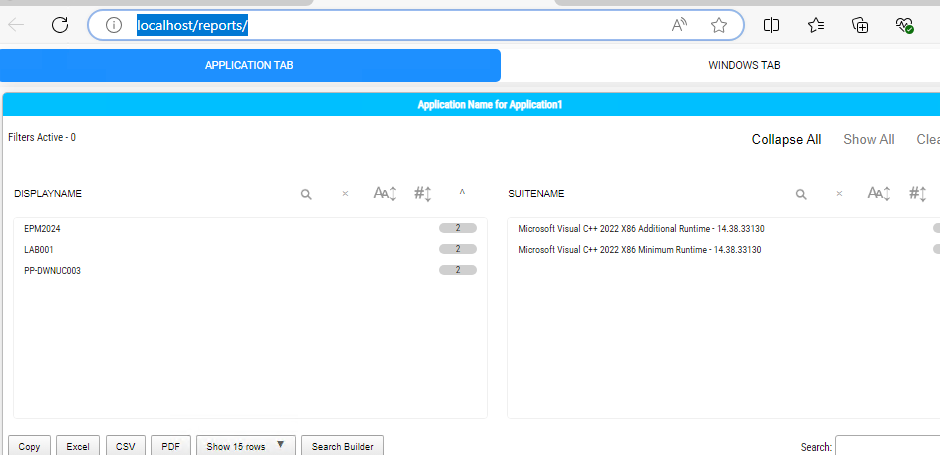
    New-HTMLTab -Name 'Application Tab' {

        New-HTMLPanel {
            New-HTMLSection -HeaderText 'Application Name for Application1' {
                New-HTMLTable -DataTable $Application1 -HideFooter -SearchPane
            }
        }

        New-HTMLPanel {
            New-HTMLSection -HeaderText 'Application Name for Application2' {
                New-HTMLTable -DataTable $Application2 -HideFooter -SearchPane
            }
        }
    }

    # Windows Tab
    New-HTMLTab -Name 'Windows Tab' {

        # Place the table first so ChartEvent can reference it clearly
        New-HTMLSection -Invisible {
            New-HTMLPanel {
                New-HTMLTable -DataTable $Windows -DataTableID 'WindowsOS' -HideFooter
            }
        }

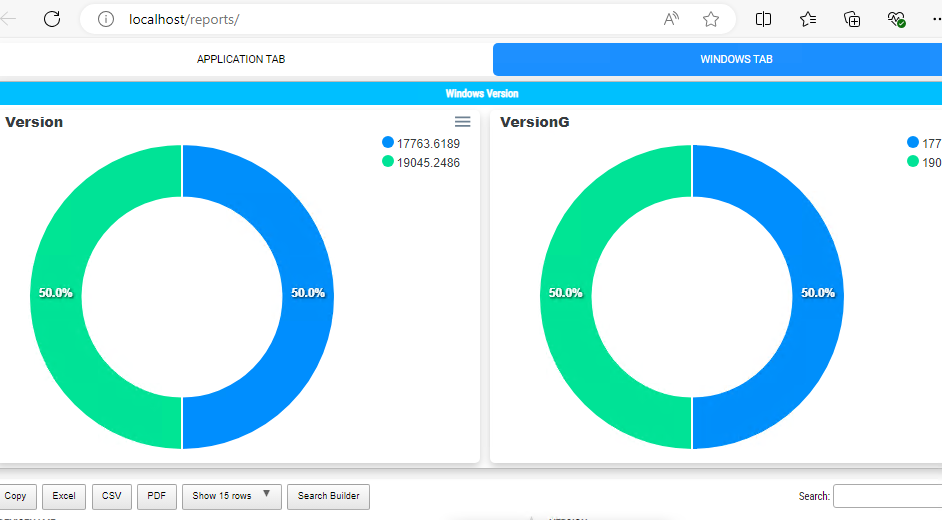
        New-HTMLSection -HeaderText 'Windows Version' {

            New-HTMLPanel {
                # Chart for full version details
                New-HTMLChart -Title 'Version' {
                    New-ChartToolbar -Download
                    New-ChartEvent -DataTableID 'WindowsOS' -ColumnID 1
                    foreach ($groupe in $groupesVersion) {
                        New-ChartDonut -Name $($groupe.Name) -Value $($groupe.Count)
                    }
                }
            }

            New-HTMLPanel {
                # Chart for short version details
                New-HTMLChart -Title 'Version (Short)' {
                    New-ChartToolbar -Download
                    foreach ($groupe in $groupesVersionG) {
                        New-ChartDonut -Name $($groupe.Name) -Value $($groupe.Count)
                    }
                }
            }
        }

        # BitLocker details
        New-HTMLSection -HeaderText 'BitLocker details' {
            New-HTMLTable -DataTable $Bitlocker -HideFooter -SearchPane -PreContent { 'BitLocker Details' }
        }
    }

    # Footer
    New-HTMLFooter {
        New-HTMLText -Text ("Report generated (UTC): {0}" -f (Get-Date).ToUniversalTime()) -Color Blue -Alignment Center
    }
} -FilePath $Exporthtml -Online
Task Scheduler
Create dashboard PswriteHTML – Create a scheduled task to run the report hourly:
# Create and run a scheduled task that executes C:tempreport.ps1 hourly as SYSTEM

$taskName   = 'RunReportScriptHourly'
$scriptPath = 'C:tempreport.ps1'

$action = New-ScheduledTaskAction -Execute 'powershell.exe' `
  -Argument "-NoProfile -ExecutionPolicy Bypass -File `"$scriptPath`""

$trigger = New-ScheduledTaskTrigger -Once `
  -At (Get-Date).AddMinutes(1) `
  -RepetitionInterval (New-TimeSpan -Hours 1) `
  -RepetitionDuration (New-TimeSpan -Days 3650)

$principal = New-ScheduledTaskPrincipal -UserId 'SYSTEM' -LogonType ServiceAccount -RunLevel Highest

$settings = New-ScheduledTaskSettingsSet -AllowStartIfOnBatteries -DontStopIfGoingOnBatteries

# Register the task (overwrite if it already exists)
$existing = Get-ScheduledTask -TaskName $taskName -ErrorAction SilentlyContinue
if ($existing) {
    Unregister-ScheduledTask -TaskName $taskName -Confirm:$false
}

Register-ScheduledTask -Action $action -Trigger $trigger -Principal $principal -Settings $settings `
  -TaskName $taskName -Description 'Runs report.ps1 hourly as SYSTEM'

Start-ScheduledTask -TaskName $taskName
IIS Configuration
Create dashboard PswriteHTML – By default, the report file is named default.htm (as set in the script).
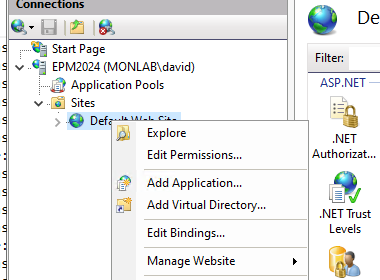
- Create a Virtual Directory pointing to the folder containing
default.htm. - Enable Default Document in IIS and verify that
default.htmis listed. - Open the report in a browser via the site/VD URL.
Create dashboard PswriteHTML – Script: https://github.com/dwbdav/LeBlogOSD/tree/main/ivanti/epm/reporting-dashboard-with-pswritehtml
References
Create dashboard PswriteHTML – https://github.com/EvotecIT/PSWriteHTML
Options
Create dashboard PswriteHTML – 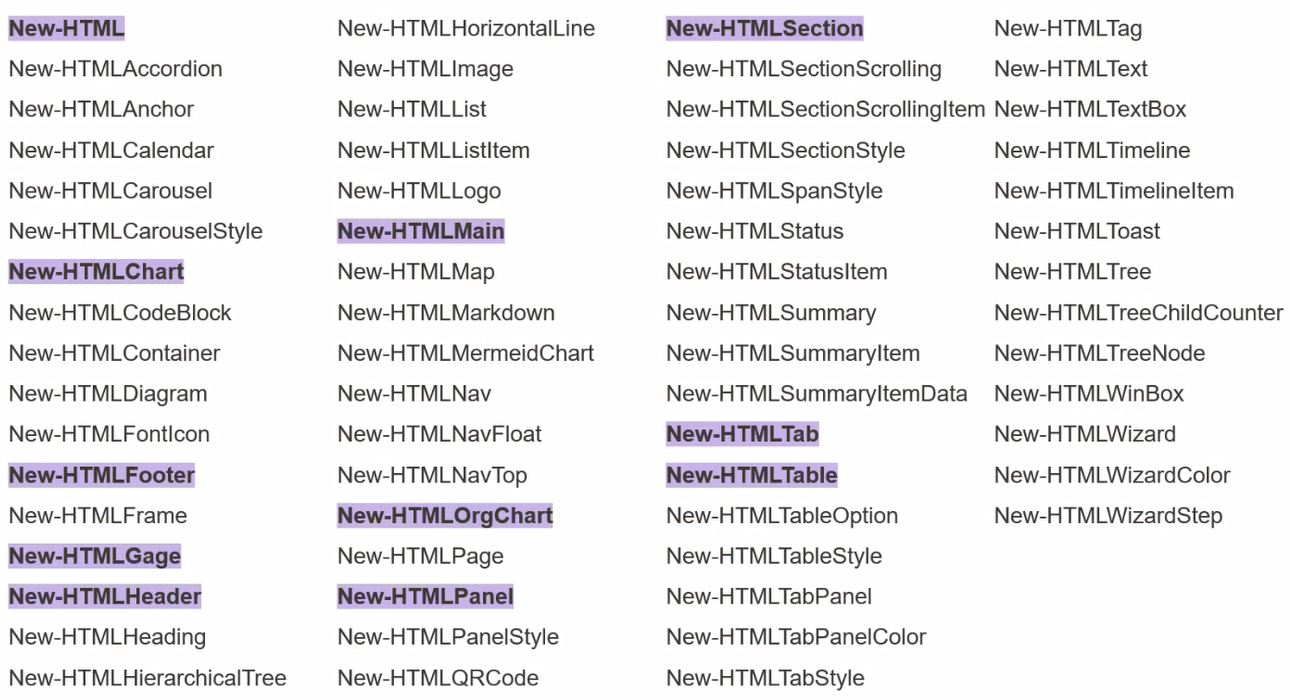
Structure
Create dashboard PswriteHTML – 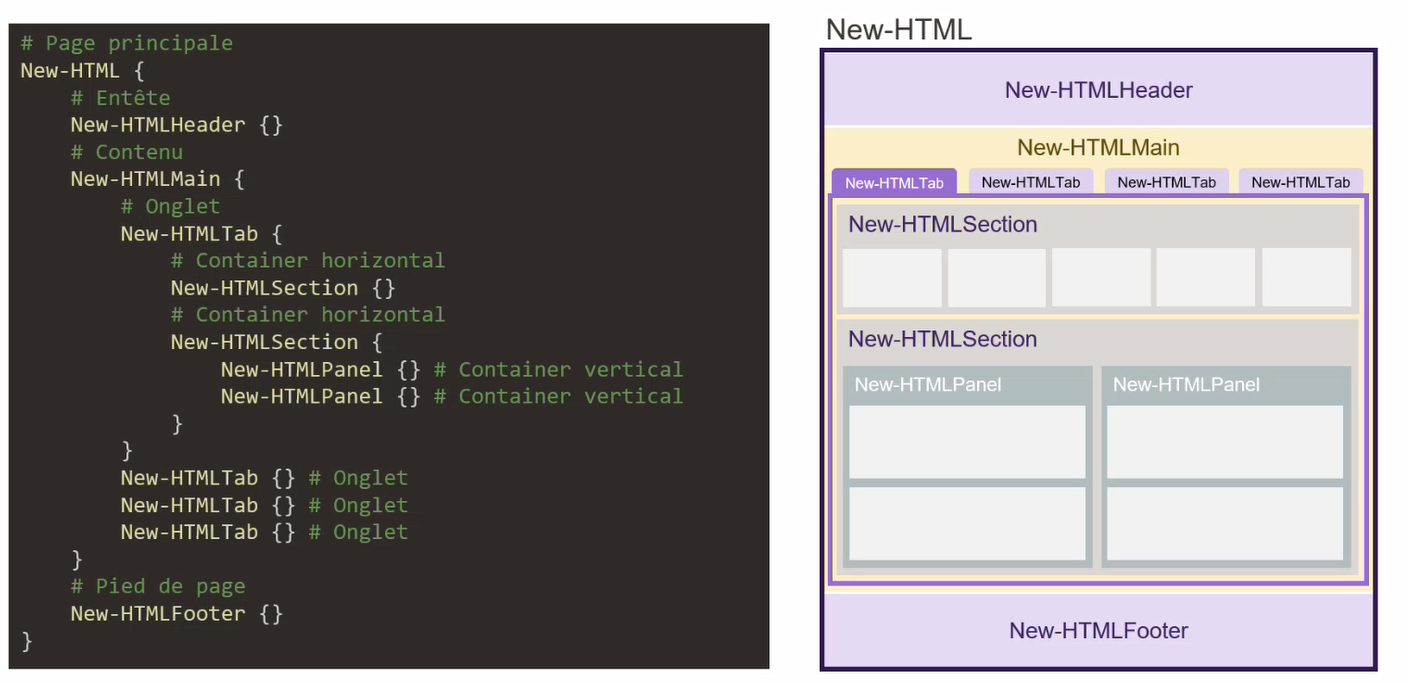
Example
Create dashboard PswriteHTML – 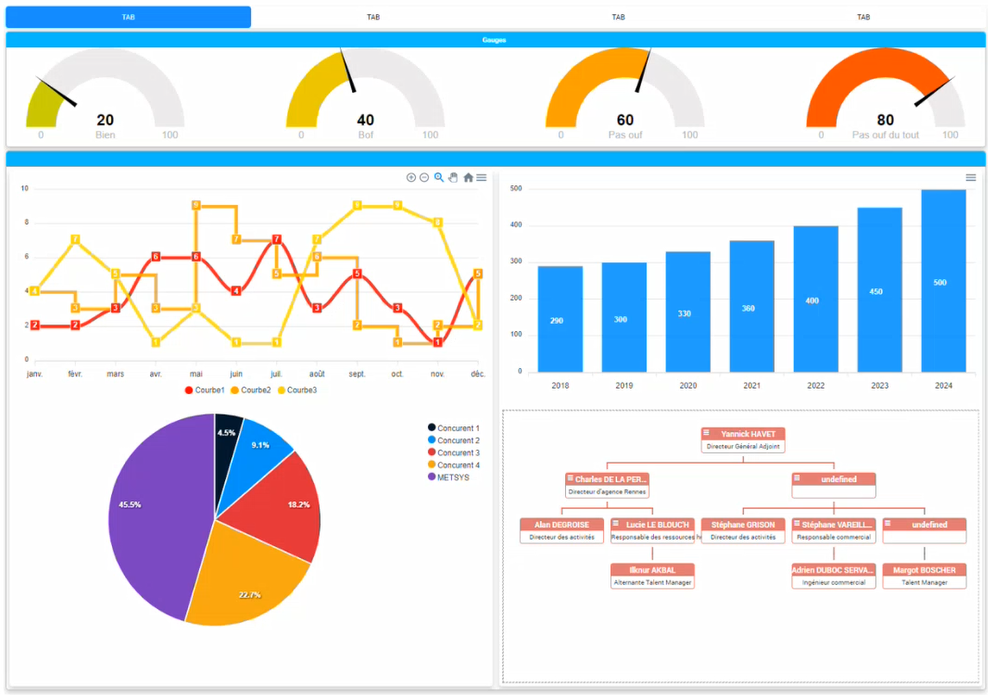
New-HTMLTable
Create dashboard PswriteHTML – 
Create dashboard PswriteHTML – Args:
- PagingLength 25
- SearchPane
- DisablePaging
- HideFooter
- HideButtons
Create dashboard PswriteHTML – 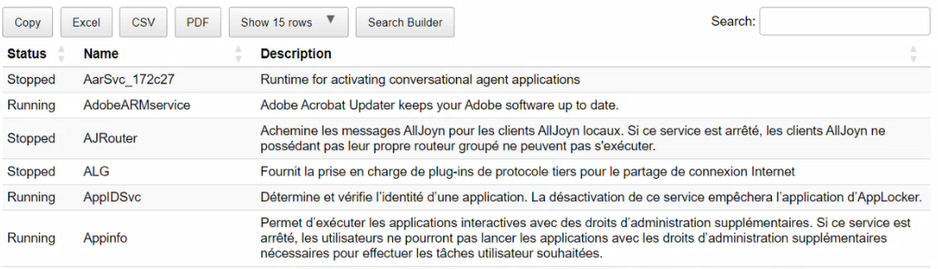
New-HTMLTableCondition
Create dashboard PswriteHTML – 
Create dashboard PswriteHTML – 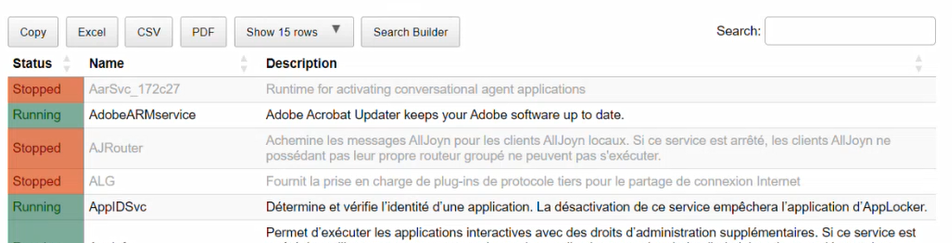
New-ChartLine
Create dashboard PswriteHTML – 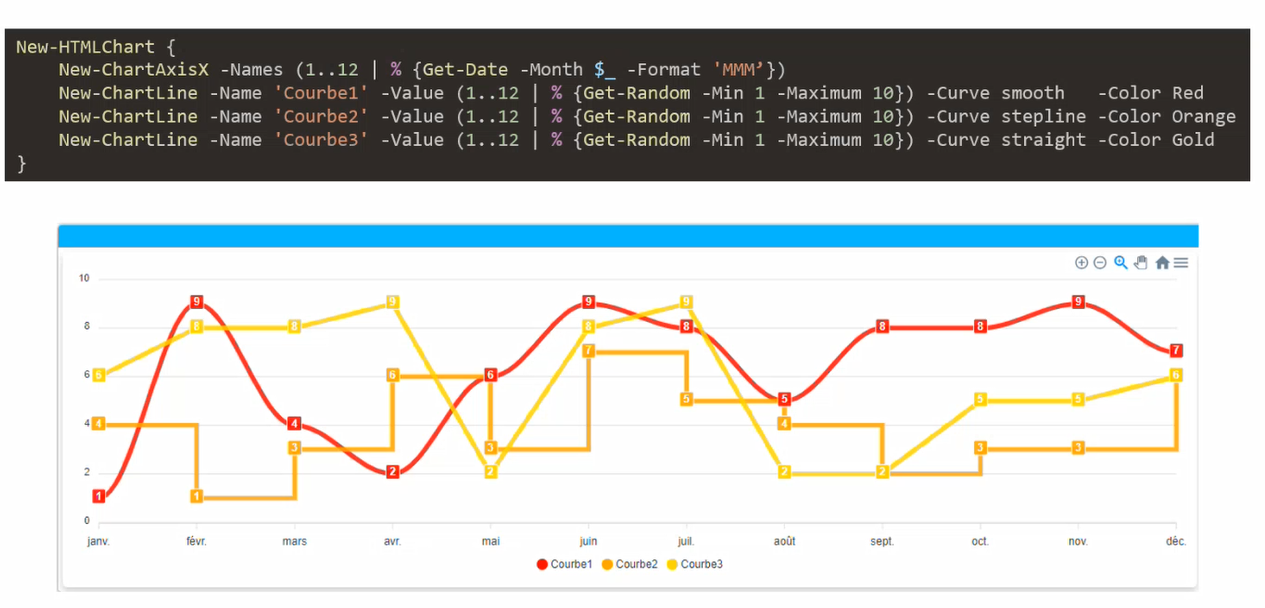
New-ChartBar
Create dashboard PswriteHTML – 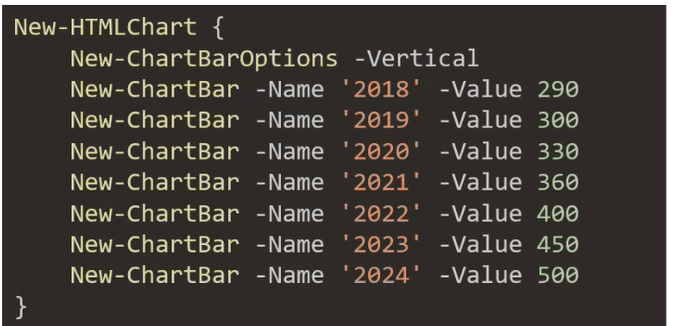
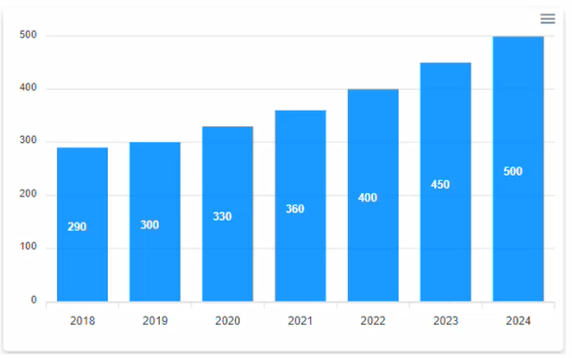
Create dashboard PswriteHTML – New-ChartToolbar -Download
New-ChartPie
Create dashboard PswriteHTML – 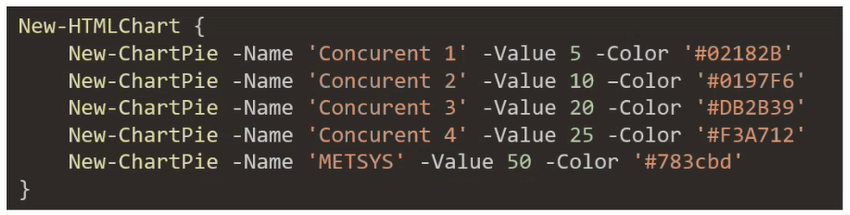
Create dashboard PswriteHTML – 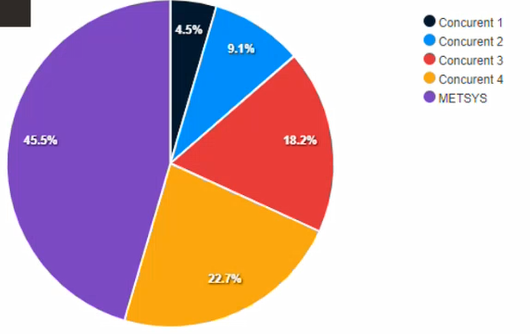
Create dashboard PswriteHTML – Options: Color Green / Color Red
New-ChartDonut
Create dashboard PswriteHTML – 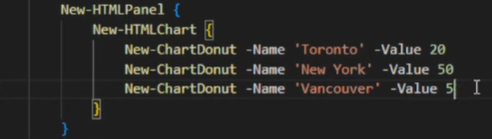
Create dashboard PswriteHTML – 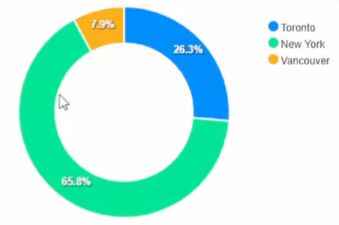
New-ChartTimeLine
Create dashboard PswriteHTML – 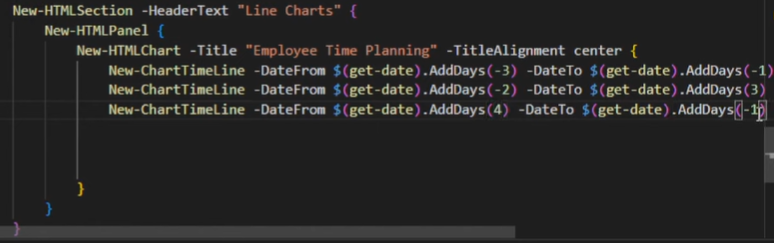
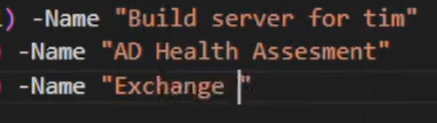
Create dashboard PswriteHTML – 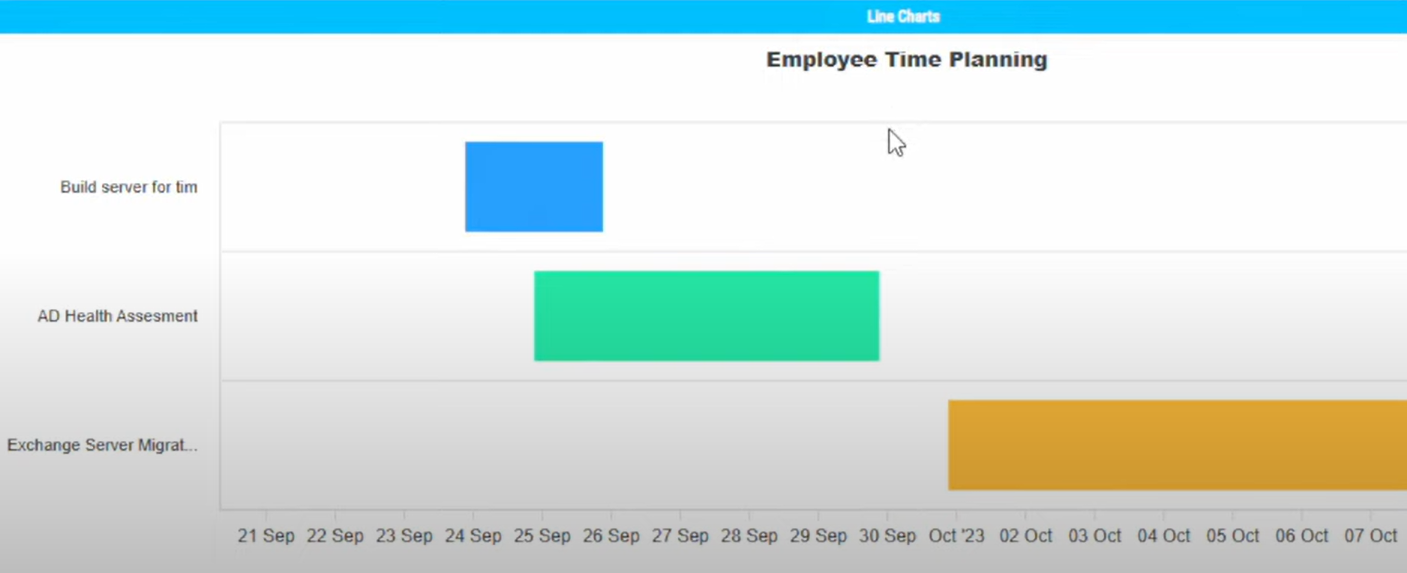
New-HTMLGauge
Create dashboard PswriteHTML – 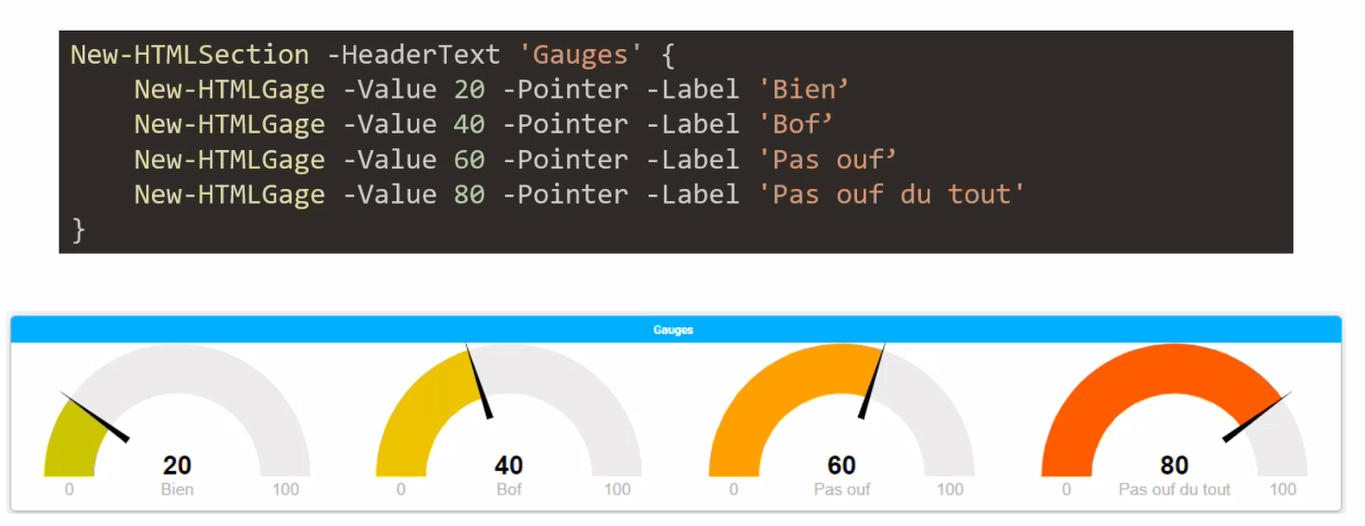
Create dashboard PswriteHTML – Repository: PSWriteHTML examples