
Tanium Interact Query Examples and Best Practices
Tanium Interact Query – This guide explains how to use Tanium Interact queries for endpoint scope, installed application checks, computer group filters, sensor freshness, exports, software inventory analysis, and reusable operational questions.
Useful external reference: Tanium documentation.
Using Tanium Interact
Tanium Interact Query – Tanium Interact is often the fastest way to validate an assumption before you build a package, launch a deployment, or open a deeper investigation in another module. It is not only a search bar. Used correctly, it becomes a live validation layer for software inventory, endpoint targeting, client health, and troubleshooting.
Useful external reference: Tanium documentation.
Tanium Interact Query – This article keeps a practical angle, but the goal is technical: ask better questions, scope them correctly, and understand why the result sometimes looks incomplete or delayed.
Useful external reference: Tanium documentation.
A Good Interact Question Starts with Scope
Tanium Interact Query – A weak Interact question is usually too broad, missing context, or built without an endpoint identifier. A useful question should tell you three things quickly: what you are querying, which endpoints you care about, and whether you can trust the freshness of the answer.
Useful external reference: Tanium documentation.
- Start with a narrow objective such as version validation, targeting, or a quick health check.
- Add at least one identifying field such as Computer Name when you expect to investigate individual endpoints.
- Restrict by computer group or filter conditions early, otherwise the result set becomes harder to interpret.
Example: Check the Installed Chrome Version
- Open Ask a Question and type
Installed Application Version. - Set the application parameter to
chrome. - Run the question.
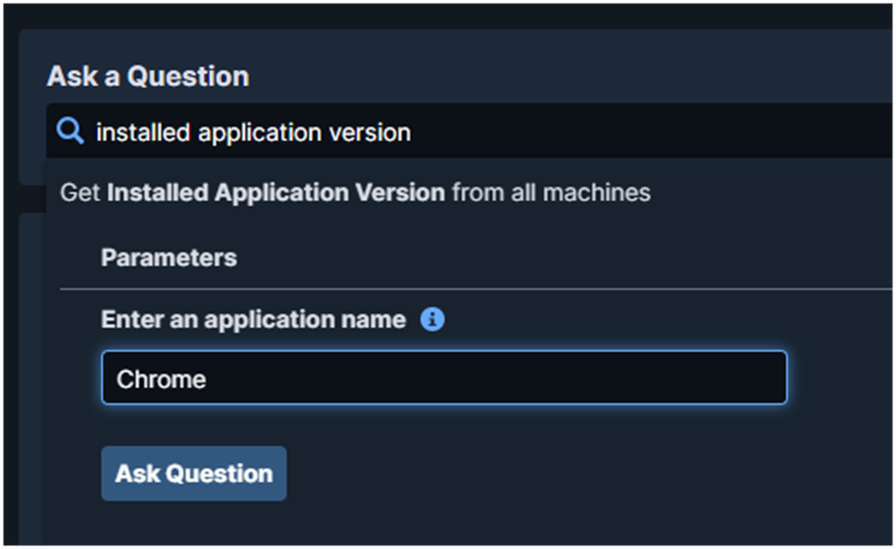
Tanium Interact Query – This works well for a quick software inventory check, but the result becomes much more useful when you add endpoint context and restrict scope.
Useful external reference: Tanium documentation.
Restrict by Computer Group
- Use Filter by Computer Group in the results banner.
- Select the relevant targeting group.
- Let the results recalculate on the reduced scope.
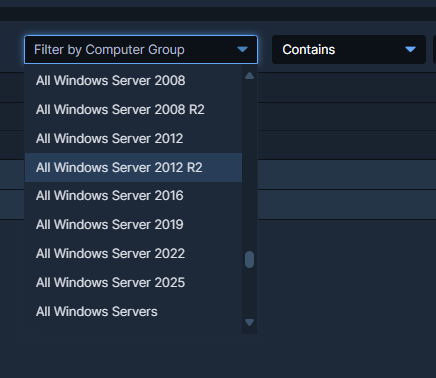
Tanium Interact Query – This matters for two reasons: performance and meaning. A version question across all endpoints is often less useful than the same question against a pilot ring, a business unit, or a remediation scope.
Useful external reference: Tanium documentation.
Add Machine Names to the Result
- Open Question Builder and add Computer Name.
- Run the question again.
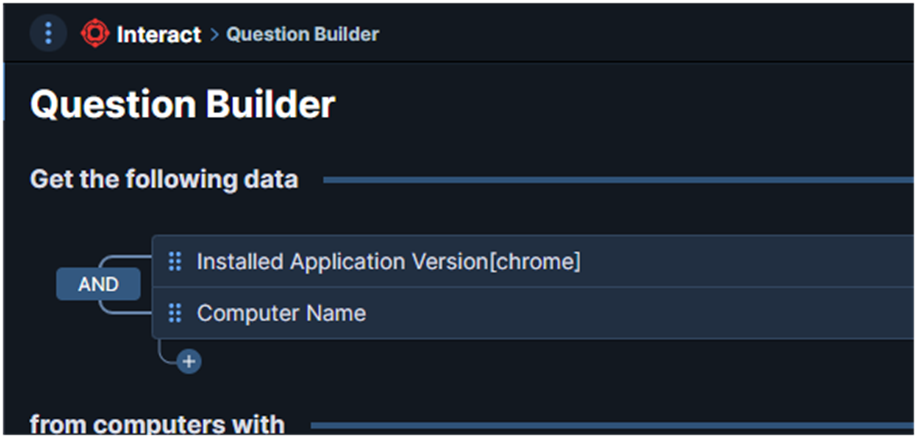
Tanium Interact Query – Without an endpoint identifier, the result is useful for trend spotting but weak for remediation. Adding Computer Name turns the same question into an actionable list.
Useful external reference: Tanium documentation.
Filter on a Specific Version
Tanium Interact Query – To show only endpoints running a target Chrome branch, add a filter in from computers with using the same sensor.
Useful external reference: Tanium documentation.
- Sensor:
Installed Application Version - Operator: contains
- Value:
138
Tanium Interact Query – Run the question to return only systems matching Chrome 138.x.
Useful external reference: Tanium documentation.
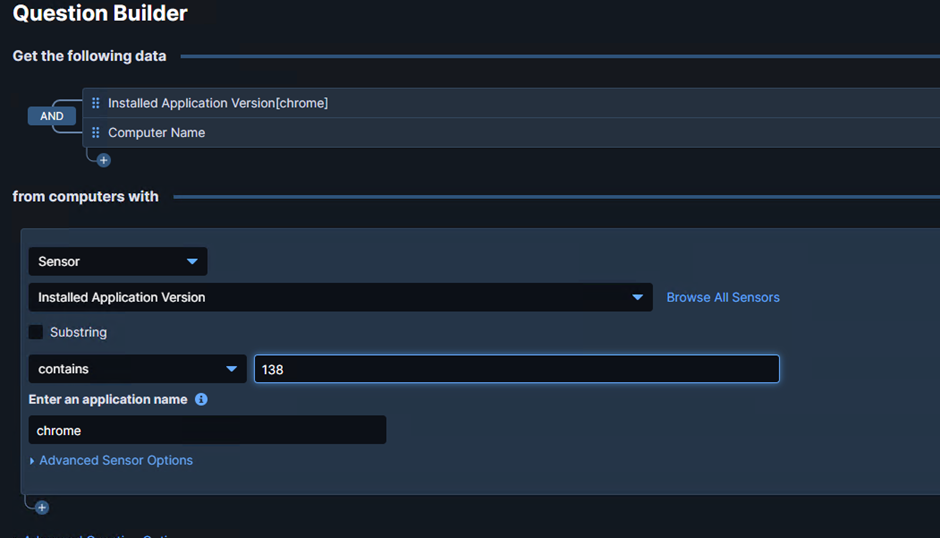
Tanium Interact Query – This pattern is useful for rollout validation, exception tracking, or post-deployment verification after a phased browser update.
Useful external reference: Tanium documentation.
Export and Reuse the Result
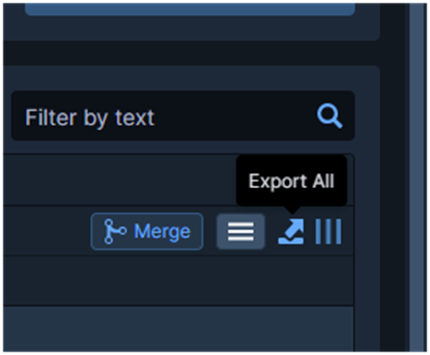
Tanium Interact Query – When the result needs to leave Interact for comparison, reporting, or manual remediation follow-up, export it.
Useful external reference: Tanium documentation.
Tanium Interact Query – Click Export All and select CSV.
Useful external reference: Tanium documentation.
Why Is Cache Not Available for a Sensor?
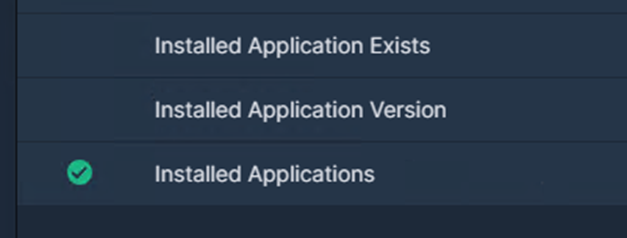
Tanium Interact Query – Not every sensor exposes the same caching behavior. If a cache-related option is missing, do not assume Interact is broken. The behavior depends on how the sensor is designed and on the freshness model expected for that data.
Useful external reference: Tanium documentation.
- Some sensors are intended to return fresh data rather than rely on cached values.
- Some results are constrained by the sensor definition, permissions, or the way the module exposes data.
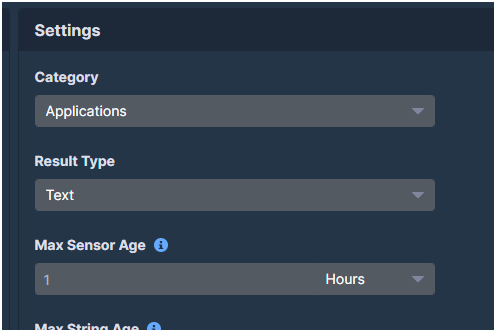
- If you need predictable freshness, review the sensor properties and the Max Sensor Age shown in the result details.
Show More Software Detail in the Result
Tanium Interact Query – If you need a more complete software inventory view, start from the broader installed application dataset instead of a single version lookup.
Useful external reference: Tanium documentation.
- Run
Get Installed Applications. - Open the column customization menu.
- Enable the fields you actually need for analysis.
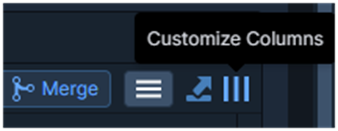
Tanium Interact Query – Typical columns worth enabling:
Useful external reference: Tanium documentation.
- Installed Applications: Name
- Installed Applications: Version
- Installed Applications: Silent Uninstall String
- Installed Applications: Uninstallable when relevant
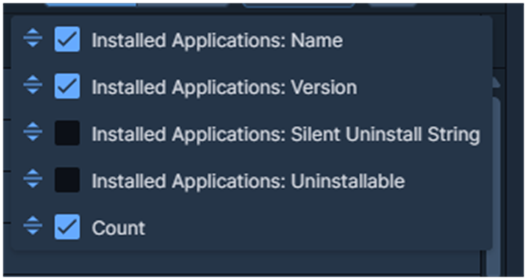
Tanium Interact Query – This is especially useful when you are validating uninstall readiness, package targeting, or differences between what is installed and what a deployment expects.
Useful external reference: Tanium documentation.
Why Does Interact Not Show the Recent Change Yet?
Tanium Interact Query – The most common reason is data age. Interact does not always show a just-made change immediately if the relevant sensor has not refreshed yet.
Useful external reference: Tanium documentation.
- Check Max Sensor Age to understand when the result was last refreshed.
- If the expected change is very recent, compare the result age with the timing of your deployment or endpoint action.
- Before escalating, confirm that the sensor, endpoint, and scope really match the change you are trying to validate.
Quick Query Sheet
Tanium Interact Query – The examples below are useful starting points. They are not universal commands to copy blindly. Adjust the scope, threshold, and target values to your environment.
Useful external reference: Tanium documentation.
System Information
Get Computer Name and Model and CPU from all machines with Disk Free Space Below Threshold matches ".*b[0-4][0-9]{2} MBb.*"Get Computer Name and In Subnet[192.168.0.1/24] from all machinesGet Last Logged In User from all machinesPerformance
Get Running Processes from all machines with CPU Consumption > 80%Get High CPU Processes[5] from all machinesSoftware and Services
Get Installed Applications having Installed Applications:Name equals "Chrome"Get Computer Name and Last Logged In User and Running Applications from all machinesGet Computer Name and Last Logged In User and Installed Applications from all machinesService Status
Get Computer Name and Last Logged In User and Running Service from all machinesGet Computer Name and Last Logged In User and Stopped Service from all machinesEndpoint and Client
Get Tanium Client Version from all machines with Tanium Client Version < TARGET_VERSIONGet Tanium Client Settings from all machinesGet Sensor Status from all machinesGet Endpoint Configuration - Tools Status Details from all machinesUser Management
Get Content Created By from all users with User Name equals "USER_NAME"Peer and Network
Get Computer Name and Tanium Peer Address from all machines with (Tanium Peer Address contains NoAddress_NoAddress)Get Computer Name and Tanium Client Subnet from all machines with (Tanium Back Peer Address contains NoAddress_NoAddress or Tanium Peer Address contains NoAddress_NoAddress)Get Computer Name from all machines with Is Tanium Client Online contains falseAdvanced Filtering
Get Computer Name matches "TAN-d{3}"Tanium Interact Query – Interact is strongest when you use it as a validation layer between targeting, execution, and troubleshooting. Ask small questions, scope them deliberately, and always check whether the result is detailed enough and fresh enough for the decision you need to make.
Useful external reference: Tanium documentation.
Use Tanium Interact
Tanium Interact Query – This example shows how to use Tanium Interact and gives a few useful question examples.
Useful external reference: Tanium documentation.
Start with Scope
Tanium Interact Query – A weak Interact question is too broad, has no context, or has no endpoint identifier. A good question should show what you query, which endpoints you target, and how fresh the result is.
Useful external reference: Tanium documentation.
- Start with a narrow objective such as version validation, targeting, or a quick health check.
- Add at least one identifying field such as Computer Name when you expect to investigate individual endpoints.
- Restrict by computer group or filter conditions early, otherwise the result set becomes harder to interpret.
Example: Check the Installed Chrome Version
- Open Ask a Question and type
Installed Application Version. - Set the application parameter to
chrome. - Run the question.
Tanium Interact Query – This works well for a quick software inventory check. It becomes more useful when you add endpoint context and reduce the scope.
Useful external reference: Tanium documentation.
Restrict by Computer Group
- Use Filter by Computer Group in the results banner.
- Select the relevant targeting group.
- Let the results recalculate on the reduced scope.
Tanium Interact Query – This matters for performance and for meaning. A version question across all endpoints is often less useful than the same question on a pilot ring, one business unit, or one remediation scope.
Useful external reference: Tanium documentation.
Add Machine Names to the Result
- Open Question Builder and add Computer Name.
- Run the question again.
Tanium Interact Query – Without an endpoint identifier, the result is useful for trends but weak for remediation. Adding Computer Name turns it into an actionable list.
Useful external reference: Tanium documentation.
Filter on a Specific Version
Tanium Interact Query – To show only endpoints running a target Chrome branch, add a filter in from computers with using the same sensor.
Useful external reference: Tanium documentation.
- Sensor:
Installed Application Version - Operator: contains
- Value:
138
Tanium Interact Query – Run the question to return only systems matching Chrome 138.x.
Useful external reference: Tanium documentation.
Tanium Interact Query – This pattern is useful for rollout validation, exception tracking, or post-deployment verification after a phased browser update.
Useful external reference: Tanium documentation.
Export the Result
Tanium Interact Query – When the result needs to leave Interact for comparison, reporting, or manual remediation follow-up, export it.
Useful external reference: Tanium documentation.
Tanium Interact Query – Click Export All and select CSV.
Useful external reference: Tanium documentation.
Why Is Cache Not Available for a Sensor?
Tanium Interact Query – Not every sensor uses the same cache behavior. If a cache option is missing, Interact is not necessarily broken. It depends on how the sensor works and how fresh the data must be.
Useful external reference: Tanium documentation.
- Some sensors are designed to return fresh data instead of cached data.
- Some results depend on the sensor design, permissions, or the way the module shows data.
- If you need fresh data, review the sensor properties and the Max Sensor Age in the result details.
Inspect Software Details
Tanium Interact Query – If you need a fuller software view, start with the installed application dataset instead of one version query.
Useful external reference: Tanium documentation.
- Run
Get Installed Applications. - Open the column customization menu.
- Enable the fields you actually need for analysis.
Tanium Interact Query – Typical columns worth enabling:
Useful external reference: Tanium documentation.
- Installed Applications: Name
- Installed Applications: Version
- Installed Applications: Silent Uninstall String
- Installed Applications: Uninstallable when relevant
Tanium Interact Query – This is especially useful when you are validating uninstall readiness, package targeting, or differences between what is installed and what a deployment expects.
Useful external reference: Tanium documentation.
Why Does Interact Not Show the Recent Change Yet?
Tanium Interact Query – The most common reason is data age. Interact may not show a recent change if the sensor has not refreshed yet.
Useful external reference: Tanium documentation.
- Check Max Sensor Age to understand when the result was last refreshed.
- If the expected change is very recent, compare the result age with the timing of your deployment or endpoint action.
- Before escalating, confirm that the sensor, endpoint, and scope really match the change you are trying to validate.
Quick Queries
Tanium Interact Query – Use the queries below as starting points. Adjust the scope, thresholds, and target values for your environment.
Useful external reference: Tanium documentation.
System Information
Get Computer Name and Model and CPU from all machines with Disk Free Space Below Threshold matches ".*b[0-4][0-9]{2} MBb.*"Get Computer Name and In Subnet[192.168.0.1/24] from all machinesGet Last Logged In User from all machinesPerformance
Get Running Processes from all machines with CPU Consumption > 80%Get High CPU Processes[5] from all machinesSoftware and Services
Get Installed Applications having Installed Applications:Name equals "Chrome"Get Computer Name and Last Logged In User and Running Applications from all machinesGet Computer Name and Last Logged In User and Installed Applications from all machinesService Status
Get Computer Name and Last Logged In User and Running Service from all machinesGet Computer Name and Last Logged In User and Stopped Service from all machinesEndpoint and Client
Get Tanium Client Version from all machines with Tanium Client Version < TARGET_VERSIONGet Tanium Client Settings from all machinesGet Sensor Status from all machinesGet Endpoint Configuration - Tools Status Details from all machinesUser Management
Get Content Created By from all users with User Name equals "USER_NAME"Peer and Network
Get Computer Name and Tanium Peer Address from all machines with (Tanium Peer Address contains NoAddress_NoAddress)Get Computer Name and Tanium Client Subnet from all machines with (Tanium Back Peer Address contains NoAddress_NoAddress or Tanium Peer Address contains NoAddress_NoAddress)Get Computer Name from all machines with Is Tanium Client Online contains falseAdvanced Filtering
Get Computer Name matches "TAN-d{3}"Tanium Interact Query – Ask small questions, scope them early, and check that the result is fresh enough and detailed enough for your decision.
Useful external reference: Tanium documentation.