Tanium Patch Troubleshooting and Deployment Checks
Tanium Patch Troubleshooting – This guide explains how to troubleshoot Tanium Patch deployments by checking maintenance windows, Action Lock, patch lists, deployment status, scan age, scan errors, Patch tools, and Windows Update Agent remediation steps.
General Configuration
Maintenance Windows
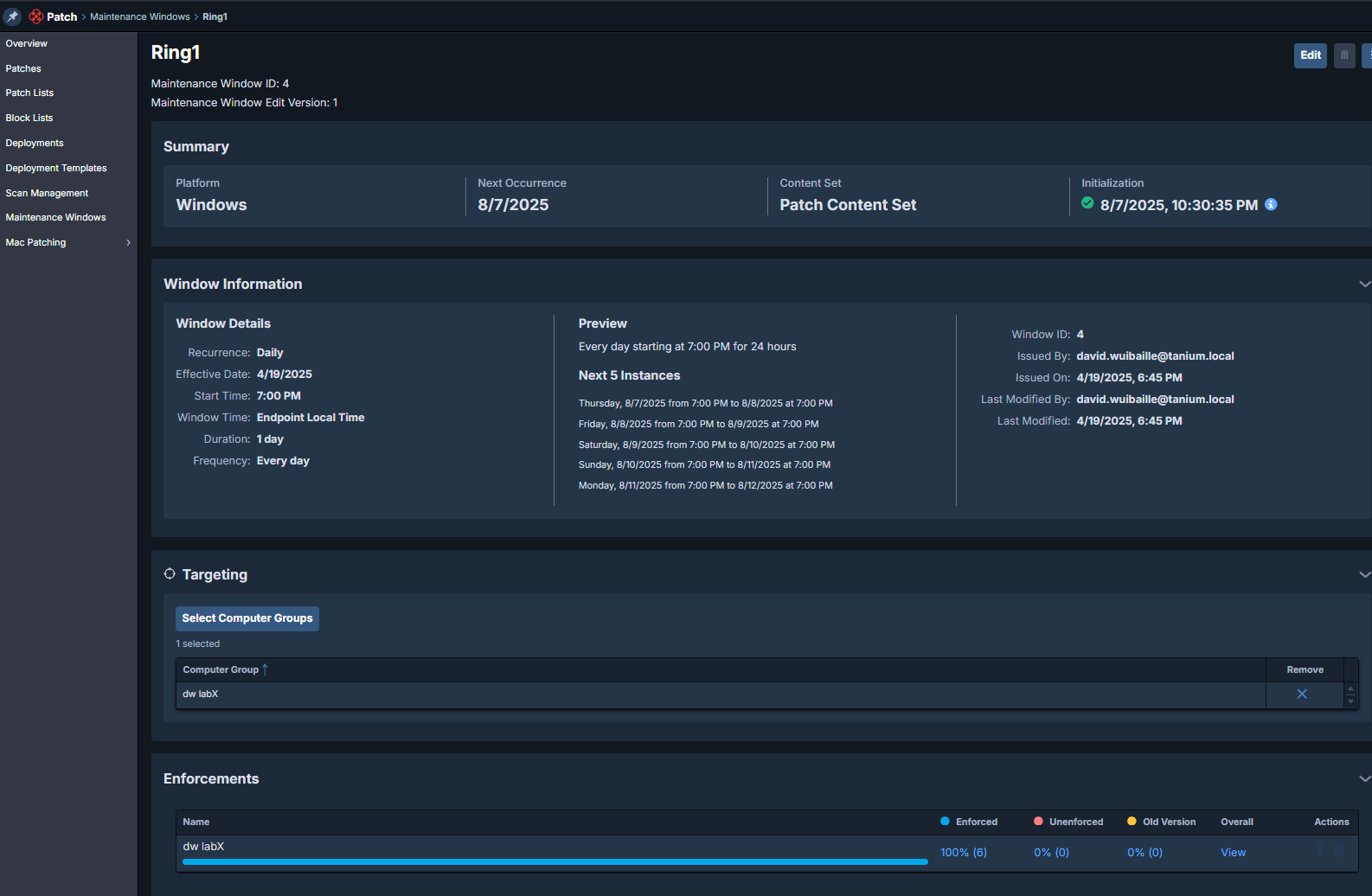
Tanium Patch Troubleshooting – Verify the maintenance window is set correctly.
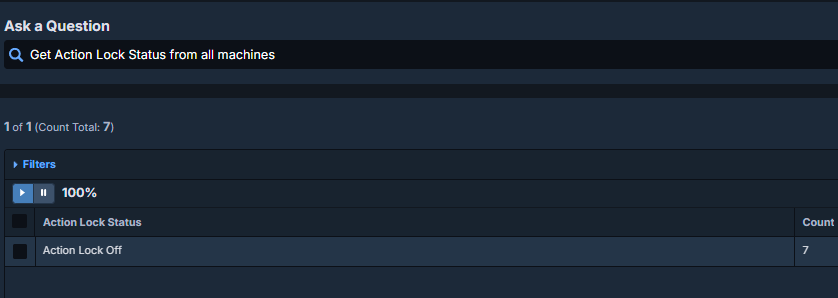
Action Lock Status
Tanium Patch Troubleshooting – If Action Lock is ON, patches do not apply. Check Patch module config.
Get Action Lock Status from all machines
Deployment
Patch List
Tanium Patch Troubleshooting – Build the patch list (severity, products, OS). Validate exclusions. Pilot first.
Deployment
Tanium Patch Troubleshooting – Create the deployment. Set window and reboot behavior. Monitor rollout.
Deployment Status
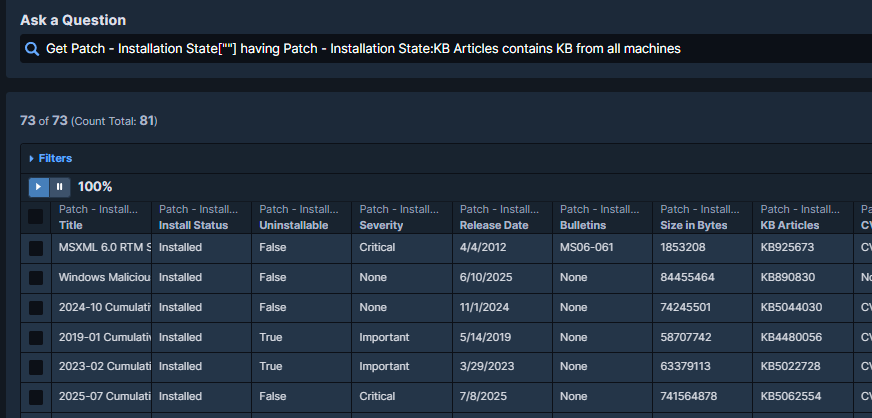
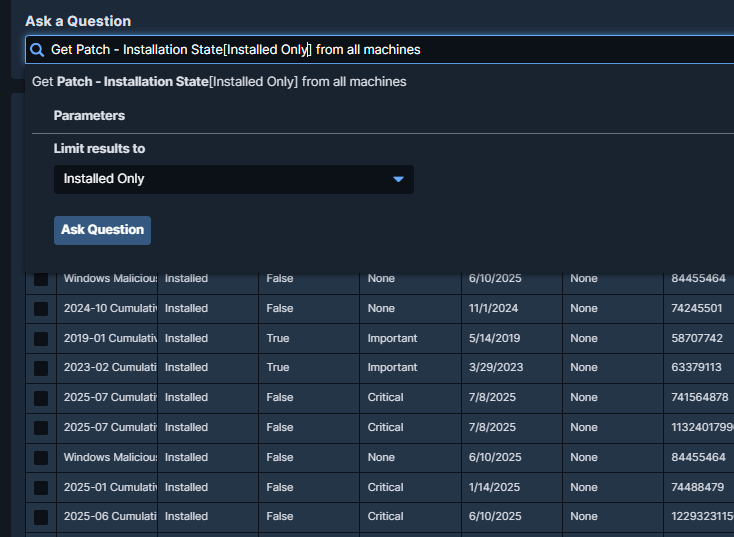
Installed Status
Get Patch - Installation State[KB Articles contains KB] from all machines
Get Patch - Installation State[Installed Only] from all machines
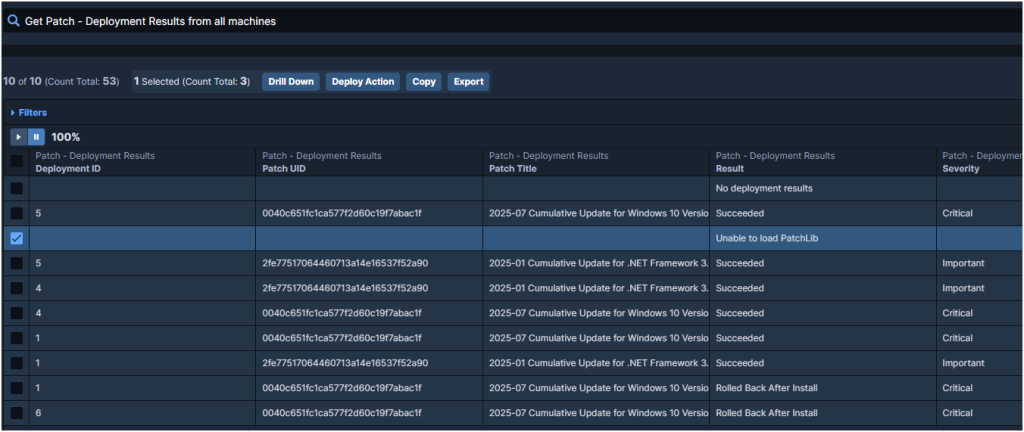
Deployment Results
Get Patch - Deployment Results from all machines
Installation Source (Tanium / Windows Update)
Get Patch Installation History[30,0,1,1,1,1,0] from all machines
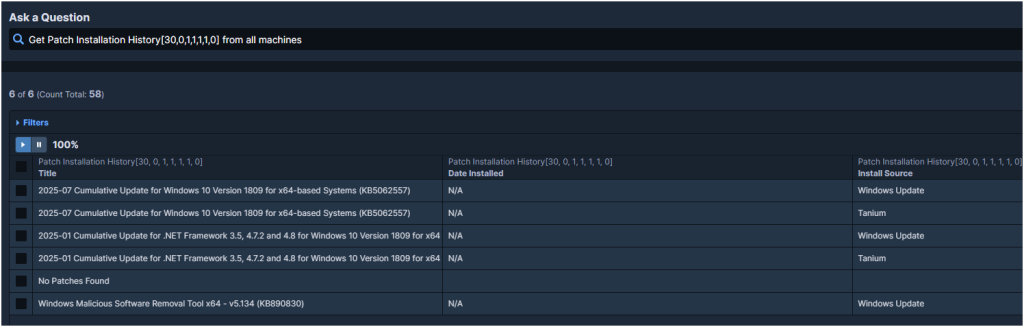
Patch Installation History
Get Patch Installation History[30,0,1,1,1,1,0] from all machines
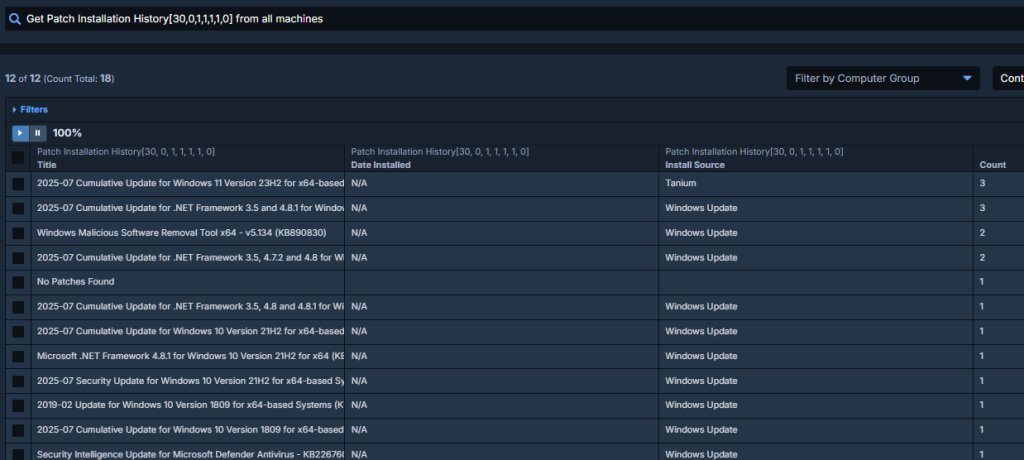
Deployment Status
Get Computer Name and Operating System and Patch - Deployment Statuses from all machines
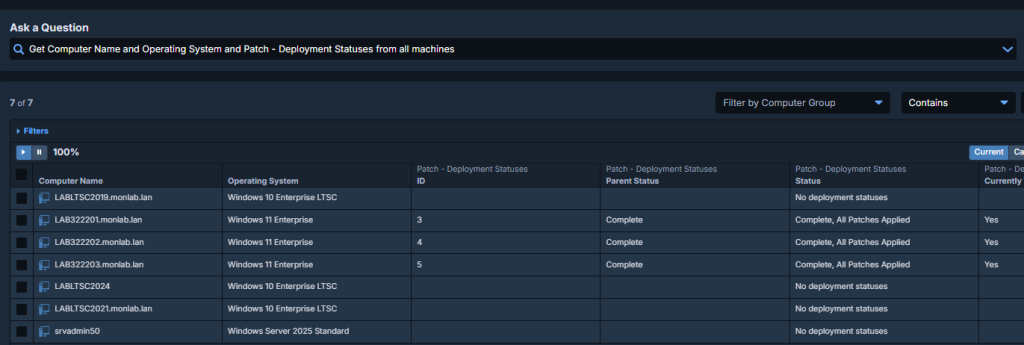
Troubleshooting
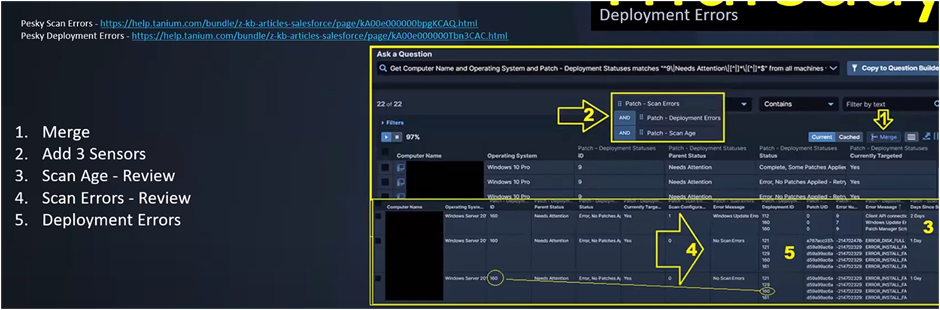
Needs Attention – Where to Check
Tanium Patch Troubleshooting – In each deployment you will see Needs Attention and Errors. Needs Attention is a status – you must find the root cause.
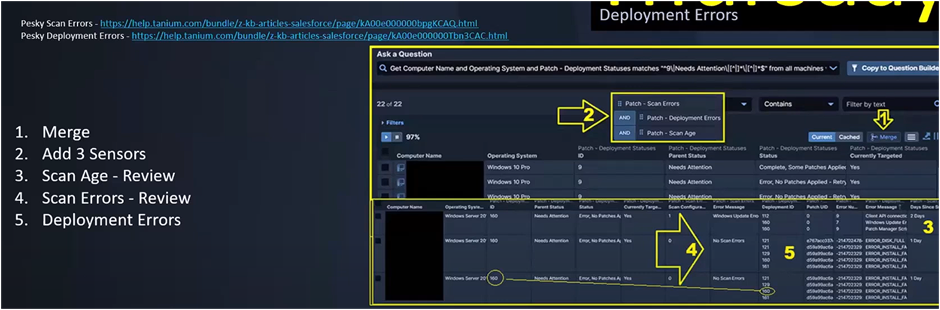
- Scan Age: use Interact – Patch Scan Age to find endpoints with old scans.
- Scan Error: check Patch UI – Scan Management – Scan Errors.
- Deployment Error: open the deployment and review Needs Attention and Errors buckets.
Interact -> Get Patch – Supported Scan Types -> no results
- Check the Log File
Tanium Patch Troubleshooting – Check local logs on the endpoint. Review sensor-history0.txt for this sensor.
Tanium Patch Troubleshooting – Reviewing sensor-history0.txt isolates the crash.
Tanium Patch Troubleshooting – Root cause: locale mismatch. The system is en-US but the decimal separator is ,. CDBL expects . in en-US, so the script fails.
Interact -> Patch – Deployment Statuses -> no results
- Check the Log File
Tanium Patch Troubleshooting – Check local logs on the endpoint. Review sensor-history0.txt.
Tanium Patch Troubleshooting – Search for “Patch – Deployment Statuses”. Look for an XmlReader parse error like this:
{"name":"Patch - Deployment Statuses","time_ms":584,"what_hash":145487854561,"definition_id":8754,"error":"Error: XmlReader: Failed to parse XML from C:xxxxxxxxxxxxxxxdeploymentsconfigurationsdeployment-7.xml.invalid.invalid.invalid.invalid.invalid.invalid.invalid.invalid.invalid.invalid.invalid.
- Apply the Fix
Tanium Patch Troubleshooting – Run a package with this PowerShell cleanup. It deletes .tmp and .invalid under Patch.
Tanium Patch Troubleshooting – Package option: Manny – Patch cleanup invalid files (deploy action).
# -----------------------------------------------------------
# Tanium Package Script - Patch Cleanup
# -----------------------------------------------------------

$TargetPaths = @(
    "C:SystoolstaniumPatch",
    "C:Program Files (x86)TaniumTanium ClientPatch",
    "C:Program FilesTaniumTanium ClientPatch"
)

# Extensions (include .invalid and .invalide)
$Extensions = @("*.tmp", "*.temp", "*.invalid", "*.invalide")

foreach ($Path in $TargetPaths) {
    # 1. Check folder exists (avoid errors if path is missing)
    if (Test-Path -LiteralPath $Path) {

        # 2. Recursive delete
        # -Recurse: search subfolders
        # -Force: include hidden and remove read-only
        # -ErrorAction SilentlyContinue: ignore locked files

        Get-ChildItem -Path $Path -Include $Extensions -Recurse -File -Force -ErrorAction SilentlyContinue |
        Remove-Item -Force -ErrorAction SilentlyContinue
    }
}

# 3. Explicit exit code for Tanium (0 = success)
exit 0
Reports -> Patch – Coverage Status Details
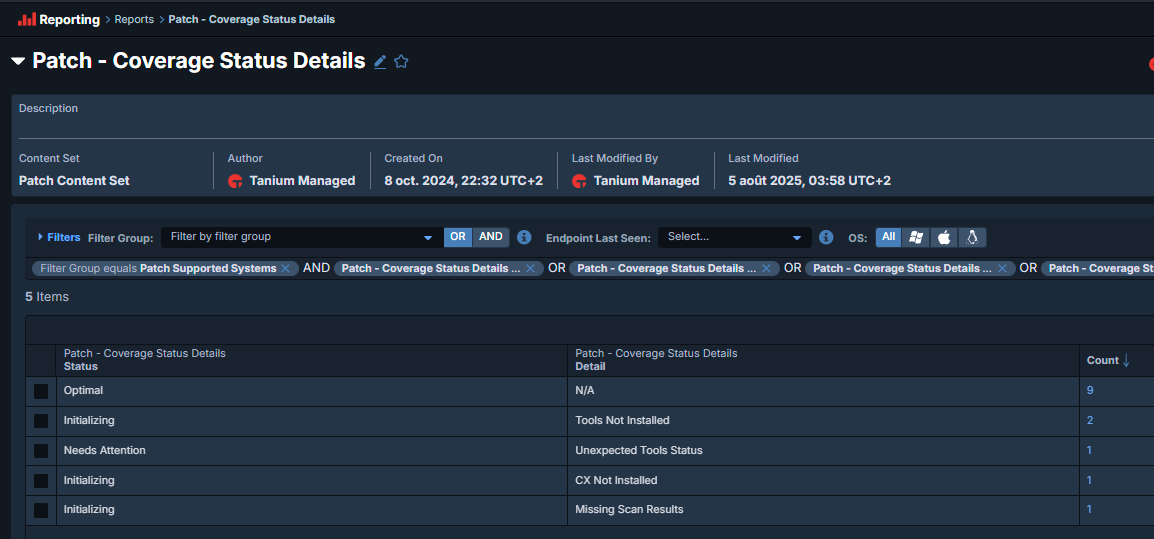
Interact -> Patch Scan Age -> > 1 day
Get Patch - Scan Age from all machines

Tanium Patch Troubleshooting – Identify computers with a patch scan older than 1 day.
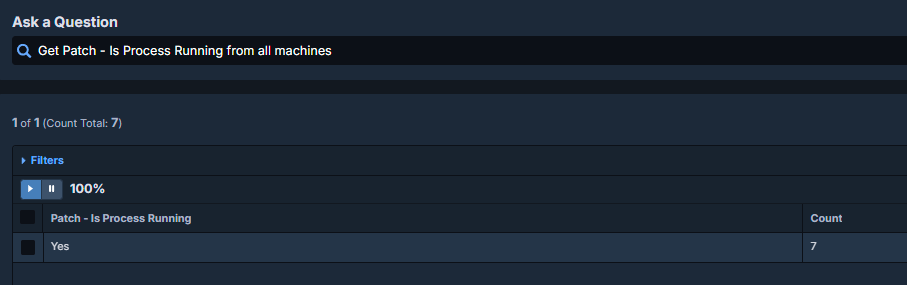
Interact -> Get Patch – Is Process Running
Get Patch - Is Process Running from all machines
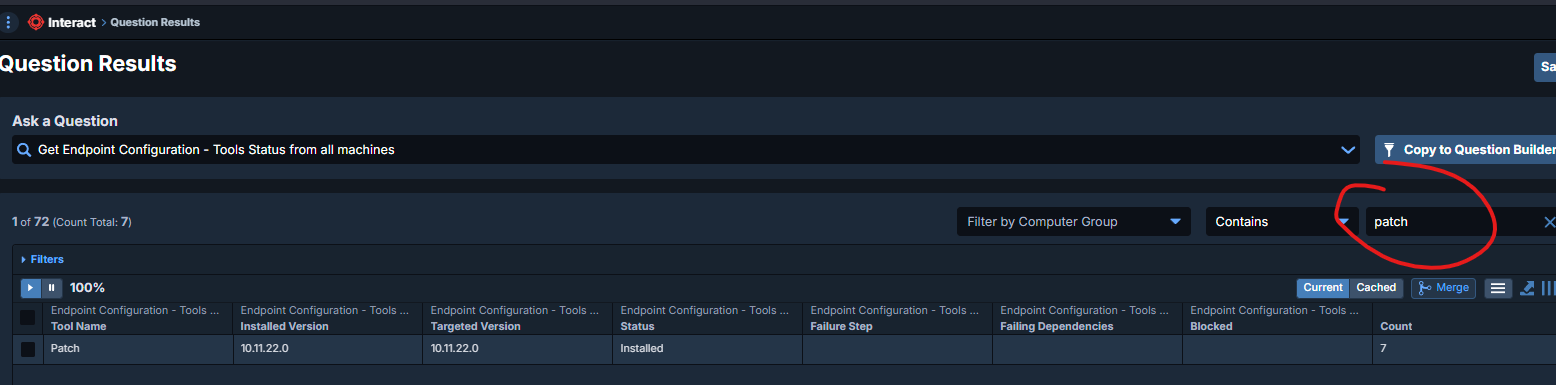
Interact -> Get Endpoint Configuration – Tools Status
Get Endpoint Configuration - Tools Status from all machines
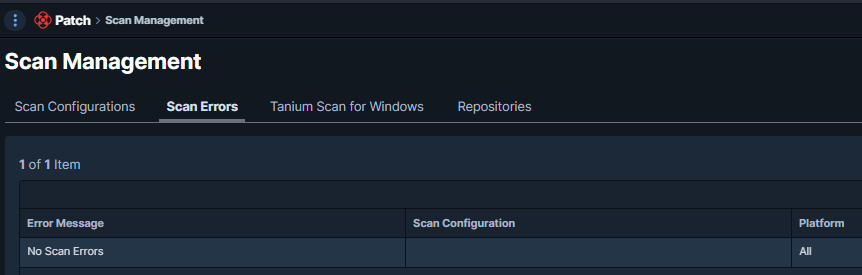
Scan Error – Scan Management
Tanium Patch Troubleshooting – Patch UI -> Modules -> Patch -> Scan Management -> Scan Errors
| Scan Error returned by Tanium Patch | Suggested First Remediation | Comment |
|---|---|---|
| Unable to load PatchLib | Uninstall the TPT | Patch Tools engine library is corrupted. |
| Failed to start the Tanium Scan update service | Uninstall the TPT | PatchScanUpdate service no longer starts. |
| Windows Update Error Code 7 – “Out of memory” | Check the page file -> minimum 16 GB or open a ticket to adjust the batch size | Common on low-RAM VMs. |
| -2147023293 ERROR_INSTALL_FAILED | Reset the WUA Client | Generic install failure from Windows Update Agent. |
| -2145124338 WU_E_XML_INVALID | Reset the WUA Client | Corrupted catalog XML. |
| -2145116147 WU_E_UH_NEEDANOTHERDOWNLOAD | Reset the WUA Client | WUA requests a new download. |
| Failed to Parse XML | Delete the listed XML file (harmless). | Usually a partial or temp file. |
| WU_E_NO_INTERACTIVE_USER | Block Patch distribution -> manual installation only. | Device without an interactive session. |
| PatchManager – error changing WUA service state (timeout) | Fully rebuild the WUA service or run SFC/DISM scans. | WUA service stuck or system files corrupted. |
Tanium Patch Troubleshooting –
Link : Troubleshooting Patch
Tanium Server Checks
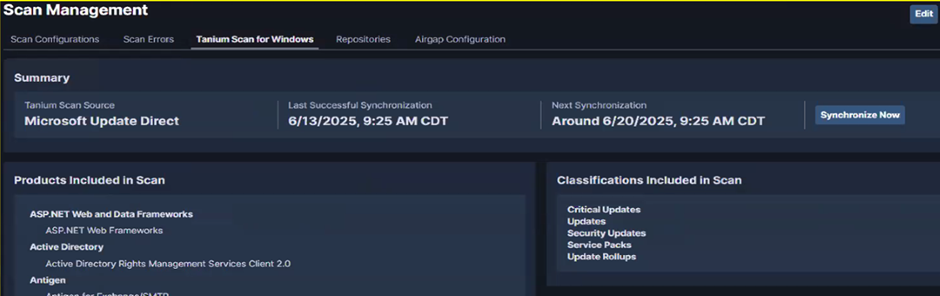
Sync Tanium Scan for Windows database

- Patch UI: Modules -> Patch -> Overview -> Help -> Support -> Initialize Endpoints
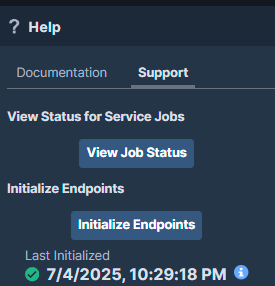
- Click Initialize Endpoints.
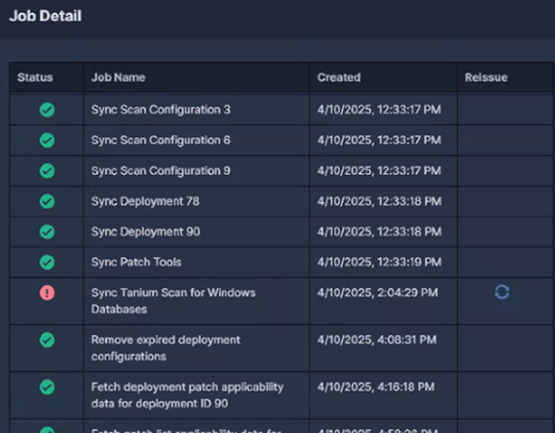
- Patch UI: Modules -> Patch -> Scan Management -> Tanium Scan for Windows
Solutions
Agent-Level Repair Options
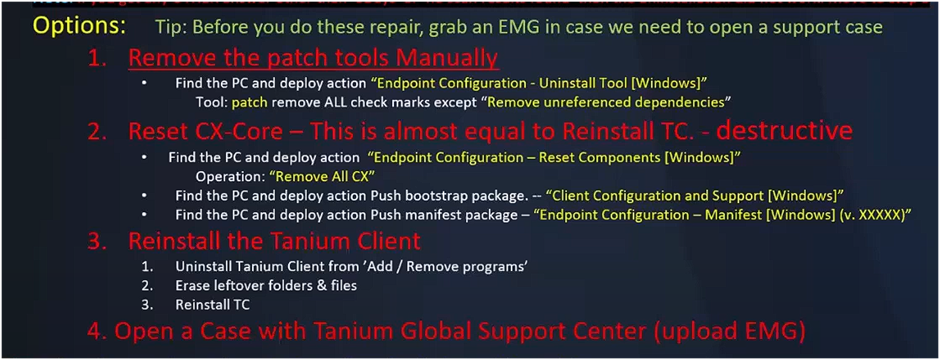
Tanium Patch Troubleshooting – Tip: Before repair, capture an EMG in case you need a support case.
- Remove Patch Tools manually. Deploy action Endpoint Configuration – Uninstall Tool [Windows]. In the tool, clear all checks except Remove unreferenced dependencies.
- Reset CX-Core (destructive, similar to reinstall TC). Deploy action Endpoint Configuration – Reset Components [Windows] with operation Remove All CX. Then push bootstrap package Client Configuration and Support [Windows]. Then push manifest package Endpoint Configuration – Manifest [Windows] (v. XXXX).
- Reinstall the Tanium Client. Uninstall from Add/Remove Programs. Delete leftover folders and files. Reinstall TC.
- Open a case with Tanium Global Support Center and upload the EMG.
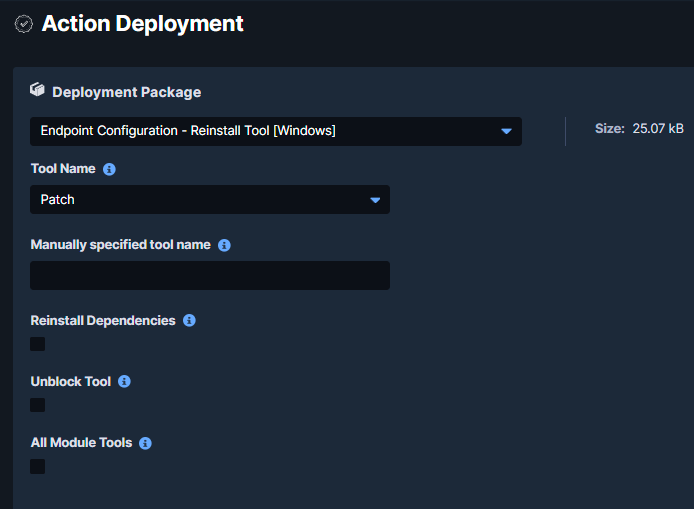
Reinstall Patch tools
Tanium Patch Troubleshooting – Use package Endpoint Configuration – Reinstall Tools.
Reset Windows update agent
Tanium Patch Troubleshooting – -2145124323 WU_E_INVALID_UPDATE-2145124321 WU_E_NO_CONNECTION-2147023293 ERROR_INSTALL_FAILED-2145124338 WU_E_XML_INVALID-2145116147 WU_E_UH_NEEDANOTHERDOWNLOAD
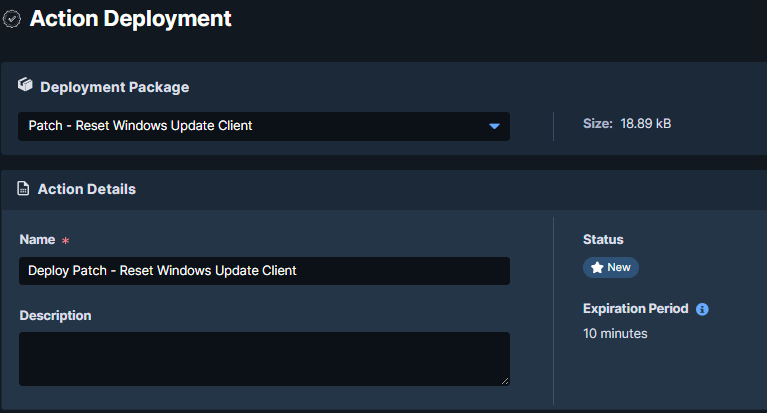
Tanium Patch Troubleshooting – Use package Patch – Reset Windows Update Client.
Windows Update Agent Fixes
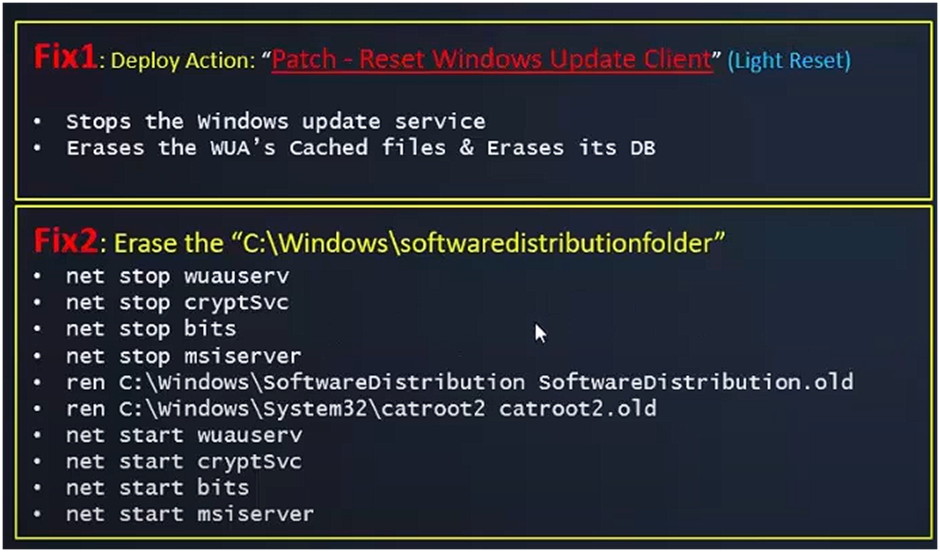
Tanium Patch Troubleshooting – Apply in order. Stop if the issue is fixed.
- Fix 1 – Light reset: Deploy action Patch – Reset Windows Update Client. This stops WU service and clears WUA cache and DB.
- Fix 2 – Clear SoftwareDistribution: Stop WU services, rename SoftwareDistribution and catroot2, then start services.
net stop wuauserv
net stop cryptsvc
net stop bits
net stop msiserver
ren C:WindowsSoftwareDistribution SoftwareDistribution.old
ren C:WindowsSystem32catroot2 catroot2.old
net start wuauserv
net start cryptsvc
net start bits
net start msiserver
Scripts GitHub – Reset Windows Update Agent
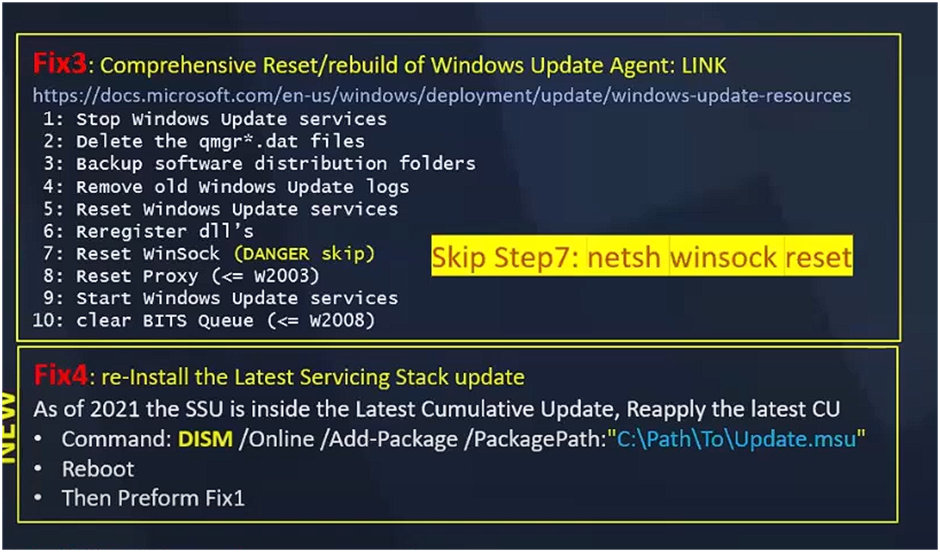
- Fix 3 – Full reset/rebuild: Follow the Microsoft reset/rebuild steps for the Windows Update Agent. Skip the netsh winsock reset step.
- Fix 4 – Reinstall latest SSU/CU: Install latest SSU/CU, reboot, then run Fix 1 again.
Force Scan
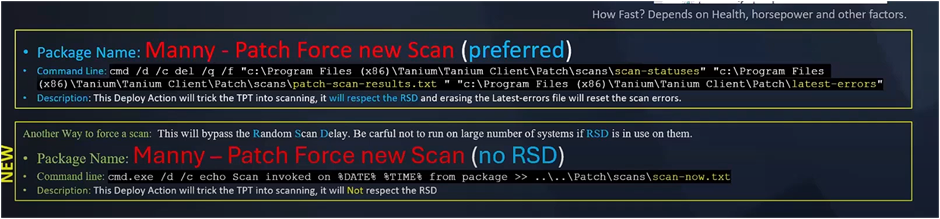
Tanium Patch Troubleshooting – Packages you can use (may already exist in your catalog):
- Manny – Patch Force new Scan (preferred): Triggers a new scan, respects RSD, clears latest-errors.
- Manny – Patch Force new Scan (no RSD): Triggers a new scan and ignores RSD (use with care).
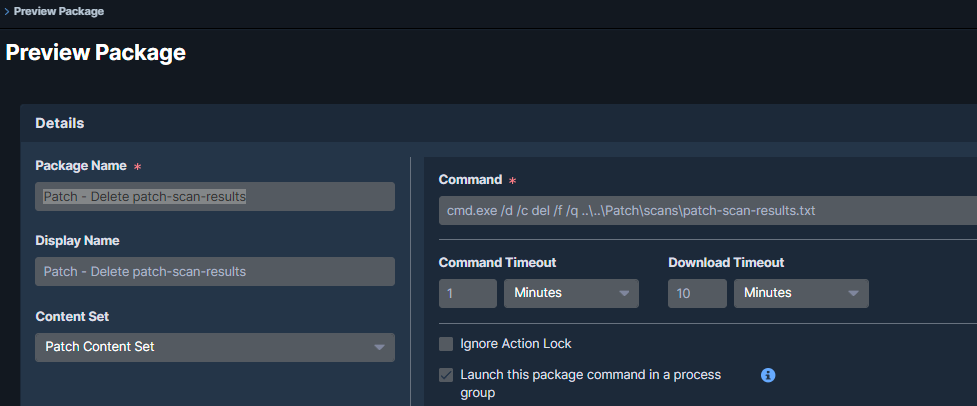
Tanium Patch Troubleshooting – Option 1 (preferred)
- Create a package with command Patch – Delete patch-scan-results.
cmd.exe /d /c del /f /q ....Patchscanspatch-scan-results.txt
Tanium Patch Troubleshooting – Option 2
- Create a package with command Patch – Create Scan-Now.
cmd.exe /d /c echo Scan invoked on %DATE% %TIME% from package >> ....Patchscansscan-now.txt
General Information
SSU
Tanium Patch Troubleshooting – Since Feb 2021, SSU is in the CU, except out-of-band SSU.
Classification
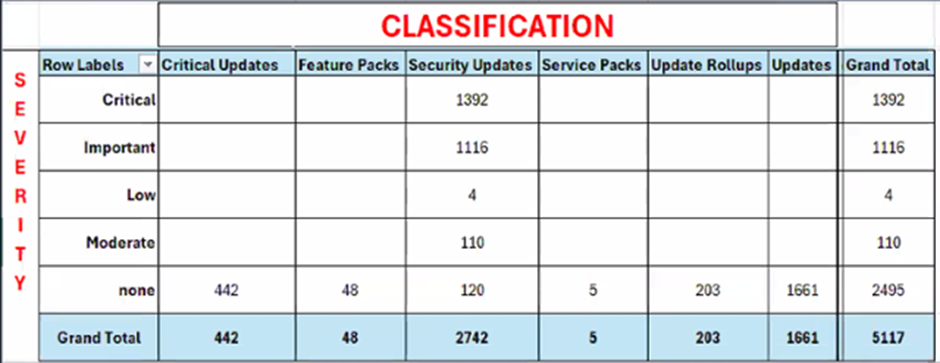
Tanium Patch Troubleshooting – Security Update severity levels:
- Critical: RCE -> patch now
- Important: CIA impact -> patch ASAP
- Moderate: Risk mitigated by config
- Low: Minimal impact
- None: No security risk (except .NET Framework)
Command line
Tanium Patch Troubleshooting – Install CAB -> DISM /Online /Add-Package /PackagePath:"C:Pathfile.cab"
Tanium Patch Troubleshooting – Install MSU -> wusa C:Pathfile.msu /quiet /norestart
GitHub script – Install MSU From Direct Download
Operating System Logs
Tanium Patch Troubleshooting – C:WindowsLogsCBSCBS.log
Tanium Patch Troubleshooting – C:WindowsWindowsUpdate.log (generate via PowerShell Get-WindowsUpdateLog)
GitHub note – Generate Windows Update Log
Tanium Patch Troubleshooting – C:WindowsSoftwareDistributionReportingEvents.log
External Links
Tanium Patch Troubleshooting – Reference pages and tools:
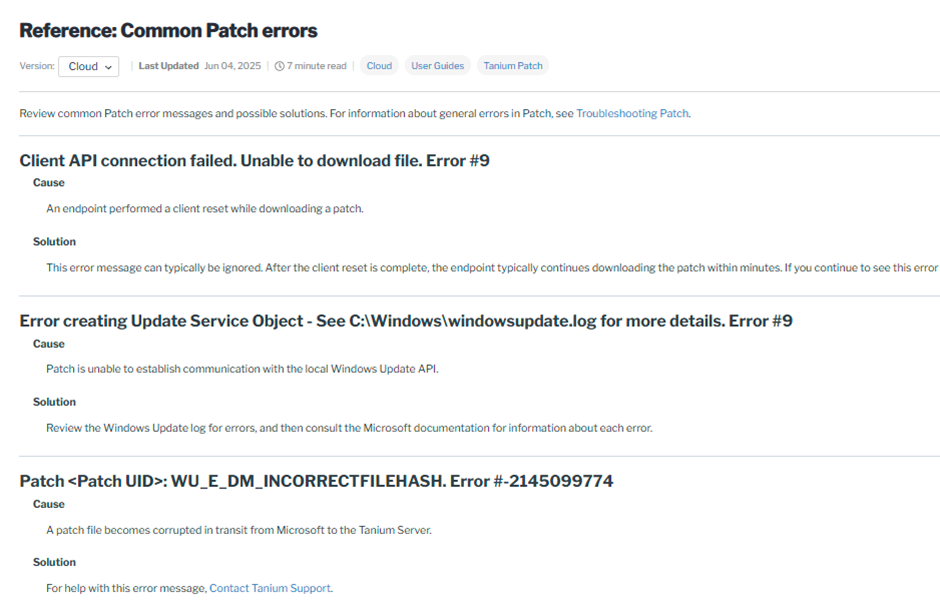
- Tanium Patch error reference
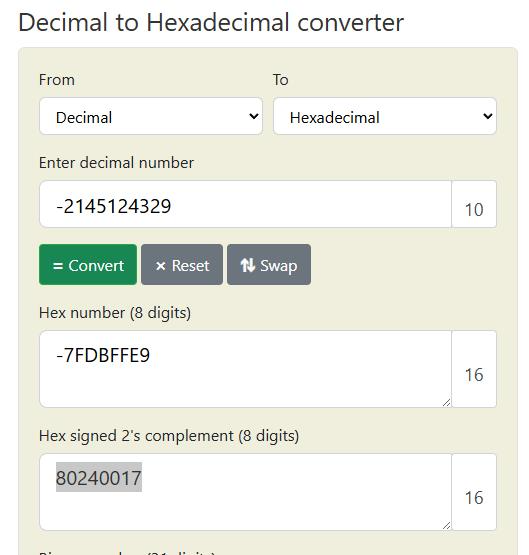
- Decimal to hex converter (for error codes)
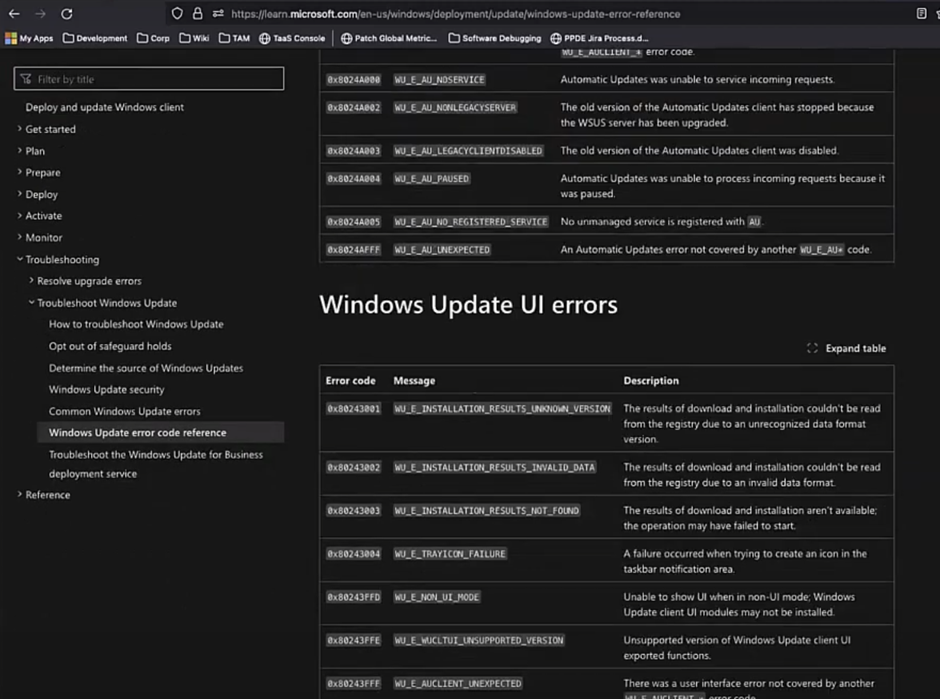
- Windows Update error reference