Tanium Provision: Add a Choose Job Profile Prompt
This article shows two ways to create a job profile tag during Tanium Provision deployment. The tag can then be used to target a software package or an application bundle after the operating system deployment.
The first method uses a native Key Value Entry. The second method uses a custom PowerShell script. Both methods create a tag on the newly deployed computer.
Solution 1: Key Value Entry
This is the simplest option. Use it when you only need to ask the technician to select a value from a predefined list.
Configuration
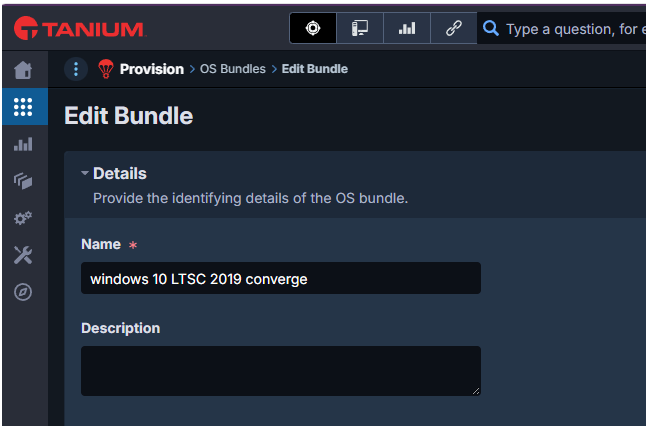
- Edit the Provision bundle, scroll to the bottom, and open Key Value Entries.
- Select Add Key Value.

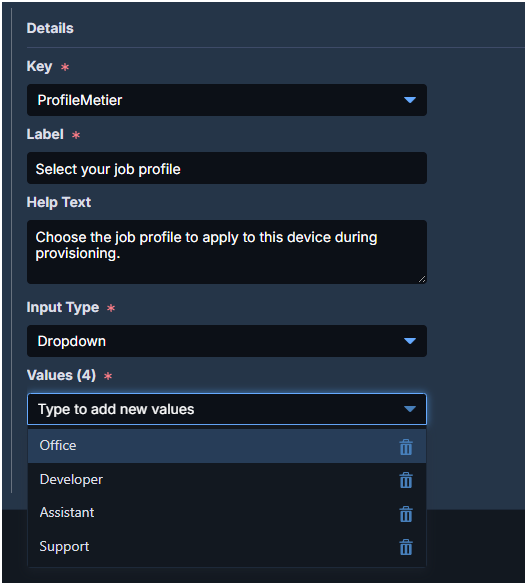
- Create a new key for the profile selection. In this example, the key is ProfileMetier.
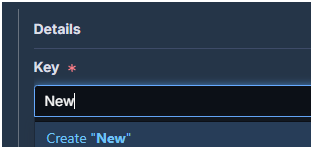
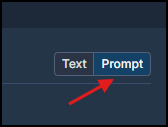
- Select the required Prompt Type.
- Add the allowed values for the key.
- Save the bundle.
Provision Deployment
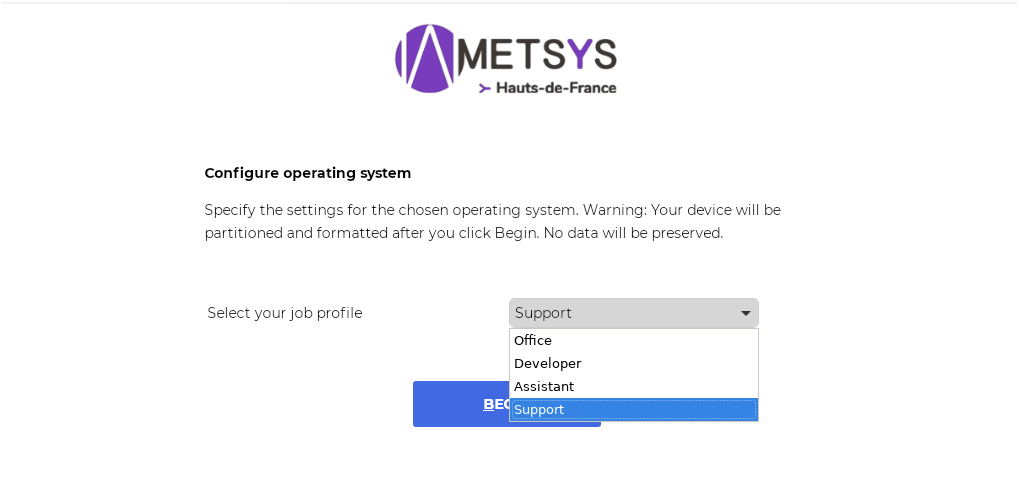
- During deployment, the technician selects the required profile.
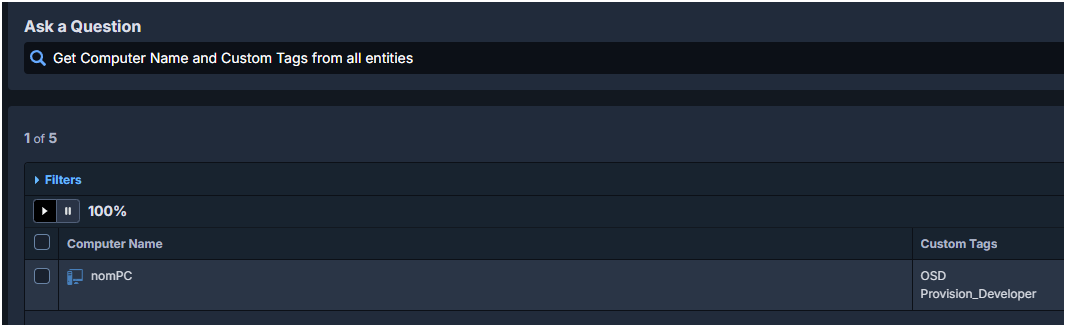
- After deployment, the selected value is available as a tag on the new computer.
Solution 2: Custom PowerShell Script
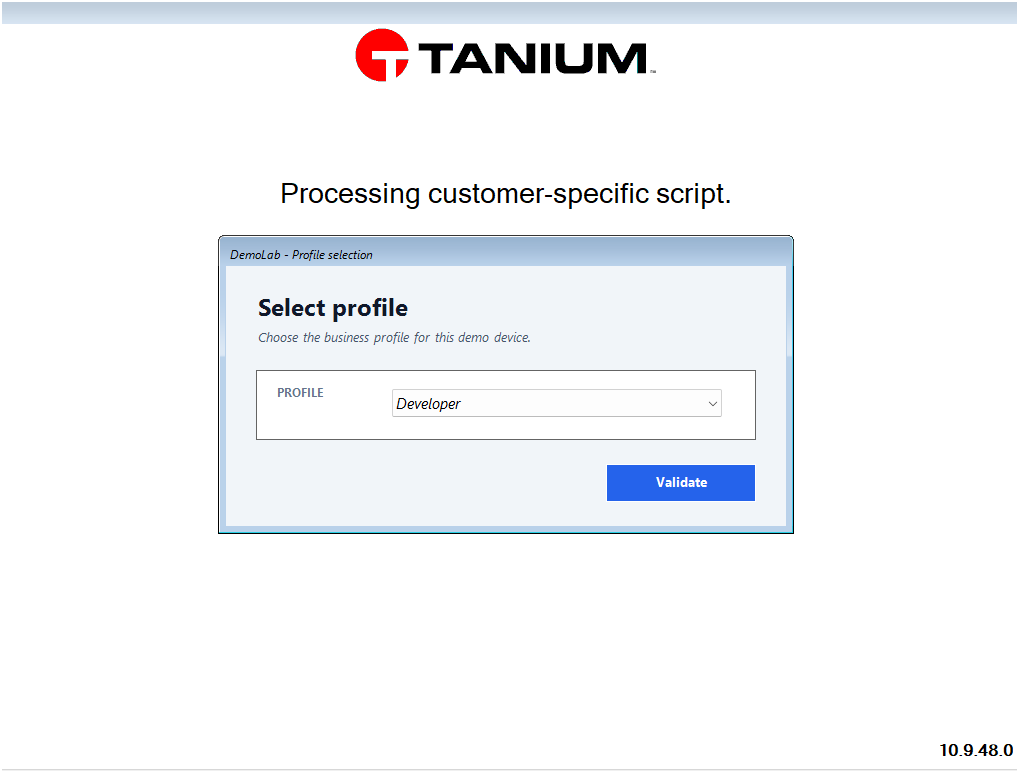
Use this option when the prompt must be more customizable than the native Key Value Entry. The menu appears later in the deployment workflow, but the logic is fully controlled by the PowerShell script.
Use one or more of the following script names, depending on when you want your scripts to run:
- Customer-PE-Pre.ps1: called at the start of the Windows PE phase, before applying the OS image.
- Customer-PE.ps1: called at the end of the Windows PE phase, after applying the OS image, injecting drivers and updates, and placing the
unattend.xmlfile. - Customer-Pre.ps1: called at the start of the Windows configuration process, before installing the Tanium Client or joining Active Directory / Azure AD.
- Customer.ps1: called at the end of the Windows configuration process, as the last action before completion.
Reference: Tanium Provision advanced configuration.
Configuration
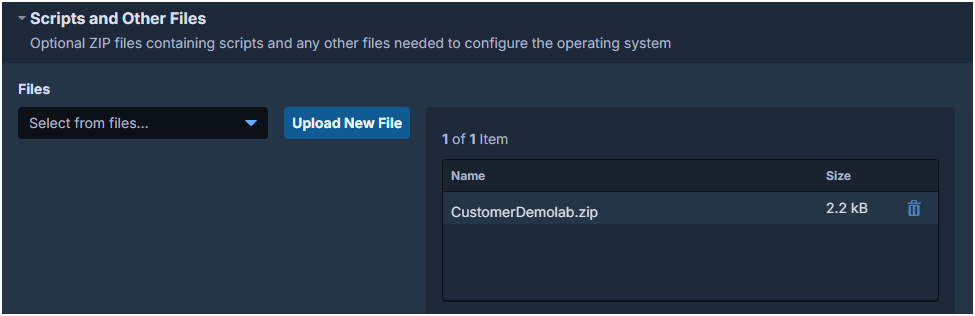
- Edit the Provision bundle, scroll to the bottom, and open Scripts and Other Files.
- Add the custom files required by the PowerShell script.
Download the sample files from GitHub: tanium-provision-job-profile.
- Customer-PE-Pre.ps1: WinPE pre-script used to display the job profile selection prompt.
- Customer.ps1: script used to import the Tanium client module and apply the selected value.
- CustomerDemolab.zip: ready-to-use ZIP archive containing the sample scripts.
Provision Deployment
The custom menu is displayed later than the Key Value Entry prompt. The advantage is that the PowerShell script can be adapted to your naming rules, profile list, or validation logic.
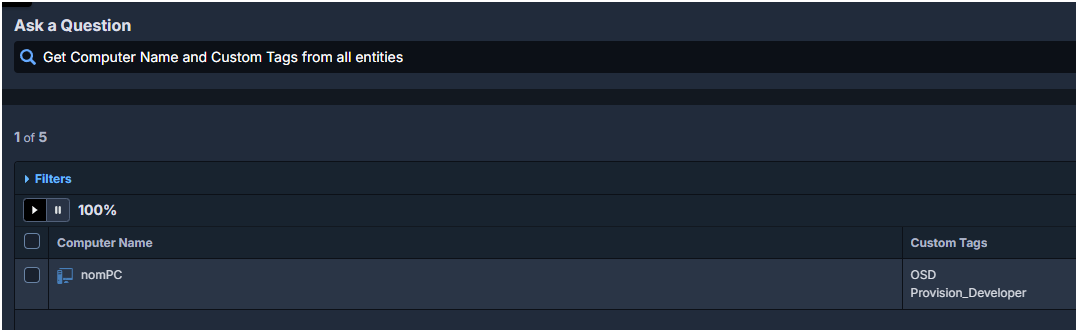
- After deployment, the expected tags are also available on the computer.
Software Deployment
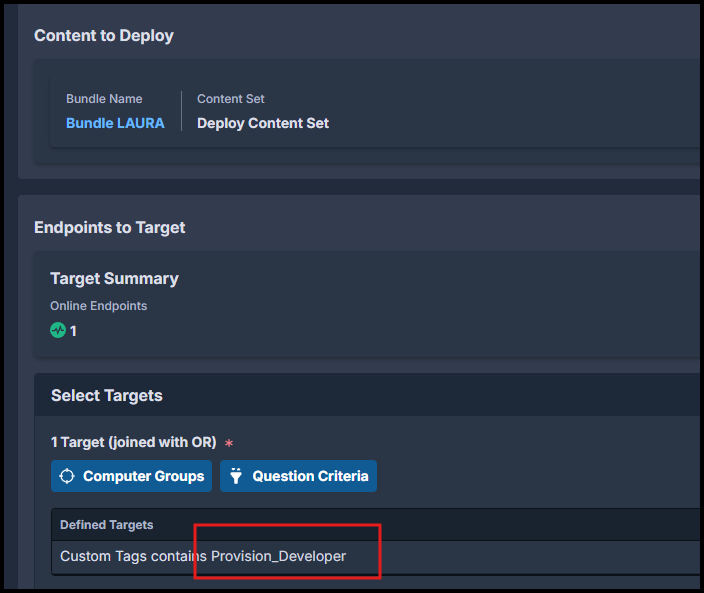
For both methods, the generated tag can be used to target a software package or an application bundle.
- Create or edit the application bundle.
- Add a targeting rule based on the custom tag.
- Deploy the bundle only to computers matching the selected profile.
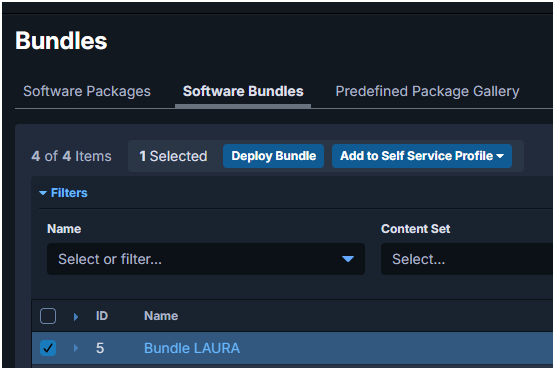
- Select the custom tag created during Provision deployment.