
Overview
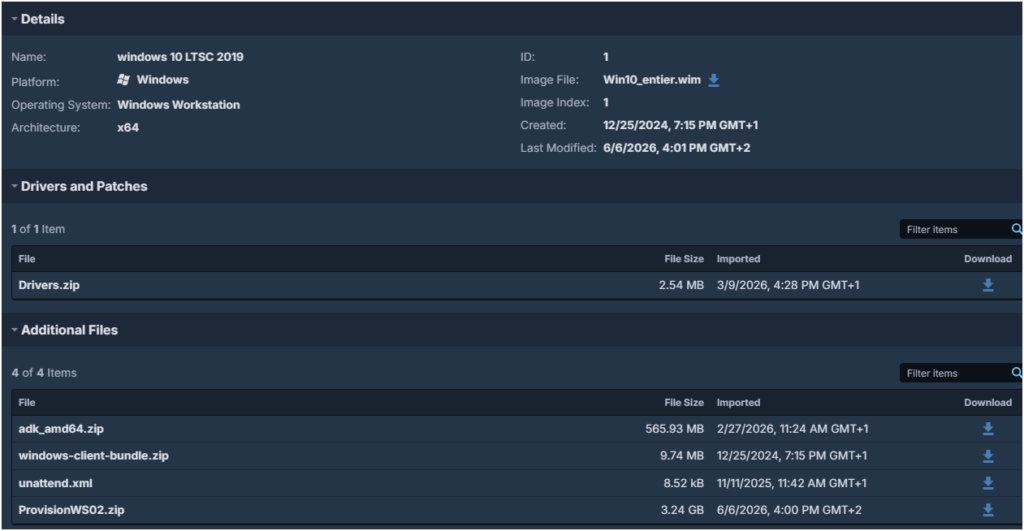
Tanium manages the OS installation. In this scenario, Tanium still handles these parts:
- PXE boot;
- Content Cache;
- bundle management.
The OS bundle contains, for example:
- the
install.wimfile; - the
unattend.xmlfile; - the Tanium Client;
- drivers.
What it does: this part is still managed by Tanium Provision: PXE boot, content cache, OS bundle, WIM, drivers and Tanium Client.
The Web Service source code is hosted on GitHub: tanium-provision-webservice.
Note: this Web Service is still in a test phase. For now, I share repository access on request only.
Install the Web Service
Installation and configuration
The Web Service is written in Python. Install Python first, then run the installation script provided with the project.
What it does: the script prepares the Python environment in
C:\WebService\venv, installs the required modules and checks that the application can load them.
The StartWebService.ps1 script starts the Web Service.
What it does: it starts
app.pywith the Python executable from the virtual environment. If the process stops, the loop starts it again.
Note: by default, the Web Service listens on port
12176. To change this port, update the variable used inapp.py.
port = int(os.environ.get("WS_PORT", "12176"))You can use a standard port like 80 or 443 directly, but in most cases a reverse proxy is simpler.
Reverse proxy in IIS
To publish the Web Service behind IIS, install these prerequisites:
- URL Rewrite 2.1 or later;
- Application Request Routing 3.0.
What it does: IIS receives requests on a clean URL, for example
/provision, and forwards them to the Python service listening on port12176.
Example web.config file: replace the IP address 10.1.2.3 with the IP address of the server hosting the Web Service.
<?xml version="1.0" encoding="UTF-8"?>
<configuration>
    <system.webServer>
        <rewrite>
            <outboundRules>
                <rule name="Add provision prefix to redirects" preCondition="IsRedirection">
                    <match serverVariable="RESPONSE_Location" pattern="^(https?://[^/]+)?/(?!provision)(.*)" />
                    <action type="Rewrite" value="/provision/{R:2}" />
                </rule>
                <preConditions>
                    <preCondition name="IsRedirection">
                        <add input="{RESPONSE_STATUS}" pattern="3[0-9][0-9]" />
                    </preCondition>
                </preConditions>
            </outboundRules>
            <rules>
                <rule name="Proxy Provision" stopProcessing="true">
                    <match url="^provision/?(.*)" />
                    <serverVariables>
                        <set name="HTTP_X_FORWARDED_PREFIX" value="/provision" />
                        <set name="HTTP_X_FORWARDED_HOST" value="{HTTP_HOST}" />
                        <set name="HTTP_X_FORWARDED_PROTO" value="http" />
                        <set name="HTTP_X_FORWARDED_PORT" value="{SERVER_PORT}" />
                    </serverVariables>
                    <action type="Rewrite" url="http://10.1.2.3:12176/{R:1}" />
                </rule>
            </rules>
        </rewrite>
    </system.webServer>
</configuration>
Start the Web Service
The Web Service can be started automatically with a Windows scheduled task. Example:
What it does: the scheduled task starts the Web Service when the server boots, with the
SYSTEMaccount, without an interactive user session.
# 1. Define the action: what the task must start
$Action = New-ScheduledTaskAction -Execute "PowerShell.exe" -Argument "-ExecutionPolicy Bypass -WindowStyle Hidden -File C:\Webservice\StartWebService.ps1"

# 2. Define the trigger: at server startup
$Trigger = New-ScheduledTaskTrigger -AtStartup

# 3. Define the rights: background execution with the SYSTEM account
$Principal = New-ScheduledTaskPrincipal -UserId "NT AUTHORITY\SYSTEM" -LogonType ServiceAccount

# 4. Register the task in Windows
Register-ScheduledTask -TaskName "TaniumProvisionTask" -Action $Action -Trigger $Trigger -Principal $Principal
MDT-like operating mode
MDT-like customization
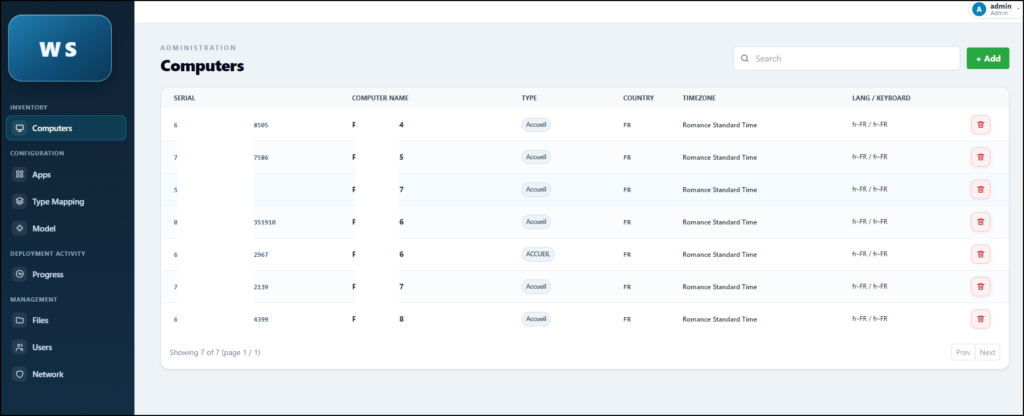
The Web Service customizes the deployment like MDT, but with a centralized logic exposed by API.
- set the computer name;
- select the deployment profile;
- set country, language, keyboard and time zone;
- select optional application packages;
- select optional drivers;
- track deployment progress;
- display final success or error status.
What it does: the Web Service replaces the MDT customization logic. It receives computer information, selects the values to apply, then exposes them to the Tanium scripts.
Customer scripts
For customization, use the Tanium Provision customer*.ps1 scripts.
Tanium reference: Variables and advanced customization
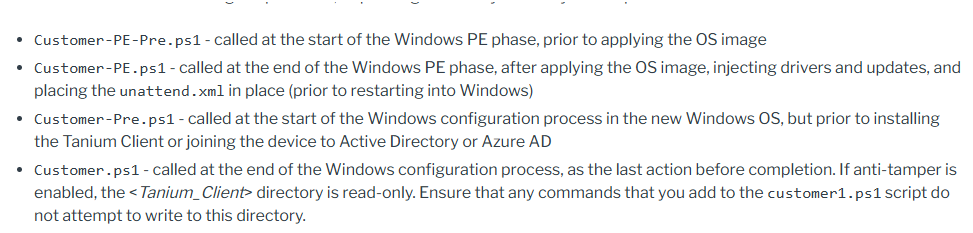
To make this dynamic, the scripts added to the bundle are only launchers. They download the full customer*.ps1 scripts from the Web Service.
What it does: the Tanium bundle stays small. The full logic stays on the Web Service, so scripts can be changed without rebuilding the bundle each time.
Before adding them to the bundle, update the $WsBase variable so it points to the Web Service URL.
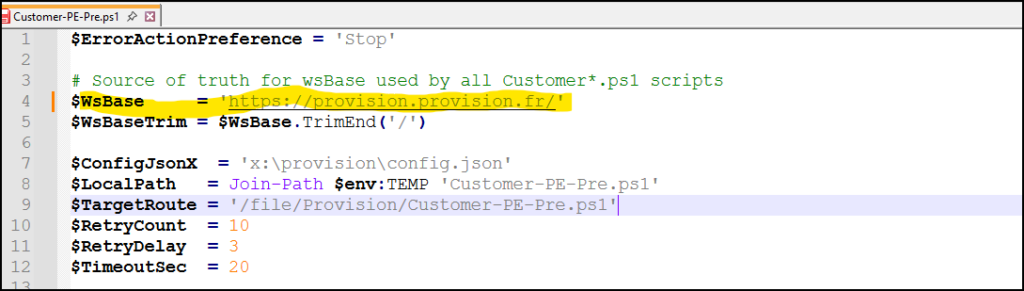
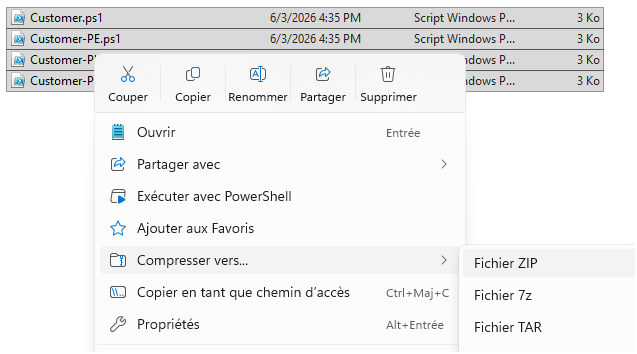
Then compress the scripts.
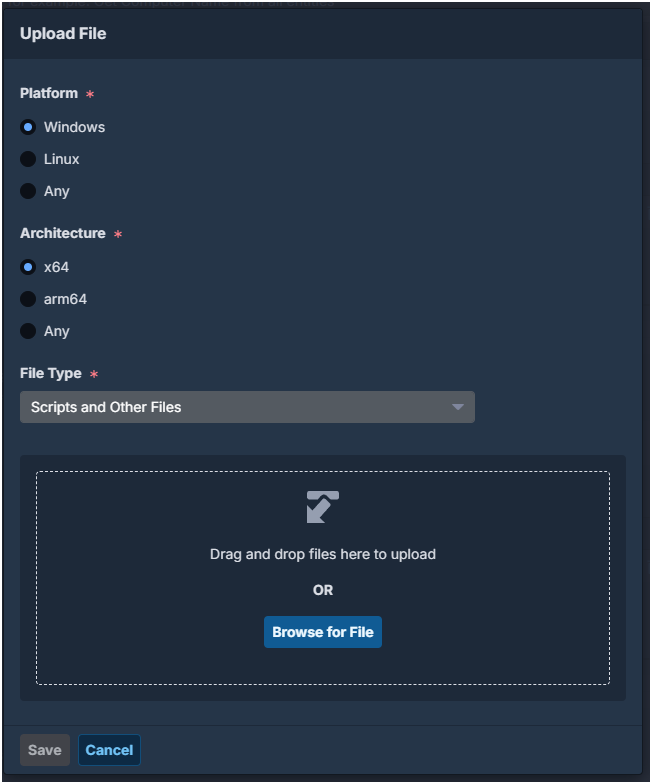
Add the archive in the Other Files section of the bundle.
Applications, drivers and local content
The Web Service can return different path types for applications and drivers:
- an HTTPS path;
- a UNC path, with or without system variables;
- a local path.
What it does: the scripts query the Web Service to get the applications and drivers to apply. The service can filter results by profile, country or computer model.
For local paths, add a ZIP archive with this naming rule:
Customer*.zipIf this archive exists, it is extracted into this folder:
C:\provision\OtherFilesLocal paths can then point to folders inside this archive.
Deployment end with the Web Service
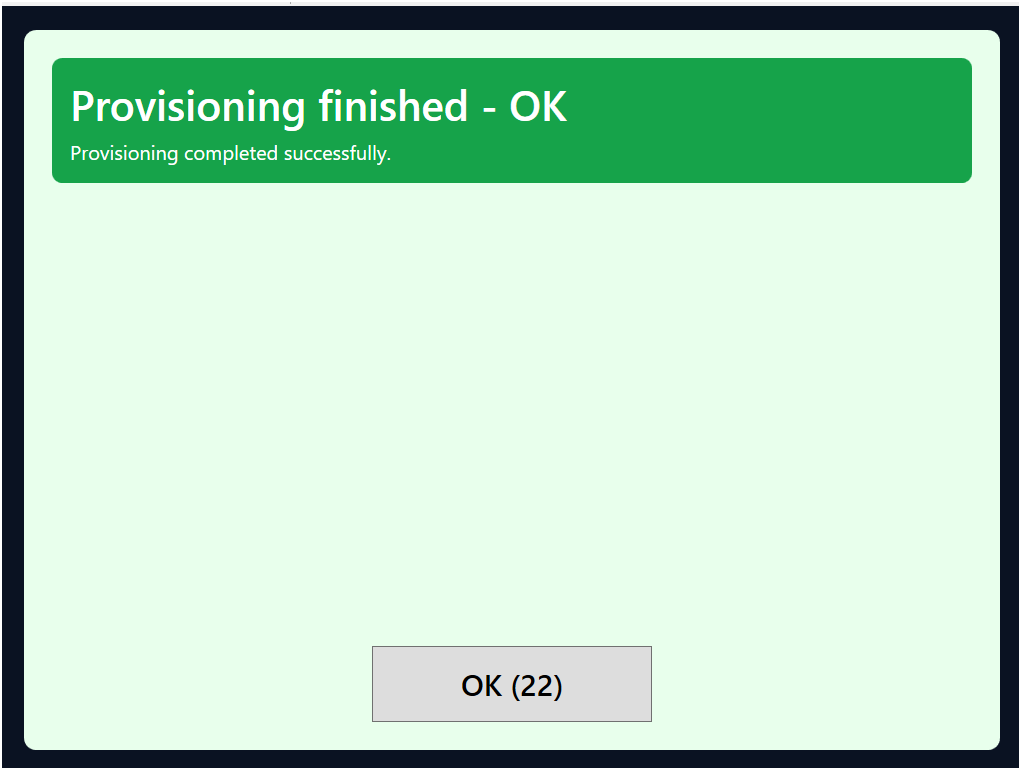
On the endpoint, the user sees the final deployment result: success or error.
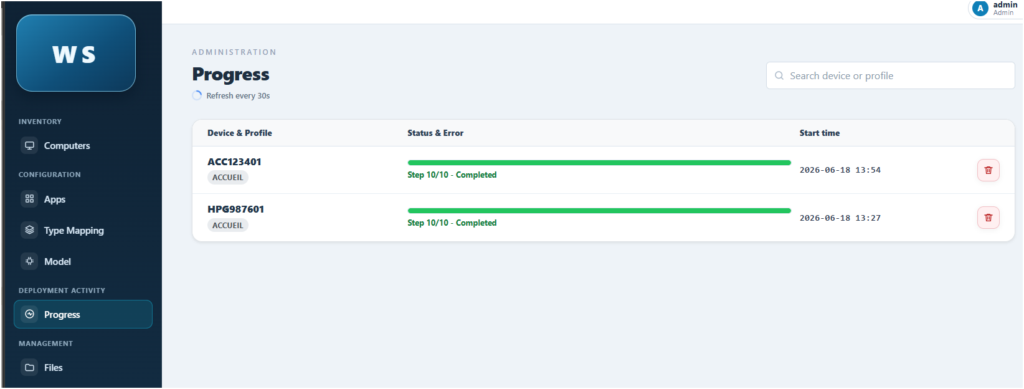
The same information is also visible in the Web Service.
What it does: the scripts send messages and deployment status to the Web Service. This makes support easier, without checking only local logs on the endpoint.
Use Web Service variables
Manage Tanium variables with Web Services
In this use case, Tanium calls the Web Service with information like the serial number or the computer model. The Web Service then returns the values required for deployment.
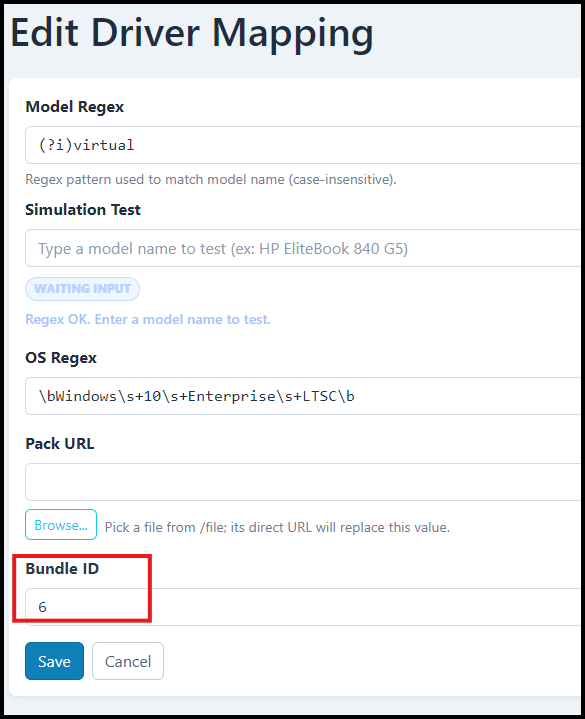
In this example, the Web Service returns the Bundle ID to use based on the model.
What it does: Tanium queries the Web Service during deployment start. The service can return a global Bundle ID or a Bundle ID specific to the detected model.
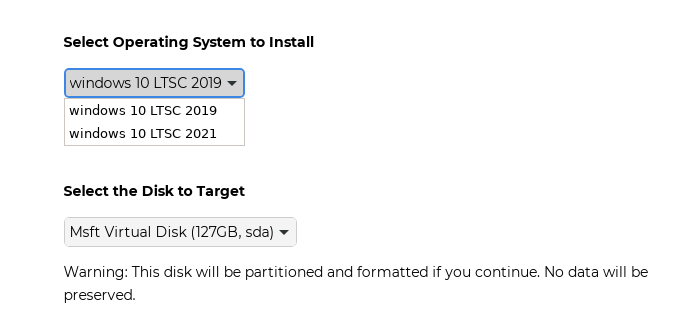
The Bundle ID can be configured as a default value or per model in the Web Service.
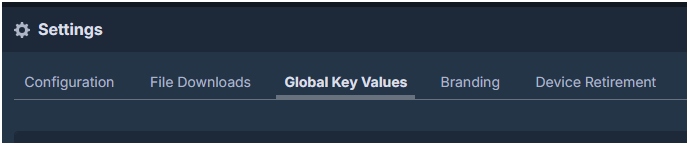
Global configuration in Tanium Provision
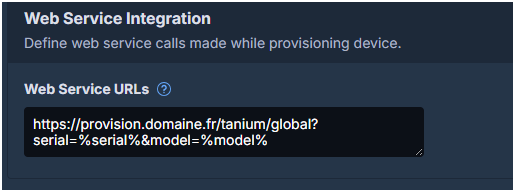
In Tanium Provision settings, configure the Web Service URL.
Enter the Web Service URL.
What it does: Tanium uses this URL to call the Web Service routes during provisioning, mainly to get variable values and the Bundle ID to run.
Note: do not configure Automated OS Bundle Selection in this operating mode.
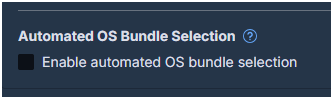
With this configuration, the Bundle ID can be defined by the Web Service, either as a default value or by model.
Default Bundle ID
The Web Service can define a default Bundle ID. This value is used when no model-specific rule is found.

Bundle ID by model
It is also possible to define a specific Bundle ID for a given model.
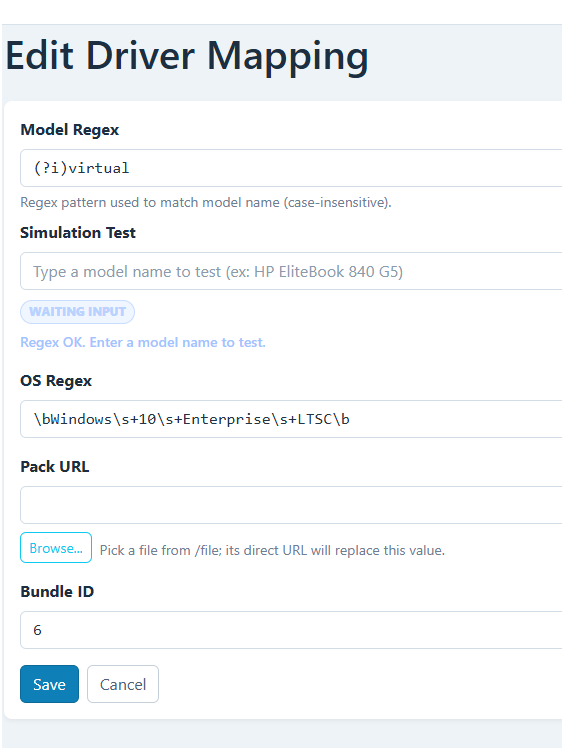
Configuration directly in the bundle
It is also possible to add a Web Service key directly in the bundle. In the current state, this Web Service does not support this mode yet.
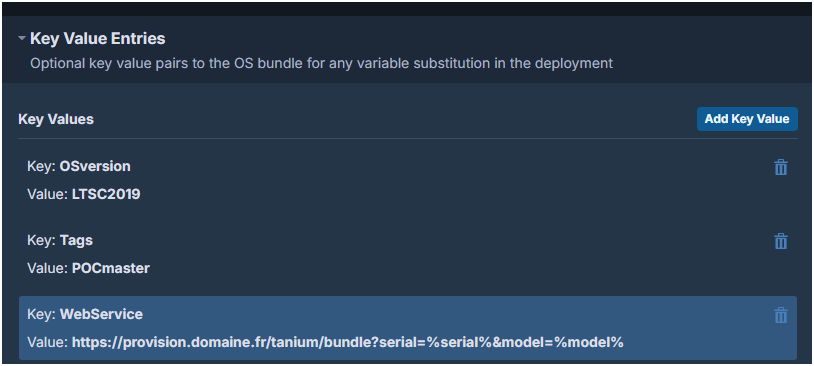
Technical points
This section explains the technical parts used by the Web Service and the Tanium scripts during deployment: application reboots, type mapping, drivers, computer records and data storage.
Application reboot handling
Each application can request a reboot after installation. When the reboot option is enabled in the Web Service, it is returned to the customer scripts with the application list.
On the endpoint, the script installs the application, records it in the local ledger, then starts a controlled reboot. The behavior is close to MDT: after reboot, deployment can continue without installing already processed applications again.
What it does: the
rebootoption handles applications that require a restart, without breaking the provisioning sequence.
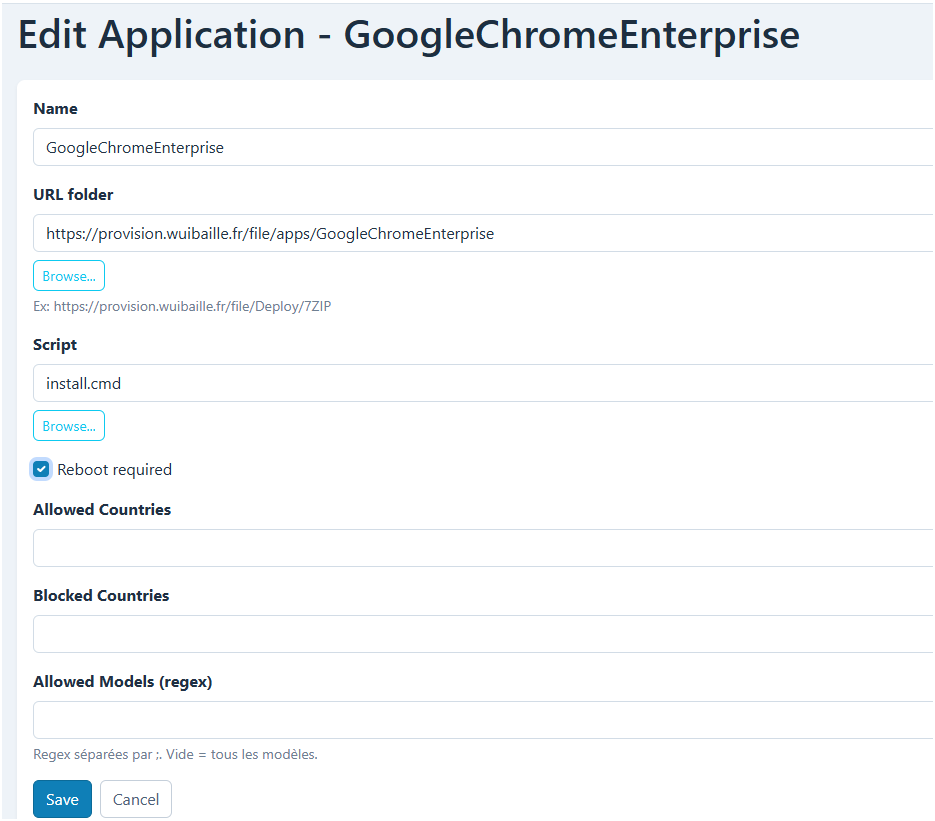
You can also add a model filter. In this case, the application is returned only if the detected model matches the configured rule.
Type mapping
A type mapping is a deployment profile. It links a computer type to a list of applications to install.
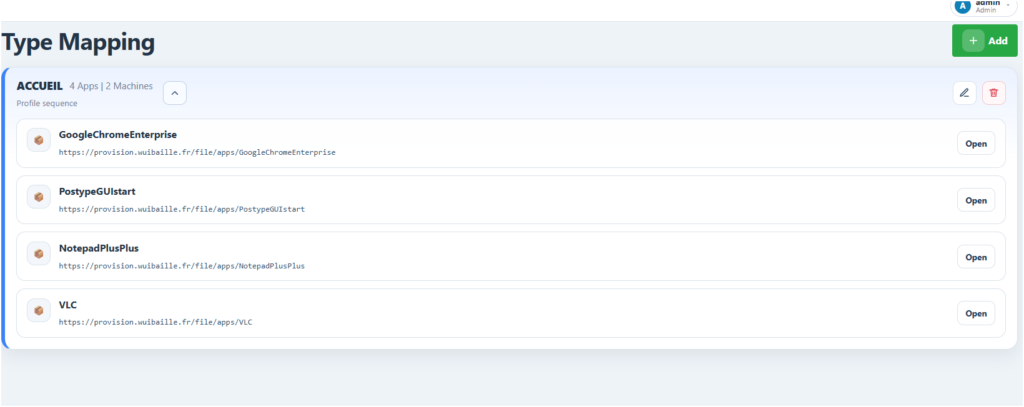
Then add the required applications in the type. During deployment, the endpoint gets its type from the Web Service, then calls the API to get the related application list.
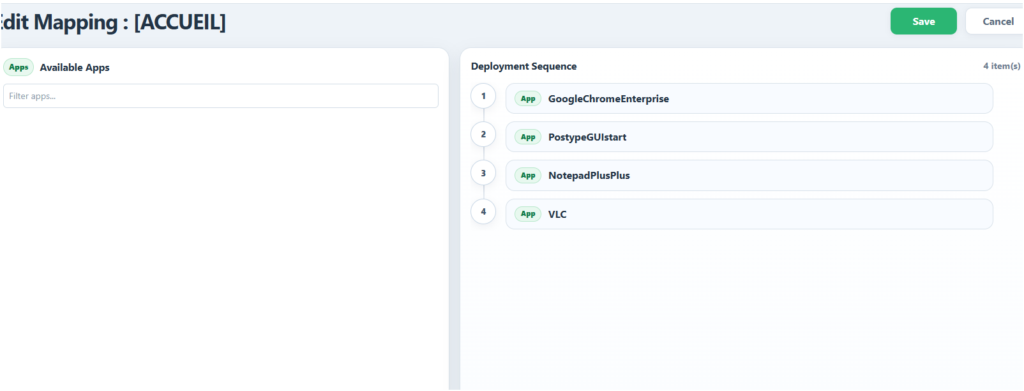
What it does: the type replaces an MDT task sequence logic. It defines which applications must be installed for a given endpoint profile.
Driver management (optional)
Driver management is optional. The Web Service can map a driver package to a computer model and an OS. Matching is done with regular expressions, so one rule can cover several model variants.
During deployment, the script detects the endpoint model and OS name, then queries the Web Service. If a rule matches, the package is downloaded or copied from an HTTP, UNC or local source.
Depending on the file extension, the script extracts or runs the package, then installs drivers with pnputil. Supported formats include .zip, .cab, .7z, .exe and .ps1.
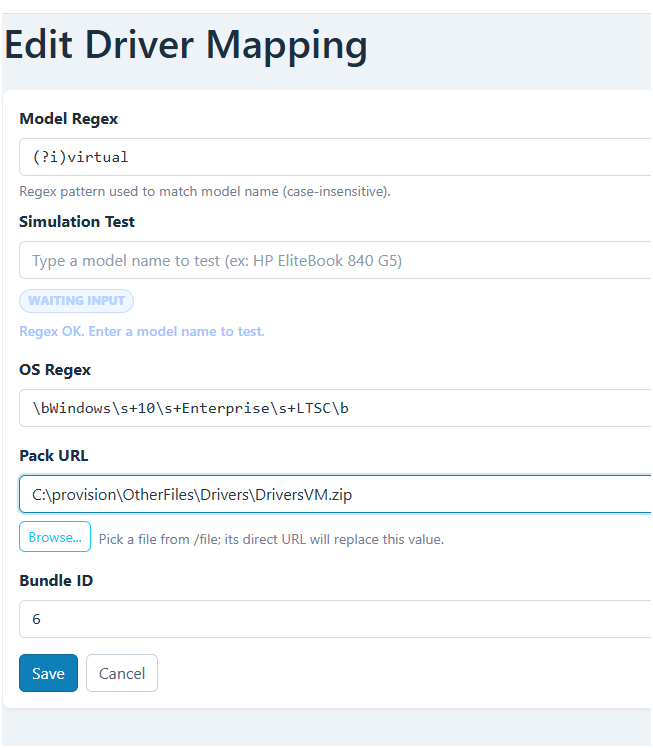
What it does: drivers can stay outside the main OS bundle. The Web Service decides which package to use based on the detected model and OS.
Computer management
The computer section links a serial number to a computer name and a type. This mapping is then used during deployment to apply the correct configuration to the correct hardware.
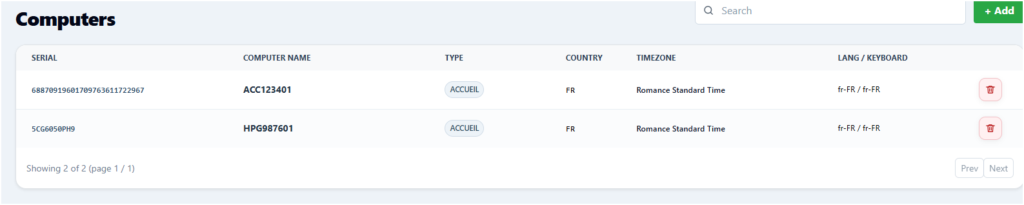
During deployment, a temporary screen can be displayed if information must be confirmed or completed. After the type is selected, it is also added as a tag in Tanium.
What it does: the serial number becomes the endpoint identity key. The Web Service can then return the expected name, type, country, language, time zone and keyboard.
CSV storage
In this version, the Web Service uses CSV files to store configuration. This makes the project portable and easy to back up: data can be exported, read or edited without an external database.
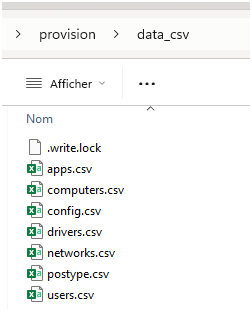
What it does: CSV files are the portable configuration source. The storage can be changed later if needed.