Guide to Windows 11 Installation Using OSDCloud with Windows Master Images
Windows 11 Installation – OSDCLOUD is a solution for installing Windows 10 or Windows 11 without internal infrastructure. All resources will be downloaded from the internet. However,
Introduction
Windows 11 Installation – OSDCLOUD is a solution for installing Windows 10 or Windows 11 without internal infrastructure. All resources will be downloaded from the internet. However, you will still need:
- A bootable USB key or a WDS server.
- A PowerShell script available online for automation (optional).
Windows 11 Installation – This USB key or WDS will be used for the initial boot of your computer. A 1GB USB key will be more than sufficient. Windows sources and drivers will be automatically downloaded from the internet.
Prerequisites
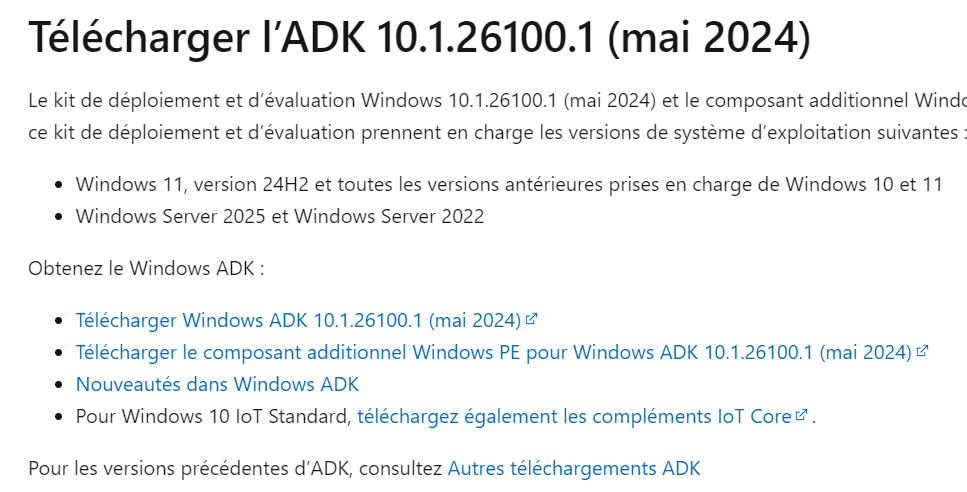
- Windows ADK is required. Download and install it.
- Windows ADK Windows
- Windows PE Module
Windows 11 Installation – Download and install the Windows ADK | Microsoft Learn
Creating the OSDCloud workspace
Windows 11 Installation – All commands will be executed as an administrator.
Create a new Workspace.
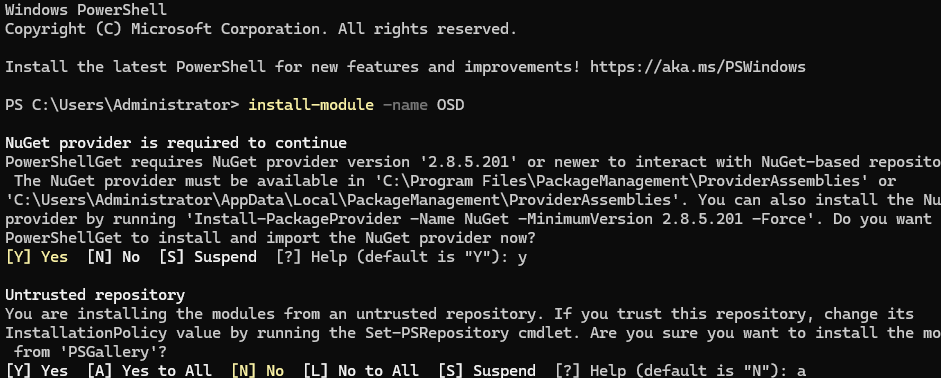
Windows 11 Installation – The workspace is the working directory where Winpe images and OSDCloud scripts will be copied. To create the workspace, use the following commands.
Install-module -name OSD
New-OSDCloudTemplate –Language fr-fr –SetInputLocale fr-fr
New-OSDCloudWorkspace –WorkspacePath c:OSDCloud
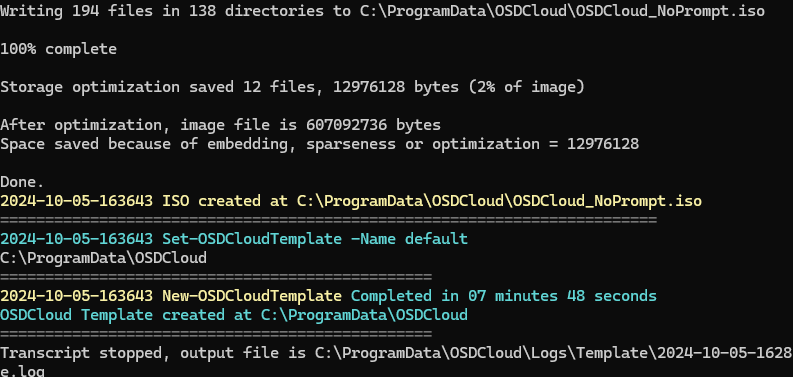
Windows 11 Installation – Command to navigate within the workspace (optional)
Get-OSDCloudWorkspace
Set-OSDCloudWorkspace c:OSDCloud
Automation Script for Windows 11 (Optional)
Windows 11 Installation – This step allows for automating the installation. You can skip this step if your goal is occasional installations.
Windows 11 Installation – A PowerShell script has been made available on a website. This script will be executed during deployment with OSDCloud, so it must be available online.
Windows 11 Installation – Script Example
Write-Host -ForegroundColor Green "Starting OSDCloud ZTI ..."
start-sleep -Seconds 3

Write-Host -ForegroundColor Green "Setting Display Resolution to 1600"
Set-DisRes 1600
start-sleep -Seconds 2

Write-Host -ForegroundColor Green "Updating OSD Powershell Module"
Install-Module OSD -Force

Write-Host -ForegroundColor Green "Importing OSD Powershell Module"
Import-Module OSD -Force

Write-Host -ForegroundColor Green "Start OSD Cloud"
Start-OSDCloud -OSLanguage fr-fr -OSName 'Windows 11 22H2 x64' -OSLicense Volume -OSEdition Pro -Zti

Write-Host -ForegroundColor Green "Restarting ..."
start-sleep -Seconds 5
wpeutil reboot
Windows 11 Installation – The Start-OSDCloud command has several options:
- OSLicence: Volume for a KMS server or Retail for BIOS activation (OEM License)
- OSEdition: In reality, it will be Pro or Enterprise
- Zti: for a silent installation (Warning: this will reinstall the computer without any prompt)
Customizing the OSDCloud Workspace
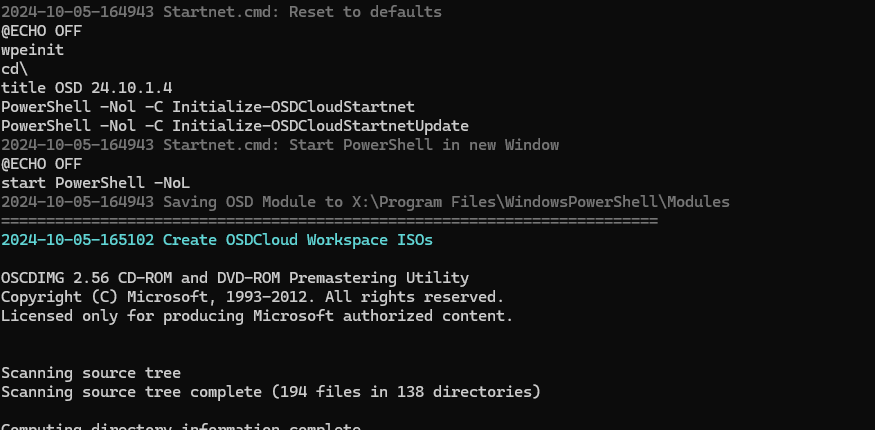
Add WinPE drivers
Edit-OSDCloudWinPE –CloudDriver HP
# Or
Edit-OSDCloudWinPE -CloudDriver Dell,HP,IntelNet,LenovoDock,Nutanix,USB,VMware,WiFi
Other options
Windows 11 Installation – In this command, I will point to my automation script and define a background image.
Edit-OSDCloudWinPE -WorkspacePath C:OSDCloudHome -CloudDriver HP -WebPSScript "https://nas.wuibaille.fr/LeblogOSDdownload/Repository/OSDCloud/Win11_PRO_fr.ps1" -Wallpaper "c:tempwallpaper.jpg"

Windows 11 Installation – If you don’t want to use an automated script, you can run the command on WinPE (OSDCLoud)
- Start-OSDcloudGUI
- Start-OSDCloud
Windows 11 Installation – An assistant will offer you the choice of the Windows version, language, and licensing mode.
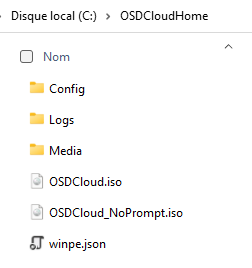
Creating the OSDCloud boot media
- You can either create an ISO or a WIM.
New-OSDCloudISO
New-OSDCloudUSB
Computer Installation
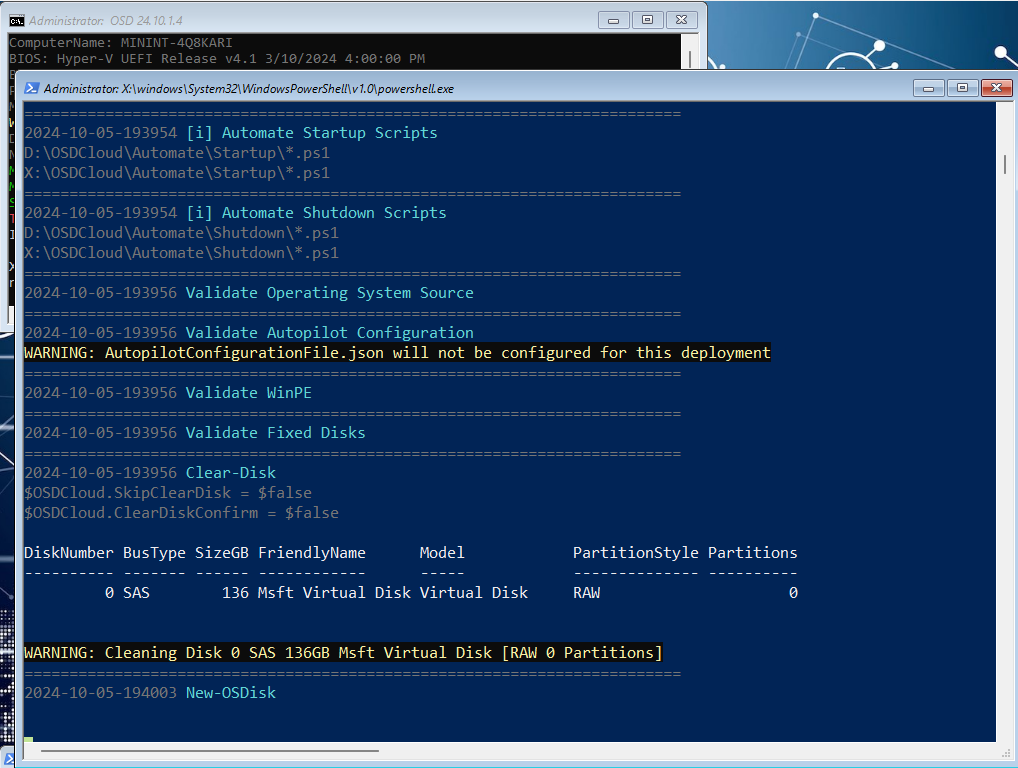
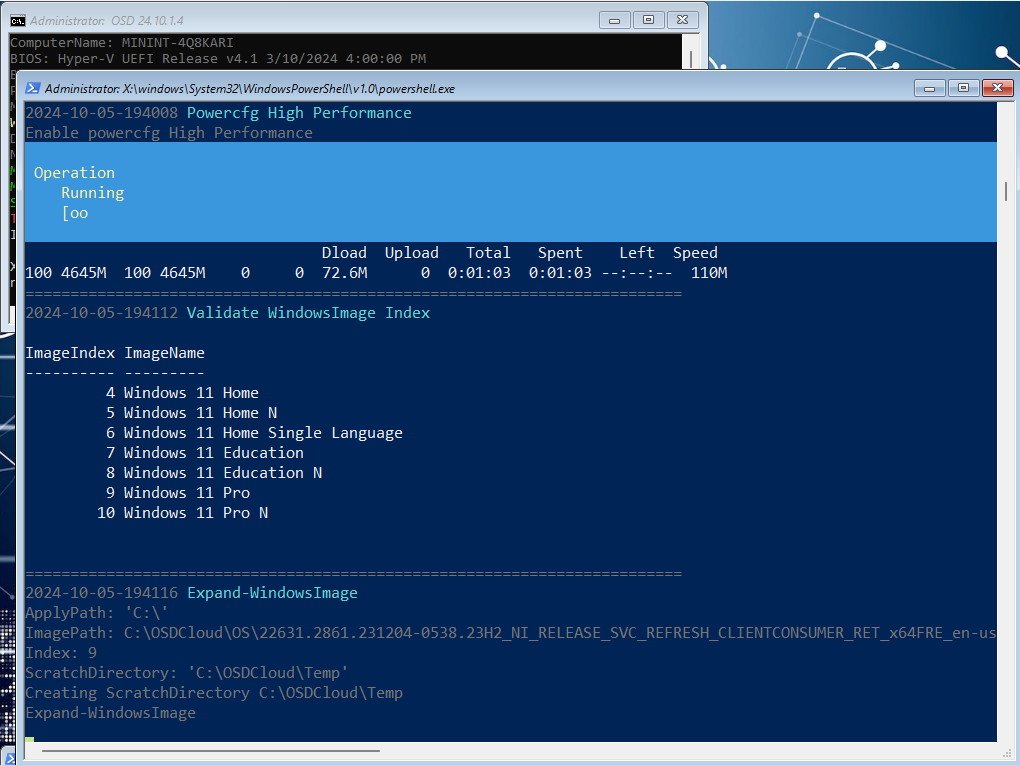
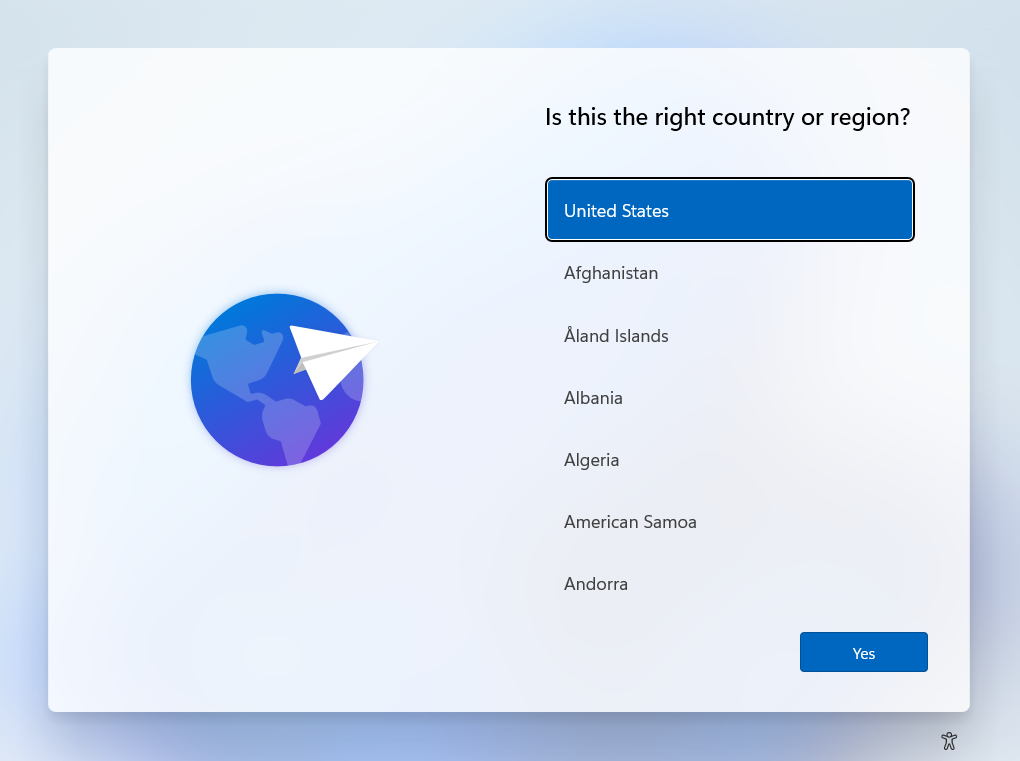
Windows 11 Installation – Once booted from your USB key, here’s an example of deployment.
Windows 11 Installation – To achieve this result, I only performed the steps mentioned above. This type of deployment is quick to set up for computer wipes, for example, or for home use.
Windows 11 Installation – https://github.com/DavidWuibaille/Repository/tree/main/Powershell/ModuleOSDCloud