
Deploy a Custom Package with Tanium Deploy
Deploy Custom Package – This guide explains how to create, deploy, monitor, and troubleshoot a custom software package with Tanium Deploy. It covers ZIP package preparation, package requirements, install actions, verification logic, deployment status, applicability checks, action locks, maintenance windows, and client logs.
Useful external reference: Tanium documentation.
Create a Custom Package in Tanium Deploy
Deploy Custom Package – This example shows how to create a custom package in Tanium Deploy. Here the package is a ZIP archive with files and scripts.
Useful external reference: Tanium documentation.
Prepare the Package Content
Deploy Custom Package – Start outside Tanium. Put the installer, scripts, transforms, config files, and other content in a clear folder structure before you create the package.
Useful external reference: Tanium documentation.
- Gather the installer files, scripts, and configuration assets required for the deployment.
- Package everything into a single ZIP archive.
- Test the install command outside Tanium first so Deploy is not your first validation point.
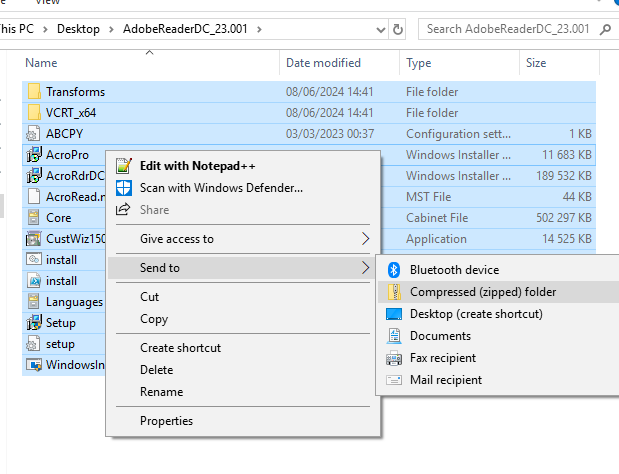
Deploy Custom Package – If the package has multiple files, use one ZIP archive. This is often simpler than trying to force everything into one executable.
Useful external reference: Tanium documentation.
Create the Custom Package
- Open Deploy -> Software and click Create Software Package.
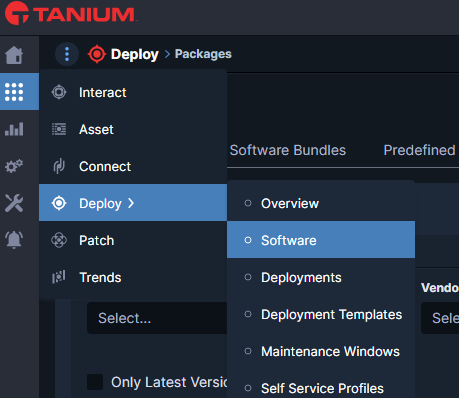
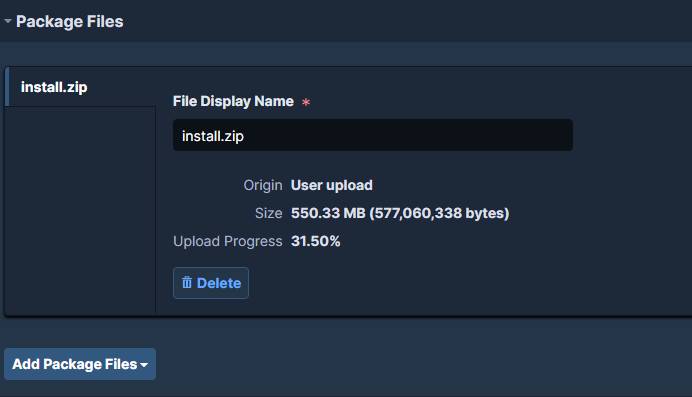
- Upload the prepared ZIP in Package Files.
- Define a clear package name in Package Details.
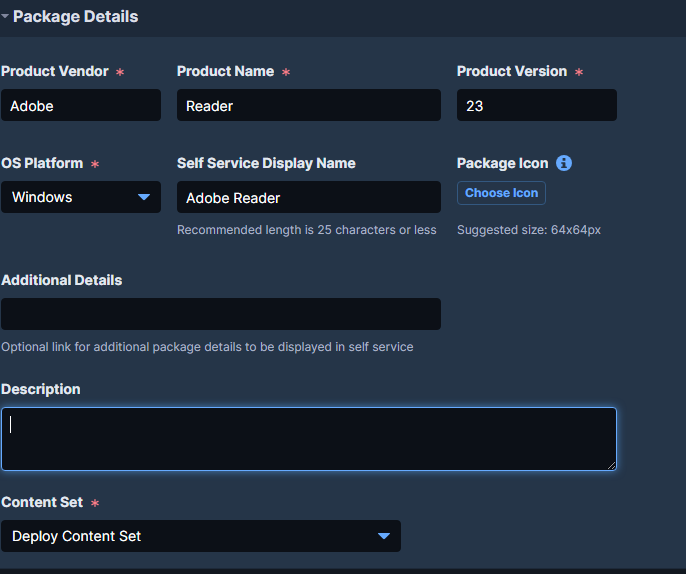
Deploy Custom Package – Use a clear package name. It should identify the application and, if needed, the runtime or version family.
Useful external reference: Tanium documentation.
Set Requirements Carefully
Deploy Custom Package – Requirements decide which endpoints are eligible before the install starts. A bad requirement can create false Not Applicable results or target systems that should be excluded.
Useful external reference: Tanium documentation.

- Use requirements for OS, architecture, prerequisites, disk space, or existing software state.
- Keep the requirement logic readable. Complex filters become hard to troubleshoot later.
- If a package already exists on many systems, make sure the requirement and verification logic clearly distinguish installed from not installed.
Use WMI Rules for Hardware and BIOS Targeting
Deploy Custom Package – WMI rules are very useful when a package must run only on a specific hardware model, for example a BIOS update package. The idea is simple: detection must find machines that need the update, and verification must confirm that the final state is correct after installation.
In this example, replace the model and BIOS version with your real values. I use Latitude 5450 and BIOS version 1.12.0 only as examples.
Update Detection
Use AND between the two WMI queries. The package is applicable only when the endpoint is the right hardware model and the BIOS is not already at the expected version.
SELECT Model FROM Win32_ComputerSystem WHERE Model='Latitude 5450'
SELECT SMBIOSBIOSVersion FROM Win32_BIOS WHERE NOT (SMBIOSBIOSVersion='1.12.0')
Result: Tanium Deploy targets only Latitude 5450 machines where the BIOS version is different from 1.12.0. Other models are not applicable. Machines already on 1.12.0 are also not applicable.
Install Verification
Use the same hardware model check, but now the BIOS version must be equal to the expected final version. This confirms that the update really changed the BIOS to the target version.
SELECT Model FROM Win32_ComputerSystem WHERE Model='Latitude 5450'
SELECT SMBIOSBIOSVersion FROM Win32_BIOS WHERE SMBIOSBIOSVersion='1.12.0'
Result: after the install, verification succeeds only if the endpoint is still the expected model and the BIOS version is now 1.12.0.
Why Detection and Verification Are Different
- Detection: use
NOTon the final BIOS version, because you want to find machines that still need the update. - Verification: use the exact final BIOS version, because you want to prove the update is installed.
- Hardware model: keep the model check in both places to avoid a false success on another device family.
Important: WMI must return results for the rule to be true. If the query returns no result, Tanium Deploy treats the rule as not matched.
Define Installation Actions
Deploy Custom Package – For ZIP-based packages, a common pattern is to extract the archive first, then run the installation command from the extracted working directory.
Useful external reference: Tanium documentation.
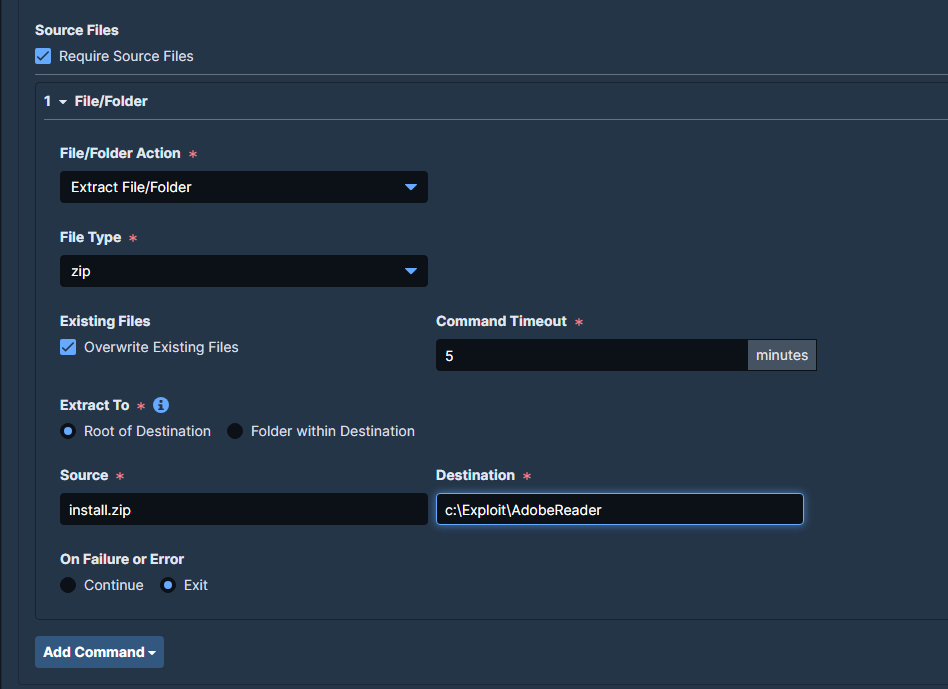
Deploy Custom Package – Important: check the extract path and the path used by the next command. Many failures come from a simple path mismatch.
Useful external reference: Tanium documentation.
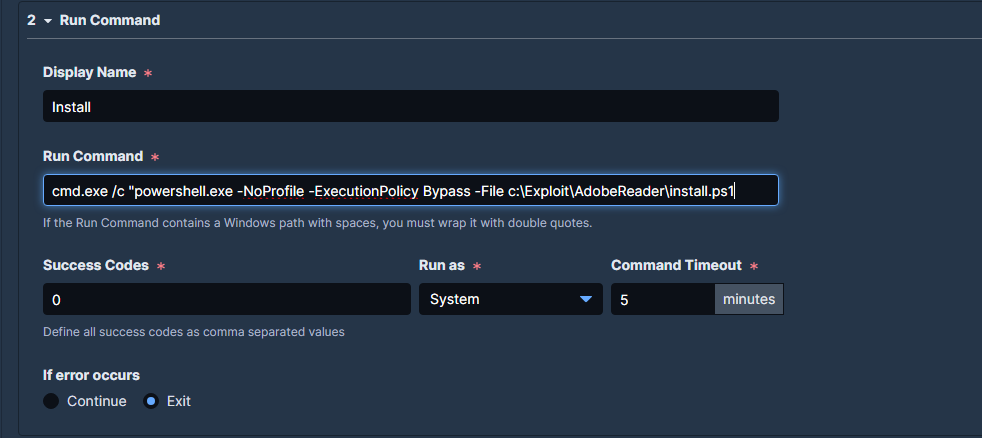
Deploy Custom Package – Example install command:
Useful external reference: Tanium documentation.
cmd.exe /c "powershell.exe -NoProfile -ExecutionPolicy Bypass -File c:ProgramFilesYourAppinstall.ps1"
Deploy Custom Package – Replace the path with the real script location after extraction. If you use a working directory, test it on one endpoint before broad deployment.
Useful external reference: Tanium documentation.
Add Verification
Deploy Custom Package – Verification tells Tanium Deploy whether the install succeeded. Use a check that is clear and stable.
Useful external reference: Tanium documentation.

- File existence works well for predictable binaries or markers.
- Registry checks are useful for Windows installers that publish a stable key or version value.
- Version-based logic is better than process checks when the application does not stay running.
- Save the configuration and create the package.

Launch the Deployment
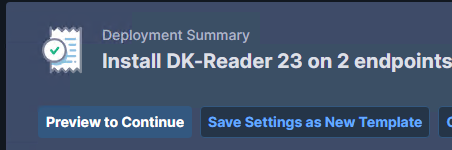
Deploy Custom Package – After the package is ready, target the right endpoints and launch in the right time window.
Useful external reference: Tanium documentation.
- Select the target group carefully. Broad groups hide mistakes until too late.
- Use pilots or rings before rolling out to the full production scope.
- Confirm the schedule matches your maintenance policy and rollout window.
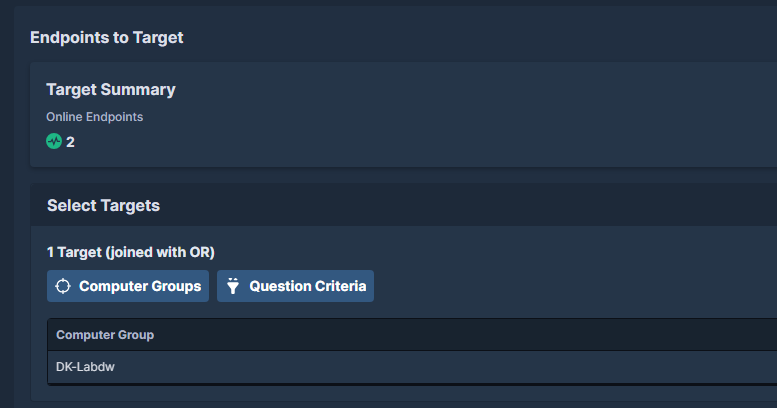

Deploy Custom Package – Always review the deployment preview before launch. It is the last easy check for a wrong target group or a wrong endpoint count.
Useful external reference: Tanium documentation.
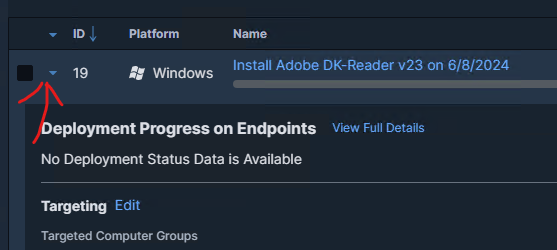
Monitor and Troubleshoot
Deploy Custom Package – Deploy troubleshooting usually comes down to a few recurring questions:
Useful external reference: Tanium documentation.
- Is the endpoint eligible?
- Is the endpoint allowed to run the deployment now?
- Did the package download?
- Did the command execute successfully?
- Did verification confirm success?
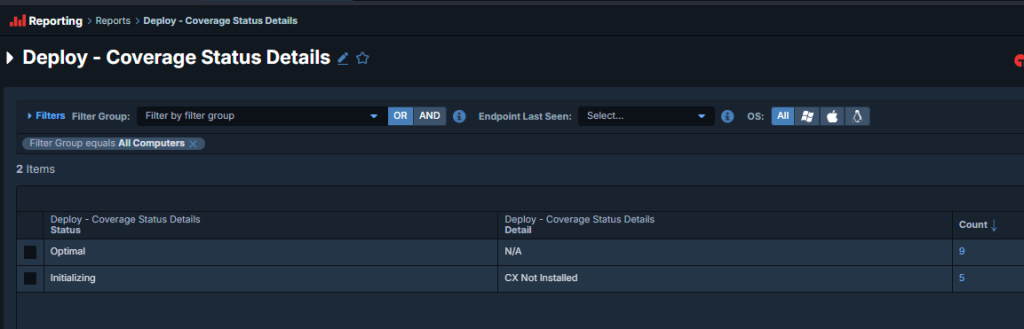
Coverage Status Details
Deploy Custom Package – Start with Coverage Status Details. It shows how endpoints are split across waiting, downloading, installing, completed, failed, or not applicable.
Useful external reference: Tanium documentation.
Action Lock
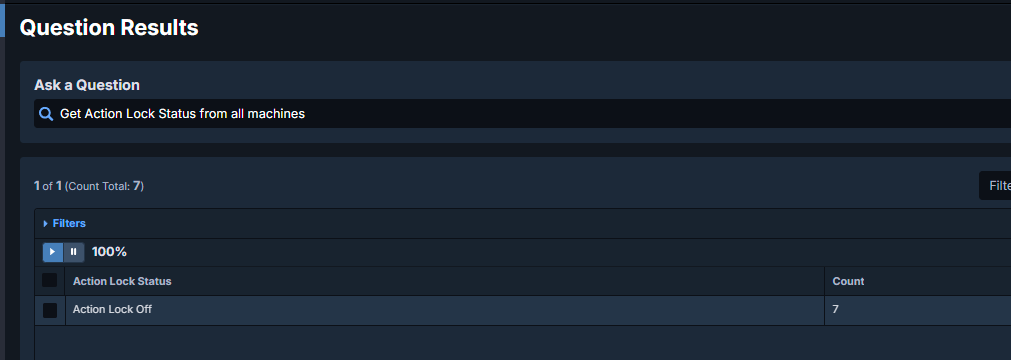
Deploy Custom Package – If endpoints use Action Lock, Deploy can be blocked before the install starts. Check this early.
Useful external reference: Tanium documentation.
Deploy Custom Package – Useful Interact query:
Useful external reference: Tanium documentation.
Get Action Lock Status from all machines
Maintenance Windows
Deploy Custom Package – Endpoints outside an active maintenance window can stay in Waiting even when the package is correct. Check the maintenance window before treating this as a failure.
Useful external reference: Tanium documentation.
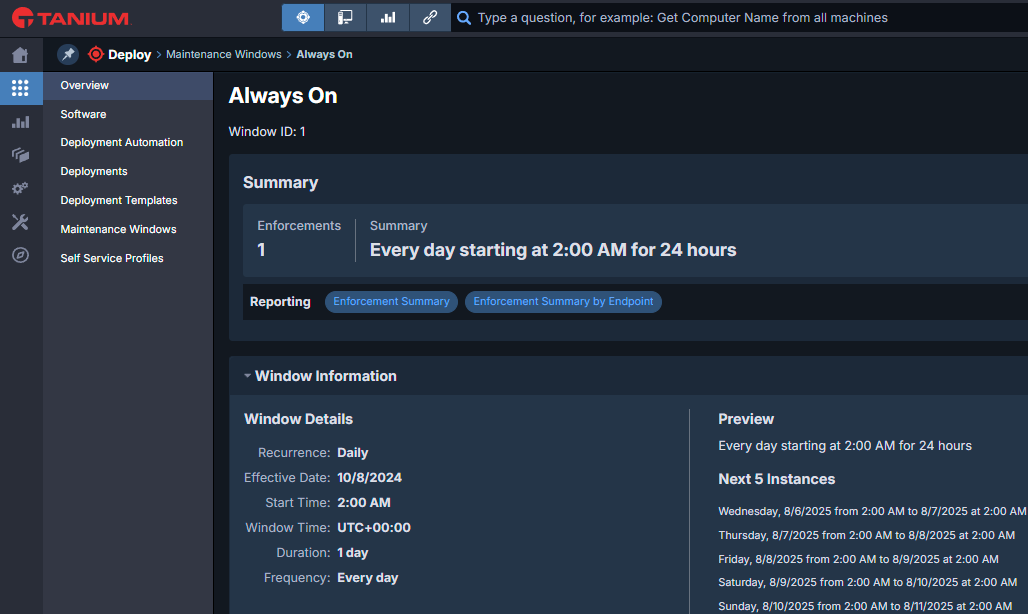
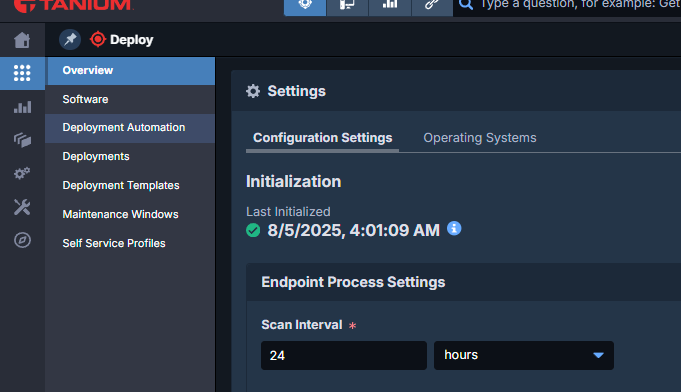
Scan Interval
Deploy Custom Package – The scan interval controls how often the client checks for deployments. If it is too long, endpoints may start late.
Useful external reference: Tanium documentation.
Tools Status Details
Deploy Custom Package – For a single problematic endpoint, query the tool status directly.
Useful external reference: Tanium documentation.
Get Endpoint Configuration - Tools Status Details from all machines with Computer Name contains LABLTSC2019.monlab.lan
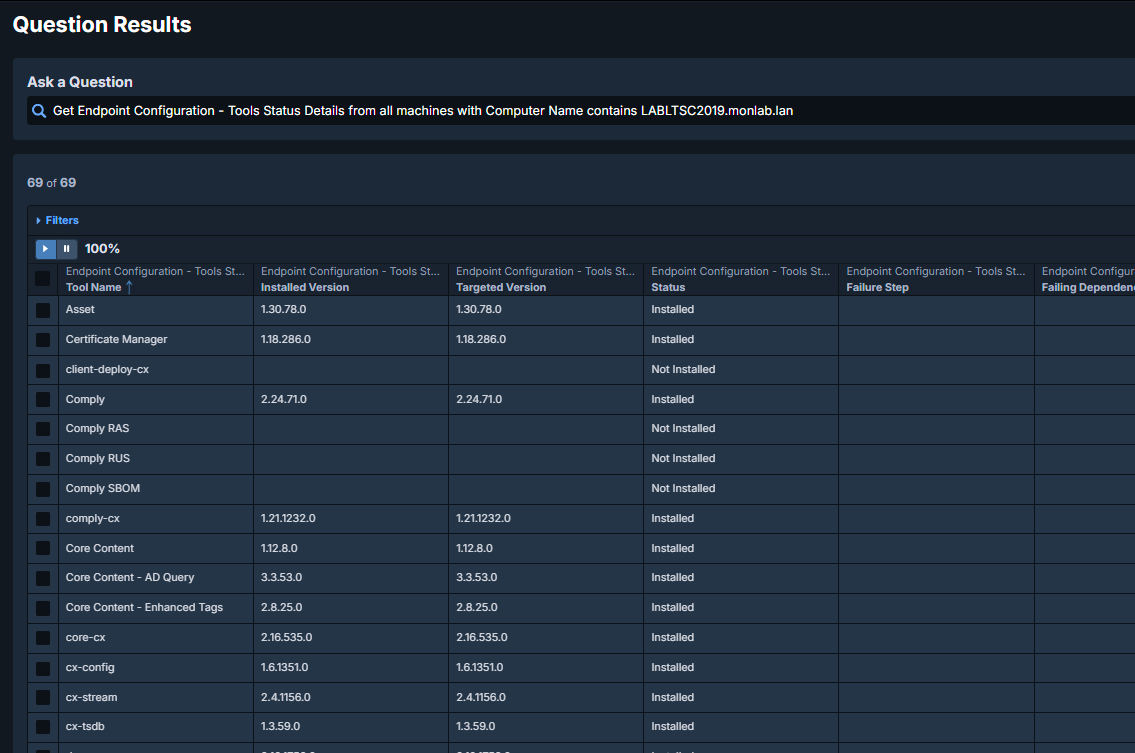
Deploy Custom Package – This helps you separate package issues from client or tool issues on the endpoint.
Useful external reference: Tanium documentation.
Deployment Phases
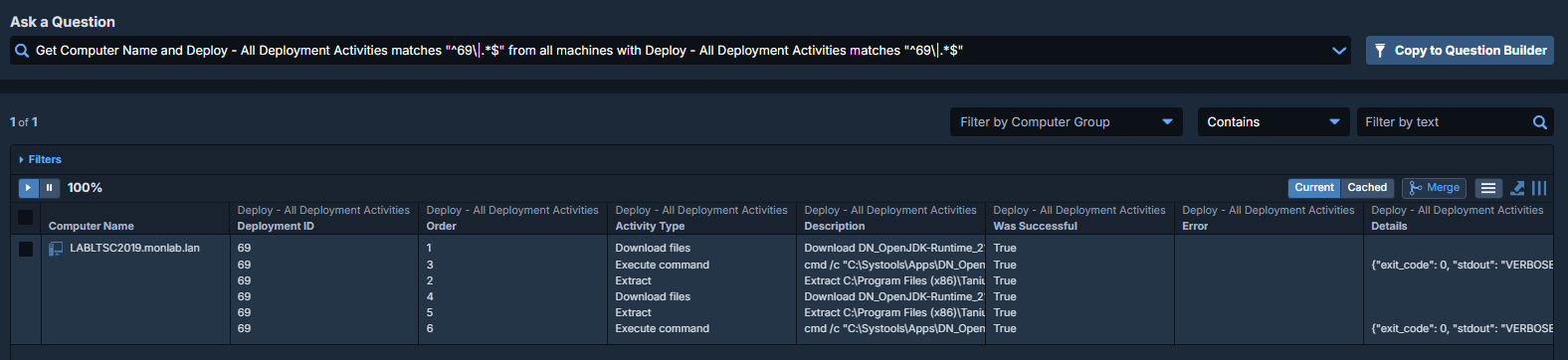
Deploy Custom Package – The deployment activity view becomes much easier to read when each state is interpreted correctly:
Useful external reference: Tanium documentation.
- Waiting: the deployment has not started yet, often because of schedule, maintenance window, or readiness conditions.
- Downloading: content transfer is in progress.
- Installing: the install command is running.
- Completed: the install and verification steps succeeded.
- Not Applicable: the endpoint does not satisfy package applicability or already matches the target state.
- Failed: execution or verification did not succeed.
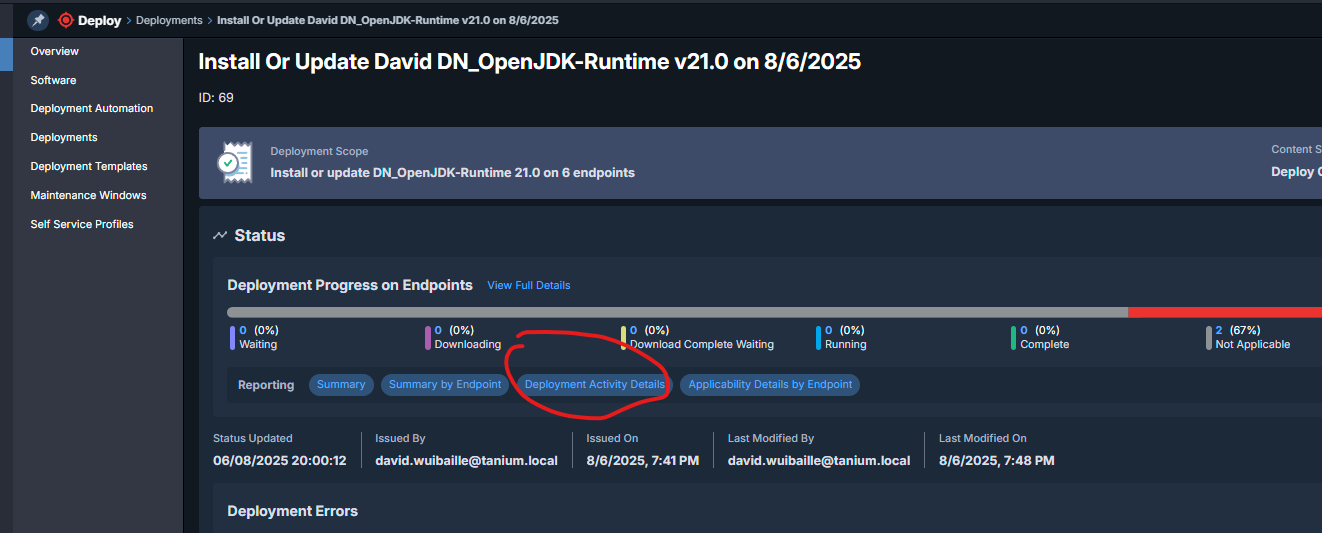

Check Applicability Explicitly
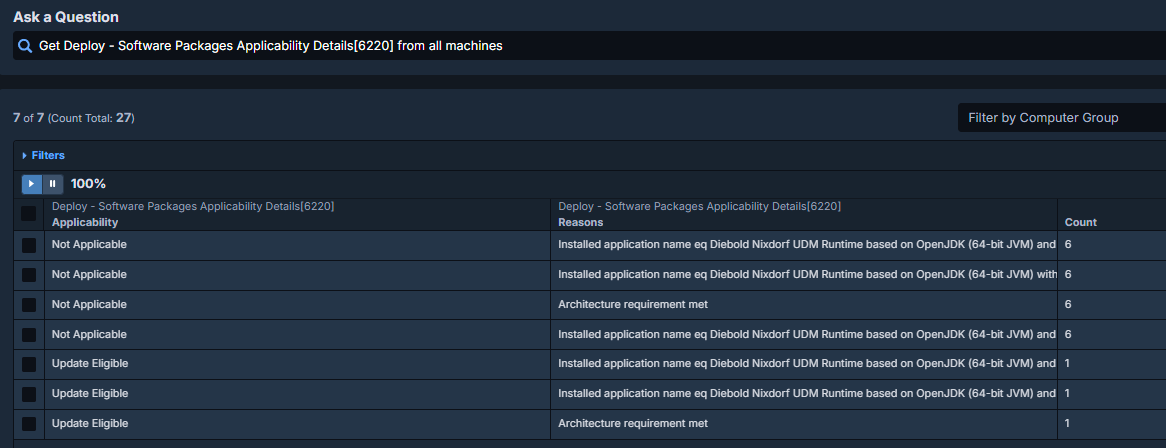
Deploy Custom Package – If many endpoints show Not Applicable, check applicability directly with Interact.
Useful external reference: Tanium documentation.
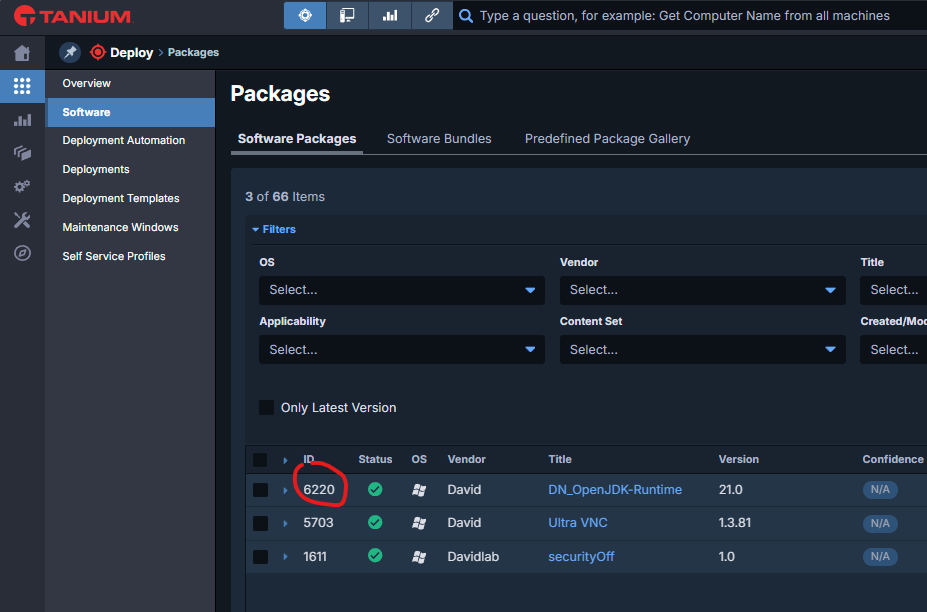
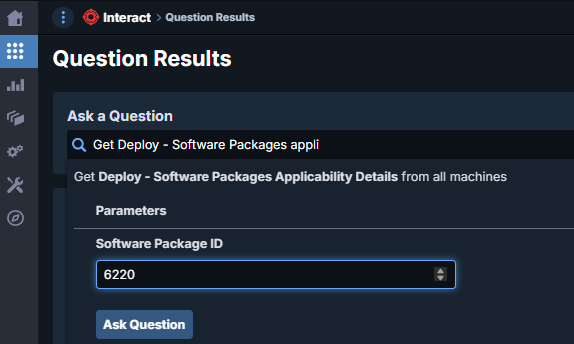
Deploy Custom Package – Example query using package ID 6220:
Useful external reference: Tanium documentation.
Get Deploy - Software Packages Applicability Details[6220] from all machines
Deploy Custom Package – This helps you separate eligible endpoints from endpoints that are already compliant, on the wrong architecture, or outside the requirement scope.
Useful external reference: Tanium documentation.
Deploy Custom Package – To drill into one endpoint, add a computer filter:
Useful external reference: Tanium documentation.
Get Deploy - Software Packages Applicability Details[6220] from all machines with Computer Name contains LABLTSC2019.monlab.lan

Read the Client Logs
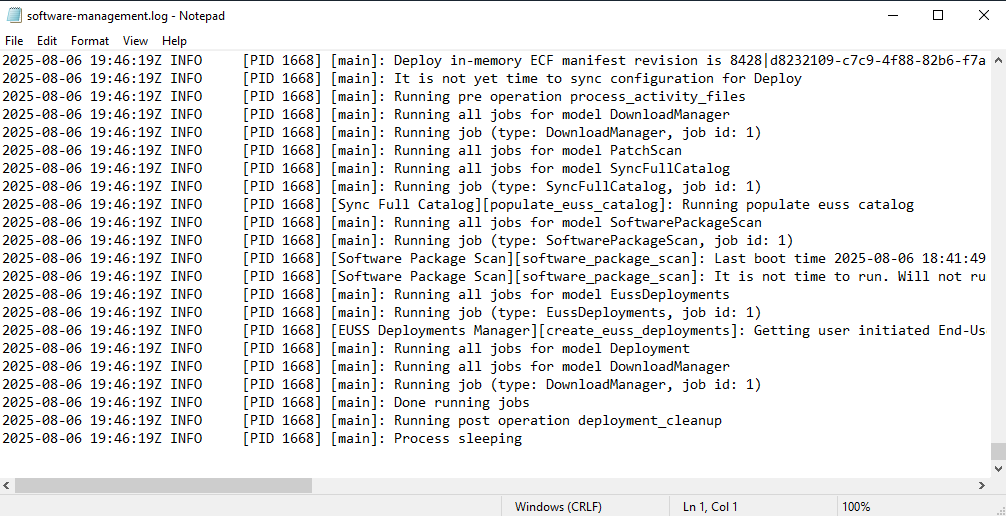
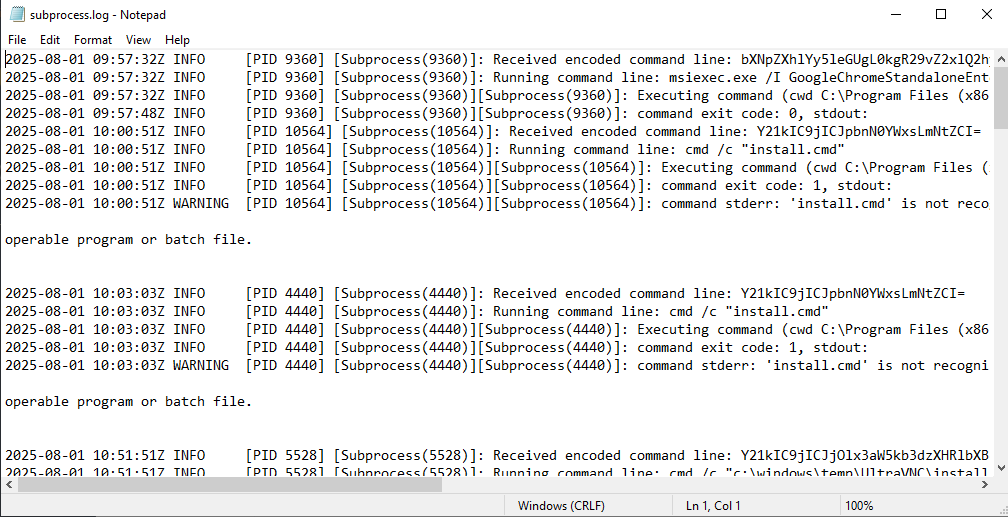
Deploy Custom Package – When the console view is not enough, read the endpoint logs directly:
Useful external reference: Tanium documentation.
C:Program Files (x86)TaniumTanium ClientToolsSoftwareManagementlogs
software-management.logshows the main deployment workflow.subprocess.logshows command output and execution failures from the installer layer.
Good Practices
- Start with a pilot deployment before pushing to broad production scope.
- Keep the install command simple and predictable, and test it outside Tanium first.
- Use verification that reflects the final installed state, not only command completion.
- Investigate Not Applicable and Waiting with the same seriousness as Failed, because they often point to logic errors in targeting or scheduling.
Track with Custom Tags
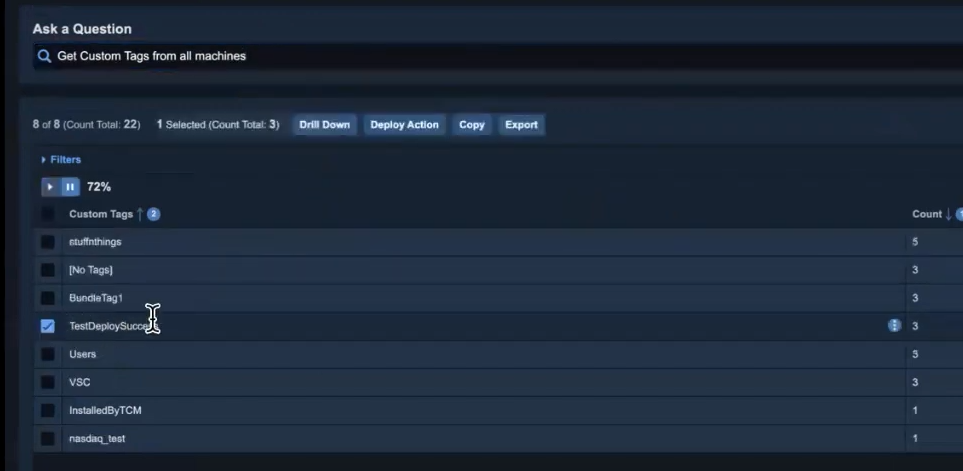
Deploy Custom Package – Custom tags can help mark endpoints after a successful deployment and make post-rollout checks easier through Interact.
Useful external reference: Tanium documentation.
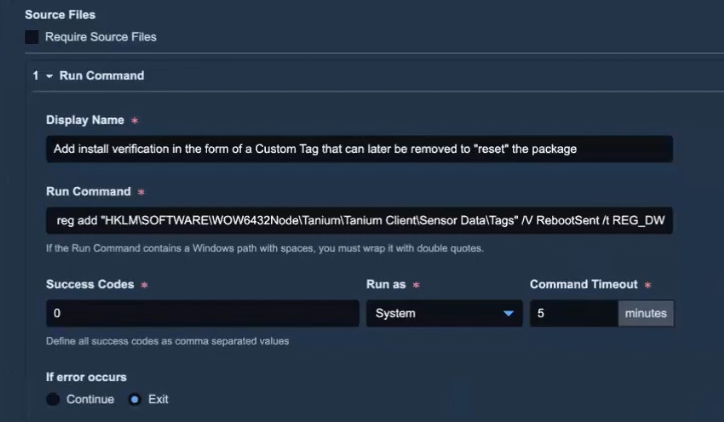
Deploy Custom Package – Example Interact query:
Useful external reference: Tanium documentation.
Get Custom Tags from all machines
Deploy Custom Package – Keep the package, applicability, execution path, and verification aligned. If one of these parts is weak, troubleshooting gets harder very quickly.
Useful external reference: Tanium documentation.