Office 365 Deployment: Steps, Configurations, and Tips with Application Packaging
Office 365 Deployment – Begin by downloading the setup.exe file from Microsoft’s official website : https://www.microsoft.com/en-us/download/details.aspx?id=49117
Preparation
- Downloading Setup.exe
Office 365 Deployment – Begin by downloading the setup.exe file from Microsoft’s official website : https://www.microsoft.com/en-us/download/details.aspx?id=49117
- Creating the Configuration.xml
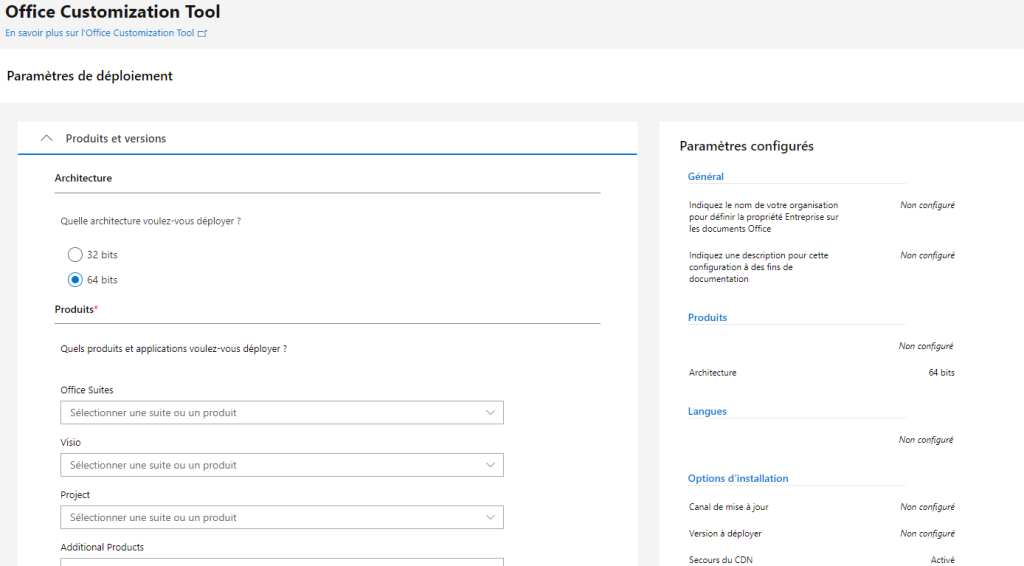
Office 365 Deployment – To generate the configuration.xml file, use the online tool available on Microsoft’s website. https://config.office.com/
Office 365 Deployment –
- License Type
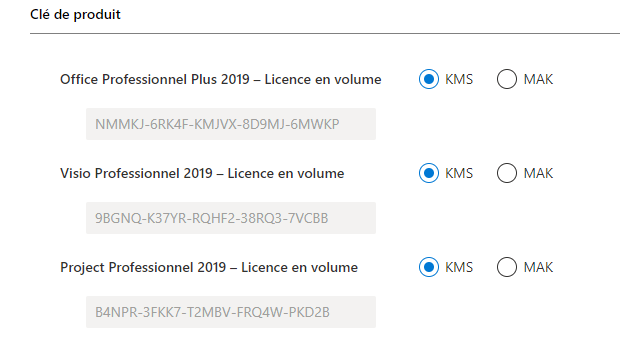
Office 365 Deployment – You can choose between a user-based license, where the user activates Office with their email address, or a volume license, activated via a KMS server or a MAK key.
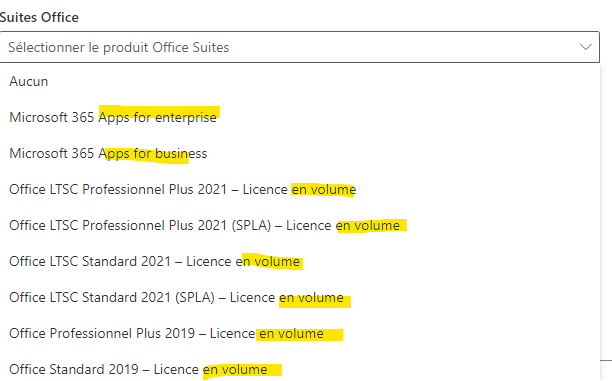
Office 365 Deployment – The LTSC versions are licenses that will not have feature updates (only security patches)
Office 365 Deployment –
- Example Configuration File
<Configuration ID="022b3178-7dc7-4ecb-aac3-eafdf5138479">
  <Add OfficeClientEdition="64" Channel="Current" SourcePath="c:temp">
    <Product ID="O365BusinessRetail">
      <Language ID="en-us" />
	  <Language ID="de-de" />
	  <Language ID="es-es" />
	  <Language ID="fr-fr" />
	  <Language ID="it-it" />
	  <Language ID="pl-pl" />
	  <Language ID="pt-pt" />
	  <Language ID="ru-ru" />
	  <Language ID="uk-ua" />
      <ExcludeApp ID="Groove" />
      <ExcludeApp ID="Lync" />
      <ExcludeApp ID="Access" />
      <ExcludeApp ID="Publisher" />
      <ExcludeApp ID="Bing" />
    </Product>
    <Product ID="ProofingTools">
      <Language ID="en-us" />
	  <Language ID="de-de" />
	  <Language ID="es-es" />
	  <Language ID="fr-fr" />
	  <Language ID="it-it" />
	  <Language ID="pl-pl" />
	  <Language ID="pt-pt" />
	  <Language ID="ru-ru" />
	  <Language ID="uk-ua" />
    </Product>
  </Add>
  <Property Name="FORCEAPPSHUTDOWN" Value="TRUE" />
  <Updates Enabled="TRUE" />
  <RemoveMSI />
  <AppSettings>
    <Setup Name="Company" Value="Vivescia Services" />
    <User Key="softwaremicrosoftoffice16.0exceloptions" Name="defaultformat" Value="51" Type="REG_DWORD" App="excel16" Id="L_SaveExcelfilesas" />
    <User Key="softwaremicrosoftoffice16.0powerpointoptions" Name="defaultformat" Value="27" Type="REG_DWORD" App="ppt16" Id="L_SavePowerPointfilesas" />
    <User Key="softwaremicrosoftoffice16.0wordoptions" Name="defaultformat" Value="" Type="REG_SZ" App="word16" Id="L_SaveWordfilesas" />
  </AppSettings>
</Configuration>
- Downloading the Sources:
- Modify the SourcePath variable to indicate where the sources will be copied.
- Use the command
setup.exe /download configuration.xmlto download Office 365 sources.
Deployment on Workstations
Office 365 Deployment – Pour faire l’installation d’office 365 sur les postes, la commande utilise le même fichier XML que pour le téléchargement.
setup.exe /configure configuration.xml
Office 365 Deployment – Documentations : http://technet.microsoft.com/fr-fr/library/jj219422(v=office.15).aspx
- Sourcepath
Office 365 Deployment – As you may have noticed, the XML contains the variable SourcePath=. During a deployment by SCCM or other means, defining the source path can be complicated.
Office 365 Deployment – Note: If the SourcePath variable is not defined, the setup will look for the sources either locally or on the internet.”
- Package
Office 365 Deployment – The install_Office.cmd is the main script.
Office 365 Deployment – I copy the sources to c:exploitOffice365 because the path C:Program Files (x86)... causes issues for me.”
Office 365 Deployment – Install_office.cmd
:: ----- work folder
md c:exploit
md c:exploitoffice365

:: copy source to local
robocopy "%~dp0" "c:exploitoffice365" /MIR /R:1
copy "c:exploitoffice365install_Office_Standard.xml" "c:exploitoffice365configuration.xml" /Y

:: start install
call "c:exploitoffice365install.cmd"
Set RetourCode=%errorlevel%
echo %RetourCode%

:: purge source
cd c:windowstemp
rd c:exploitoffice365 /S /Q
Office 365 Deployment – Install.cmd
Powershell -command ((Get-Content -path "c:exploitoffice365configuration.xml" -Raw) -replace 'c:temp','%~dp0') ^| Set-Content -Path "c:exploitoffice365configuration.xml"
"%~dp0setup.exe" /configure "c:exploitoffice365configuration.xml"
Office 365 Deployment – Note : la command powershell permet de remplacer la valeur de sourcepath par le chemin courant.
Office 365 Deployment –
ERROR 17006
Office 365 Deployment – If you encounter this error during deployment, it means an Office application is open. To resolve this, add the FORCEAPPSHUTDOWN option to your configuration file.
<Property Name="FORCEAPPSHUTDOWN" Value="TRUE" />
Uninstallation
- Uninstallation
setup.exe /configure uninstall.xml
- uninstall.xml
<Remove>
  <Remove All="TRUE" />
  <Display Level="None" AcceptEULA="TRUE" />
  <Property Name="FORCEAPPSHUTDOWN" Value="TRUE" />
  <Logging Level="Standard" Path="C:windowstemp" />
</Remove>
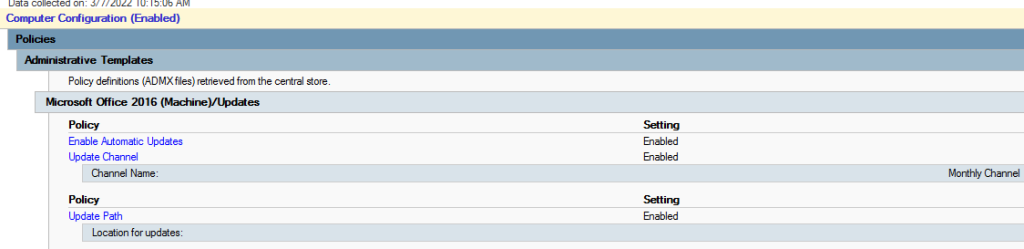
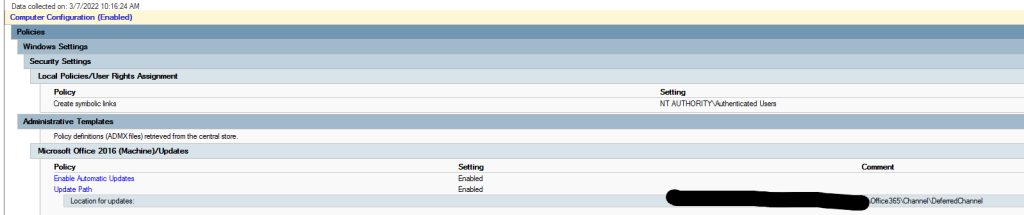
Managing Updates via GPO
- Download and install ADMX
Office 365 Deployment – Download and install the ADMX to manage updates via Group Policies télécharger
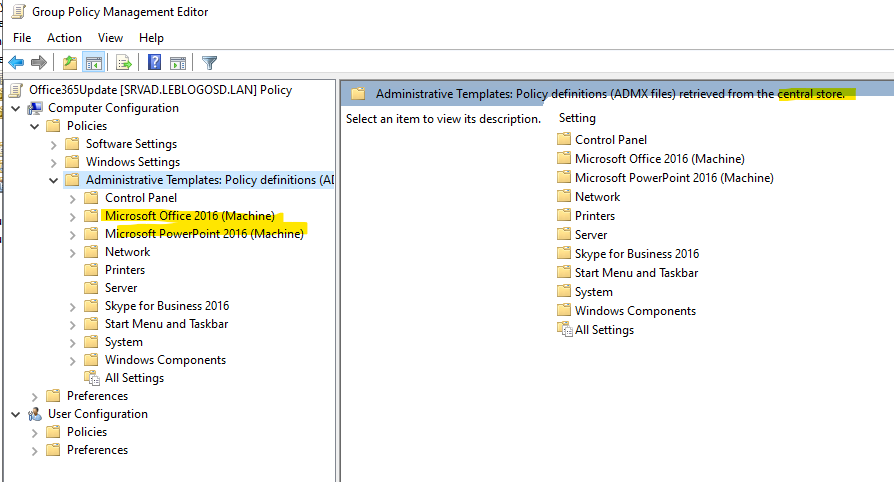
Internet update
UNC update
Office 365 Deployment – https://github.com/DavidWuibaille/Packaging/tree/main/SilentInstall/Office365_HomeBusiness
Office 365 Deployment – https://github.com/DavidWuibaille/Packaging/tree/main/SilentInstall/Office365_LTSC
Office 365 Deployment –