
Tanium On-Prem Operations Tasks for TanOS and Console
Tanium Prem Operations – This operational checklist groups recurring tasks for a Tanium on-premises platform. It covers maintenance actions on TanOS and daily or periodic checks in the Tanium Console.
Useful external reference: Tanium documentation.
Introduction
Tanium Prem Operations – This procedure groups recurring operations tasks for a Tanium on-premises platform. The first part covers actions on TanOS, including appliance and software updates. The second part covers operational checks in the Tanium Console, including solutions, quarantined sensors, client status, and health reports.
Useful external reference: Tanium documentation.
TanOS Operations
TanOS Update
Tanium Prem Operations – Menu path: B -> 3
Useful external reference: Tanium documentation.
- Connect to the target TanOS appliance with your approved SSH access method.
- Open the Appliance Maintenance Menu.
- Select Upgrade TanOS.
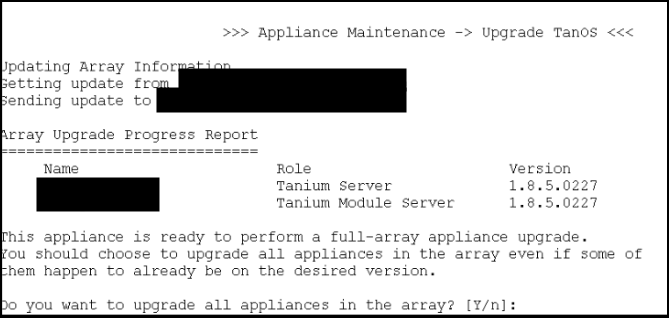
- If the required version is not already available, download the version from Tanium.
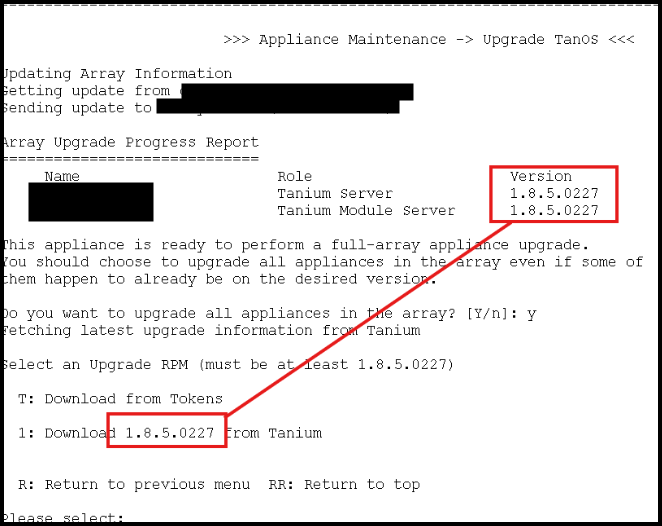
- Validate the upgrade and continue until the operation completes.
- If multiple appliances are managed in the environment, repeat the procedure according to your change sequence.
Tanium Prem Operations – Checks after completion: the appliance is reachable, the expected TanOS version is displayed, and no upgrade error remains.
Useful external reference: Tanium documentation.
Upgrade Tanium Software
Tanium Prem Operations – Menu path: 1 -> U
Useful external reference: Tanium documentation.
- Copy the package zip file to the Incoming directory with the approved file transfer account.
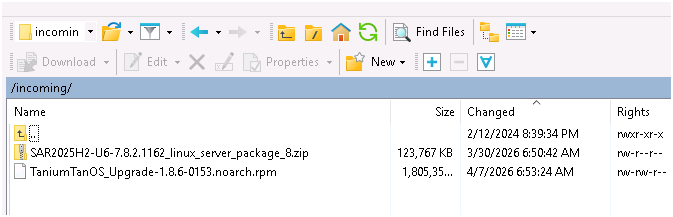
- Connect to the target TanOS appliance with your approved SSH access method.
- Open the Tanium Installation Menu.
- Select Upgrade Tanium Software.
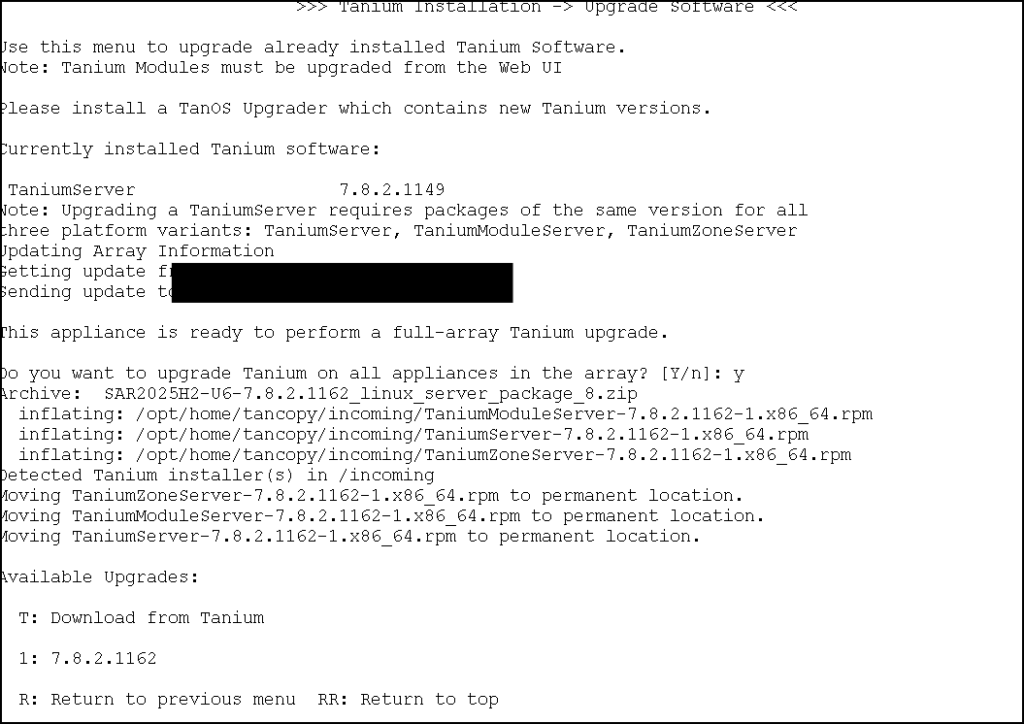
- Review the available upgrade.
- Start the upgrade when it matches the approved maintenance plan.
- Wait for the process to complete without interrupting the session.
Tanium Prem Operations – Checks after completion: the software upgrade finishes successfully, the expected version is visible, and the appliance remains healthy.
Useful external reference: Tanium documentation.
Tanium Account Password Rotation
Tanium Prem Operations – Menu path: C -> L -> 2
Useful external reference: Tanium documentation.
Tanium Prem Operations – Use this procedure to rotate the local Tanium account password. A common operating rule is to perform this change at least every 90 days.
Useful external reference: Tanium documentation.
- Connect to the target TanOS appliance with your approved SSH access method.
- Open the User Administration Menu.
- Open Local Tanium User Management.
- Select Manage Local Users.
- Select the Tanium account.
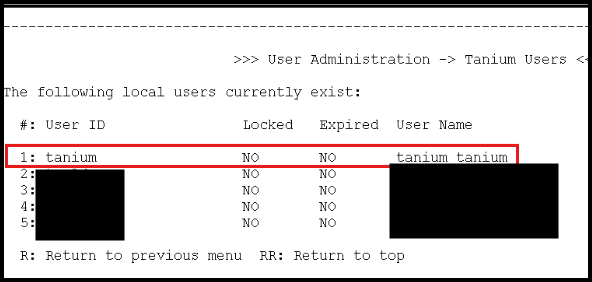
- Change the password.
- Store the new password with the approved password management process.
Tanium Prem Operations – Additional menu path: P changes the password of the current connected user only.
Useful external reference: Tanium documentation.
Tanium Prem Operations – Checks after completion: the new password works and the rotation date is recorded.
Useful external reference: Tanium documentation.
Tanium Console Operations
Solution Update
Tanium Prem Operations – Menu path: Solutions
Useful external reference: Tanium documentation.
- Open the Solutions page in the Tanium Console.
- Review the solutions with an available update.
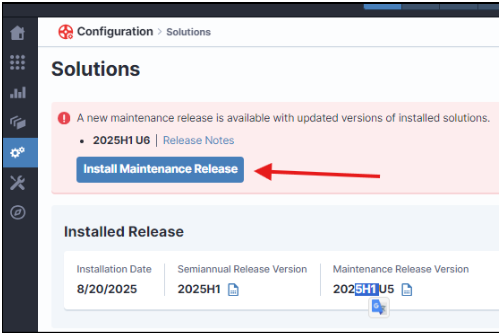
- Start the import or update process.
- Wait until the process is fully complete.
- Do not close the browser tab while the import is running.
Tanium Prem Operations – Checks after completion: the solution shows the expected version and no import error remains.
Useful external reference: Tanium documentation.
Quarantined Sensors
Tanium Prem Operations – Menu path: Quarantined Sensors
Useful external reference: Tanium documentation.
- Open the Quarantined Sensors view.
- Review the list of quarantined sensors.
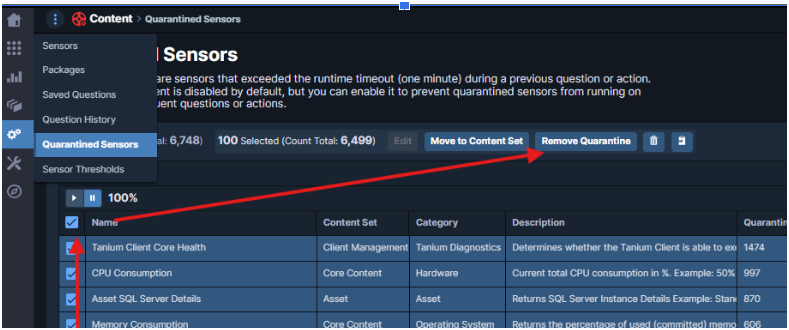
- Analyze the reason for the quarantine before taking action.
- Remove the quarantine only after the root cause is understood and validated.
Tanium Prem Operations – Checks after completion: only validated sensors are restored and unresolved sensor issues remain under investigation.
Useful external reference: Tanium documentation.
Client Status
Tanium Prem Operations – Menu path: Client Status
Useful external reference: Tanium documentation.
- Open the Client Status view.
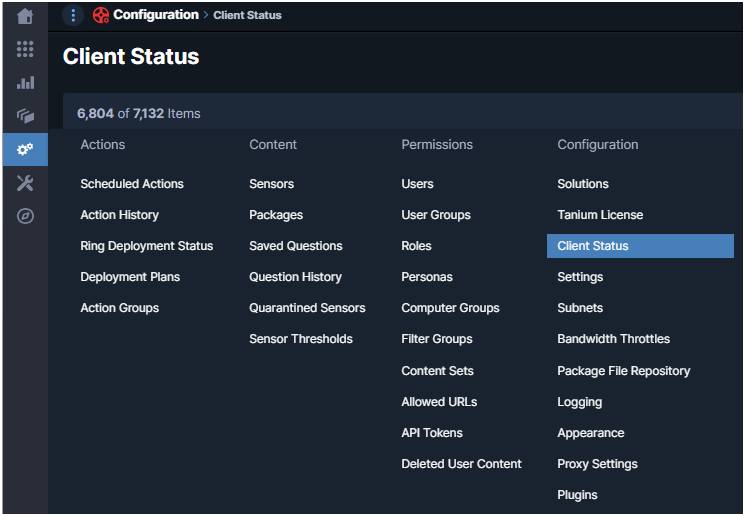
- Review the number of connected endpoints.
- Review the leader percentage.
- Compare the values with the expected baseline for the environment.
- Investigate any abnormal drop or unusual distribution.
Tanium Prem Operations – Checks after completion: endpoint count and leader distribution remain consistent with the normal platform state.
Useful external reference: Tanium documentation.
Health Check
Tanium Prem Operations – Menu path: Health Check
Useful external reference: Tanium documentation.
- Open the Health Check menu.
- Download the TPAN report in HTML format.

- Extract the report archive if required.
- Open
home.html. - Review warnings, failed checks, and recurring issues first.
Tanium Prem Operations – Checks after completion: the report is reviewed and critical findings are identified for follow-up.
Useful external reference: Tanium documentation.