Provisionning – WinPE with Ivanti EPM
Provisionning WinPE Ivanti – To modify WinPE, I use a script that performs several tasks to customize the image according to my needs.
Provisionning WinPE Ivanti – To modify WinPE, I use a script that performs several tasks to customize the image according to my needs.
1. Install Windows ADK
Provisionning WinPE Ivanti – Install the Windows ADK for Windows 10 on the machine where you will modify the WinPE. Do not install it directly on the core server.
- Download and install the Windows ADK
- Then install the PE add-on for the ADK
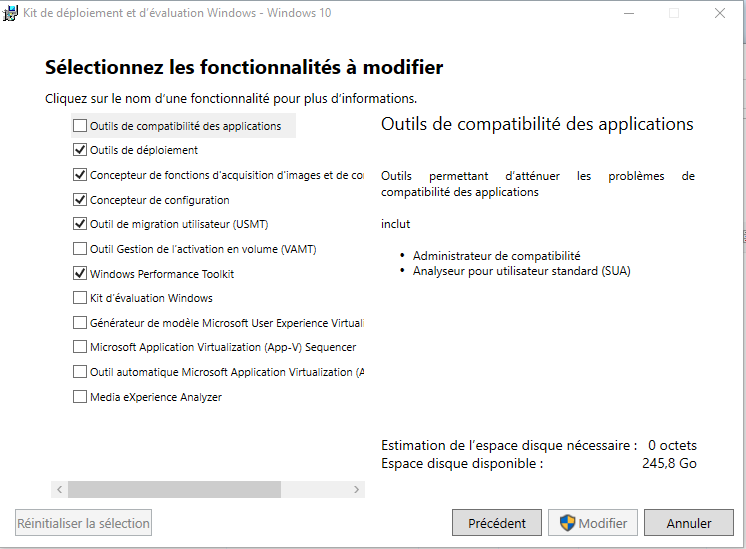
Provisionning WinPE Ivanti – Source: Download
2. Identify and Add Necessary Drivers
WinPE Driver Packs
Provisionning WinPE Ivanti – Download the drivers required for WinPE. For example, you can find HP WinPE drivers here: HP Driver Packs.
When to Add Additional Drivers
Provisionning WinPE Ivanti – Add drivers only if:
- Network card not visible:
ipconfigreturns no adapter - Hard drive not visible:
diskpartreturns no disk
Provisionning WinPE Ivanti – Note: Use only Windows 10 drivers if your WinPE is based on Windows 10.
Provisionning WinPE Ivanti – To test a driver before integrating it:
- Copy the drivers to a USB stick
- In WinPE, run:
drvload pathfile.inf
Provisionning WinPE Ivanti – If the driver fixes the issue, add it permanently in the LANDESK console.
3. Automate WinPE Customization
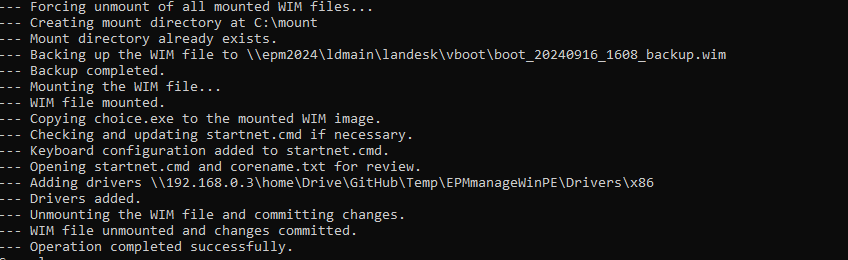
Provisionning WinPE Ivanti – The script performs the following actions:
- Backup the WIM file
- Edit
corename.txtto use the FQDN of the EPM server (not short name) - Edit
startnet.cmdto add a keyboard layout menu - Add Drivers on Drivers Folders
- Add required drivers into the image
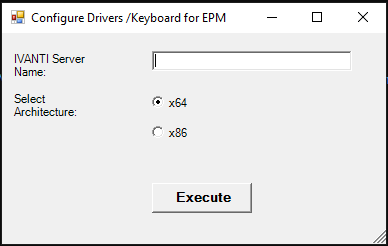
Provisionning WinPE Ivanti – Script repo: IVANTI/epm-manage-winpe at main · DavidWuibaille/IVANTI
4. Rebuild a Clean WinPE
Provisionning WinPE Ivanti – To reset and rebuild the image:
- Copy images from
C:Program FilesLANDeskManagementSuiteLANDeskvbootcleantovboot - Run
OSD.Upgrade.exeas administrator
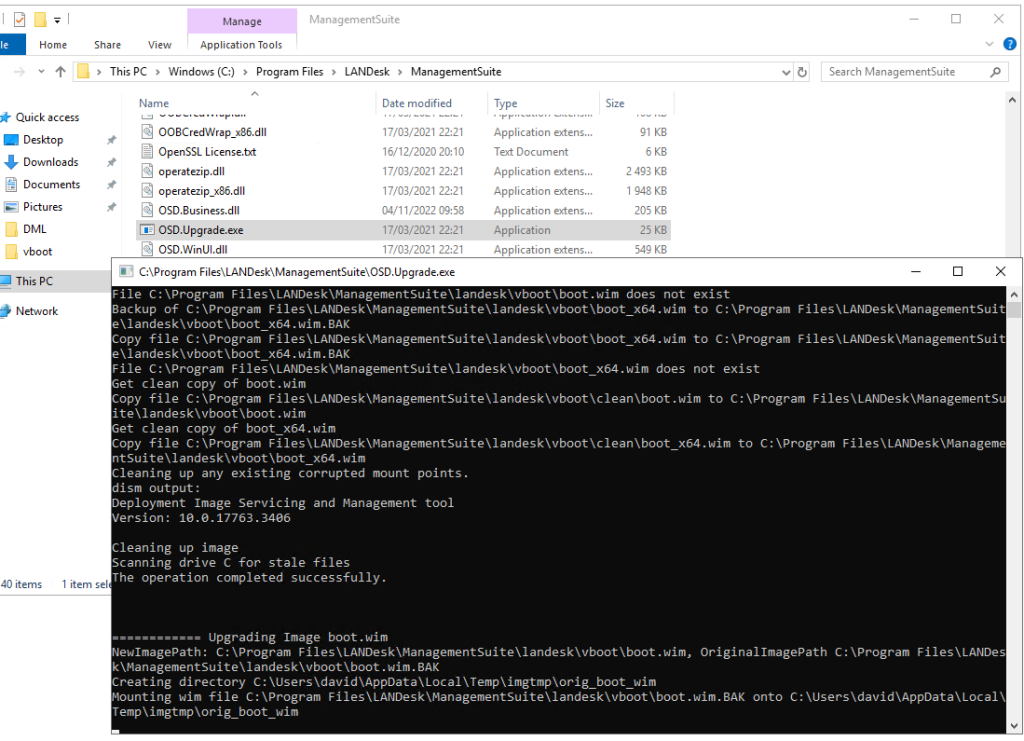
Provisionning WinPE Ivanti – Ref: Ivanti: Clean Boot WIM Guide
5. Additional Configurations
UEFI vs Legacy Boot
Provisionning WinPE Ivanti – By default, EPM uses:
- WinPE x86 for Legacy systems
- WinPE x64 for UEFI systems
Provisionning WinPE Ivanti – To force x64 boot, rename winpe_x64.wim to winpe.wim in EPMServerldmainlandeskvboot.
Custom Wallpaper
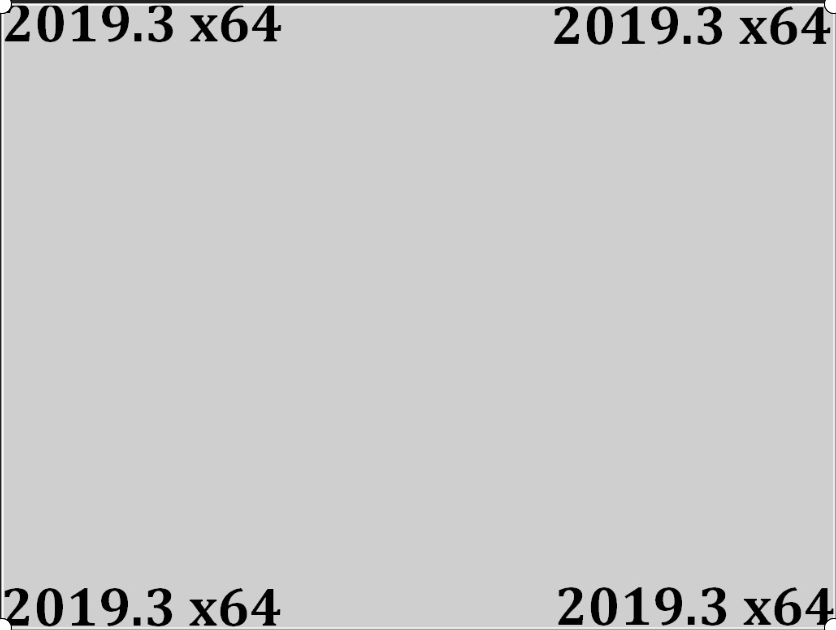
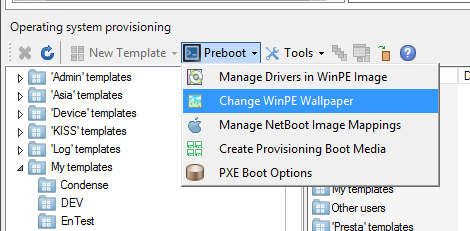
Provisionning WinPE Ivanti – You can set a custom wallpaper in WinPE, for example to show a version number.
- Use a 1024×768 image
- Set it via the EPM assistant
Add Drivers via EPM Console
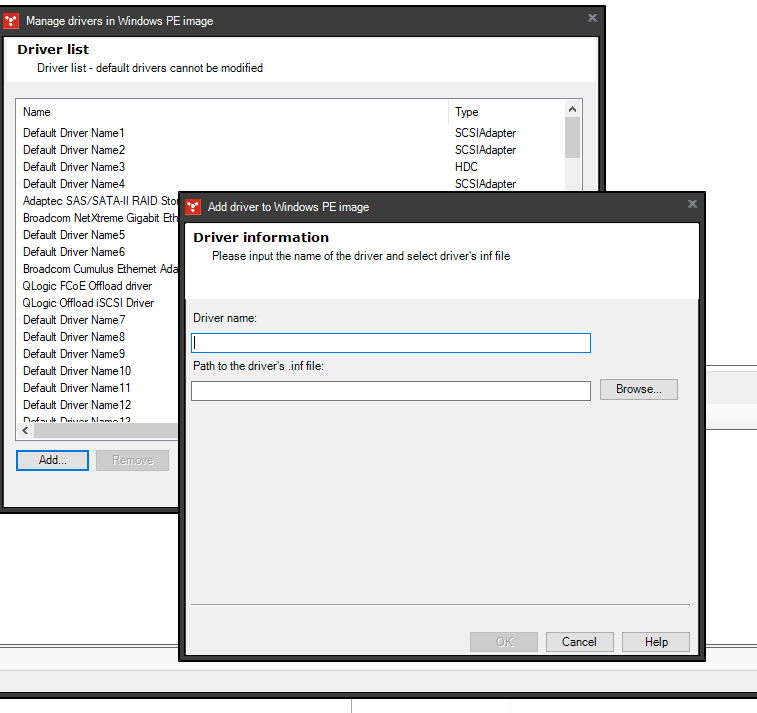
- Add each .inf driver individually via the EPM assistant
6. PXE Configuration
Provisionning WinPE Ivanti – EPM PXE service is configured in 3 steps:
- Allow a device to act as PXE Representative
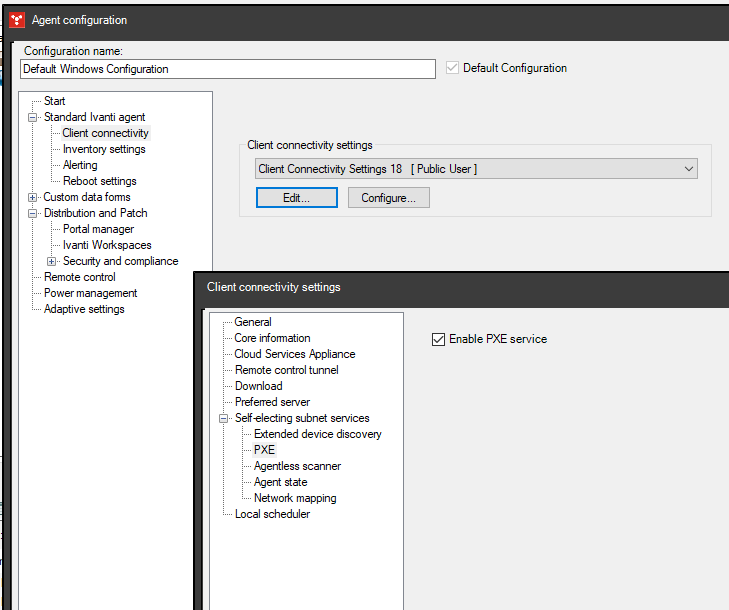
- Authorize PXE access per VLAN
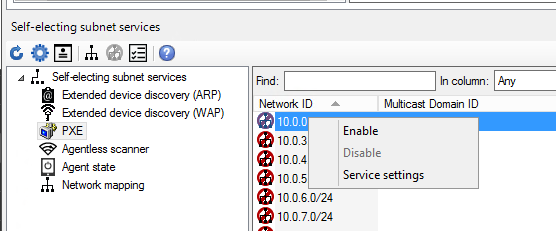
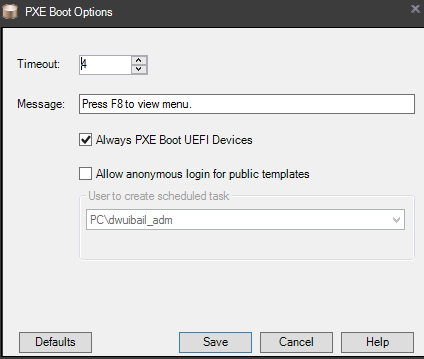
- Configure PXE options for UEFI support
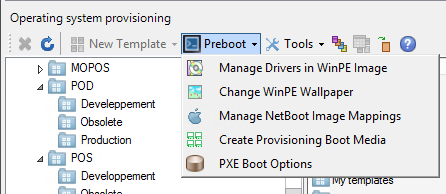
- Enable UEFI device