Agent – install & uninstall with Ivanti EPM
Agent install uninstall – This consolidated guide covers Engine-Based Agent (EBA) deployment options and uninstall methods for both the new EPM agent and the legacy agent. Images and
Introduction
Agent install uninstall – This consolidated guide covers Engine-Based Agent (EBA) deployment options and uninstall methods for both the new EPM agent and the legacy agent. Images and references from the original articles are preserved.
Deployment — Engine-Based Agent (EBA)
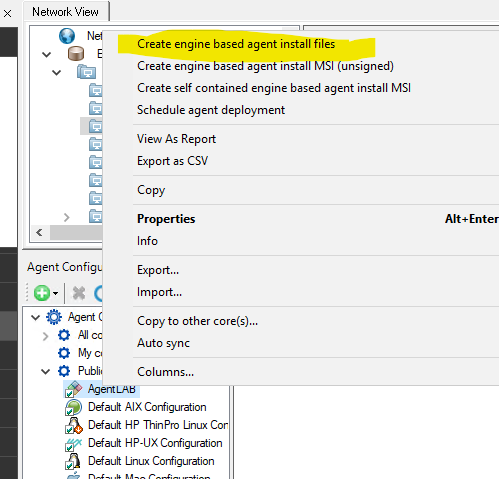
Solution 1: Create Engine-Based Agent Install Files (Best Choice)
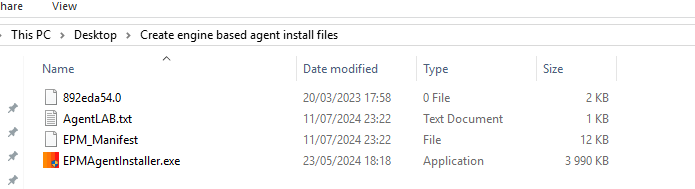
- Generates four files:
EpmAgentInstaller.exe, certificate files, and additional support files.
Agent install uninstall – Installation flow:
Solution 2: Create Engine-Based Agent Install MSI
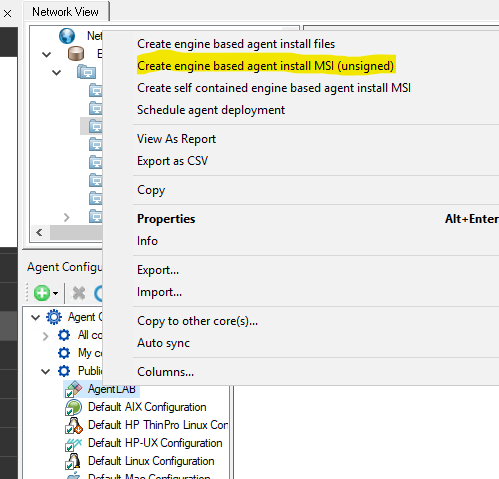
- Builds a small MSI containing certificates,
EpmAgentInstaller.exe, and additional files. - Executes
EpmAgentInstaller.exeduring installation.
Agent install uninstall – Note: In testing, this approach did not function reliably.
Solution 3: Create Self-Contained Engine-Based Agent Install MSI
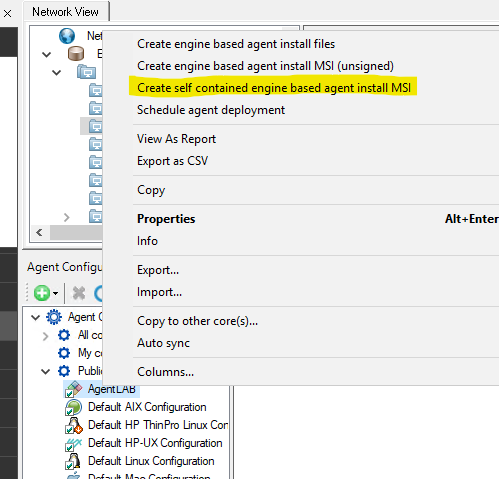
Agent install uninstall – Produces four files including certificate files, MSI(s), and additional payload files.
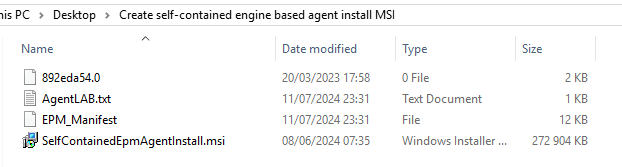
Agent install uninstall – Note: In testing, this option also failed to work correctly.
Agent install uninstall – More on the new EPM agent:
Agent install uninstall – Deployment Methods for EBA (Engine-Based Agent)
Uninstall — Engine Based Agent
Agent install uninstall – To remove the new Ivanti EPM agent (EBA), run:
C:Program Files (x86)IvantiEPM Agentepmagentinstaller.exe /forceuninstall
Agent install uninstall – Reference: Ivanti EPM Engine-Based Agent Information
Uninstall — Legacy Agent
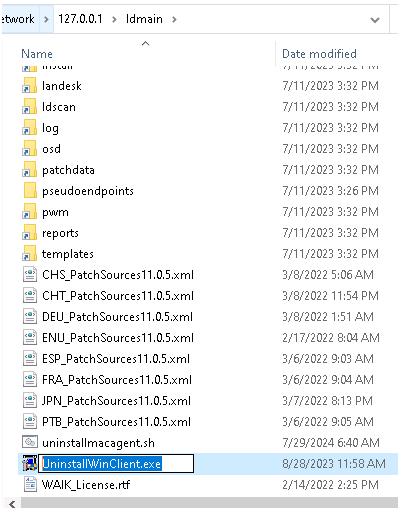
Agent install uninstall – UninstallWinClient.exe is available from the ldmain share on the EPM core server. Copy it locally and execute with the desired options.
Agent install uninstall – Common options:
/NOREBOOTor/REBOOT— control reboot behavior./UI— display the uninstall interface / progress./FORCECLEAN— force a clean removal (use with caution).
Agent install uninstall – Caution: Do not use /FORCECLEAN on an EPM core server.