Configuring BitLocker with Windows Security Administration
Configuring BitLocker Windows – Configure BitLocker, integrate Active Directory, enable TPM, and automate BitLocker activation with scripts.
Introduction
Configuring BitLocker Windows – Enabling BitLocker on a workstation is straightforward. In an enterprise, the main challenges are:
- Configuring Active Directory to store recovery keys,
- Enabling/configuring TPM,
- Automating BitLocker activation with a script.
Configuring BitLocker Windows – This post walks through the essential steps to deploy BitLocker on workstations.
Active Directory Configuration
BitLocker AD Features
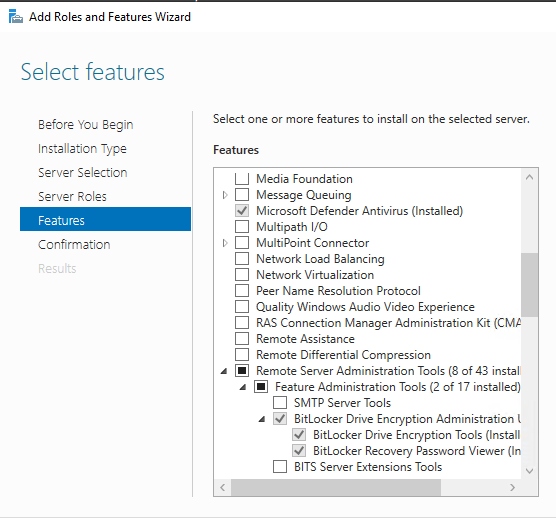
Configuring BitLocker Windows – Install these on any admin workstation that will manage BitLocker keys (in addition to the Active Directory Users and Computers console).
- Install via PowerShell:
Install-WindowsFeature -Name "RSAT-Feature-Tools-BitLocker","RSAT-Feature-Tools-BitLocker-RemoteAdminTool","RSAT-Feature-Tools-BitLocker-BdeAducExt"
- …or install manually:
Active Directory Delegation
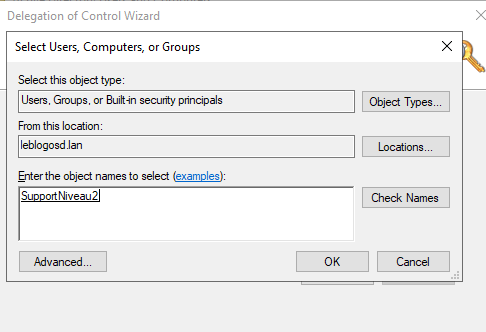
Configuring BitLocker Windows – Delegate read access to BitLocker keys to a security group (e.g., SupportNiveau2).
- Open Active Directory Users and Computers.
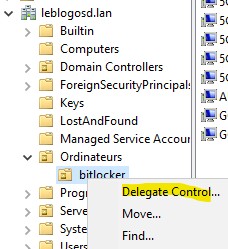
- Right-click the OU → Delegate Control…
- Select the target group.
- Choose Create a custom task to delegate.
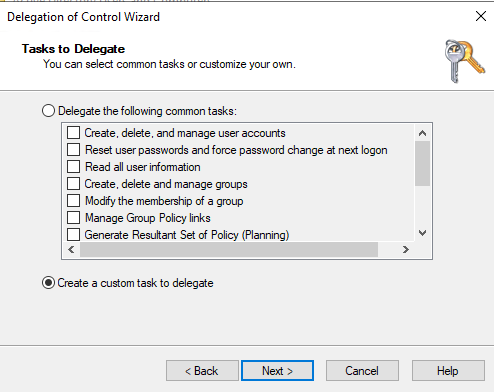
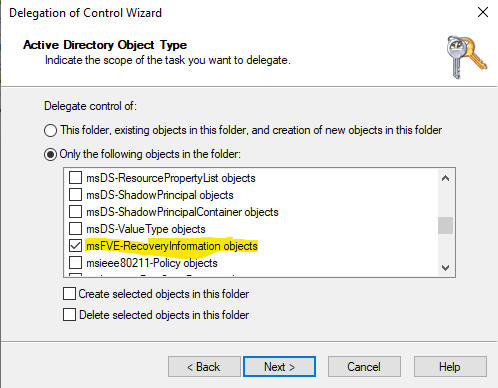
- Select the object:
MSFVE-RECOVERYINFORMATION.
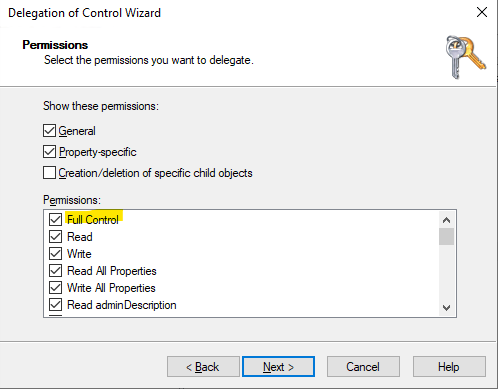
- Grant Full Control.
GPO to Configure BitLocker
Configuring BitLocker Windows – The GPO stores recovery keys in AD DS and defines defaults. Creating it does not enable BitLocker automatically, so you can implement it early in the project.
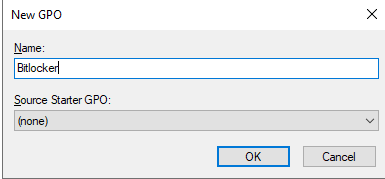
- Create a new GPO in Group Policy Management and link it to the computers’ OU.
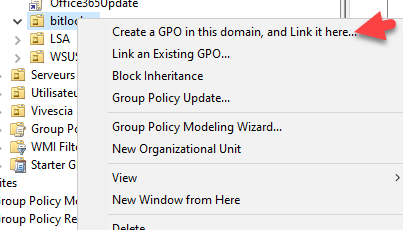
- Give the GPO a clear name.
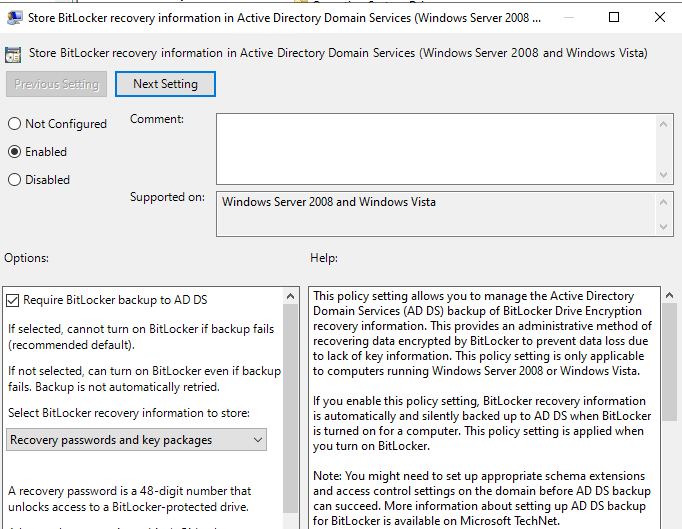
Computer Configuration→Administrative Templates→Windows Components→BitLocker Drive Encryption- Store BitLocker recovery information in Active Directory Domain Services → Enabled
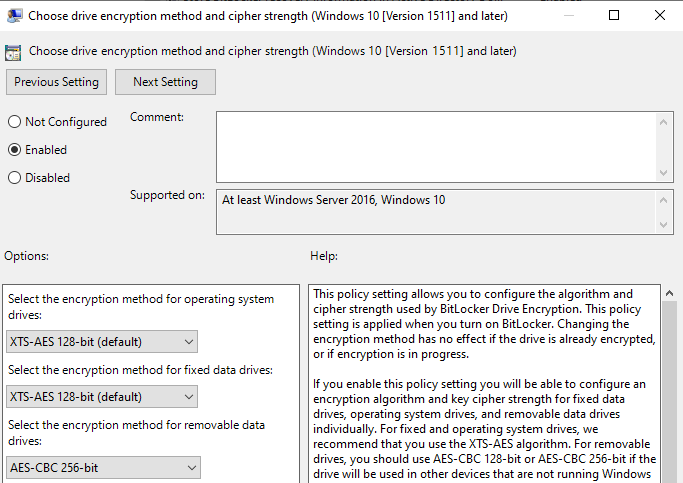
Computer Configuration→Administrative Templates→Windows Components→BitLocker Drive Encryption- Choose drive encryption method and cipher strength → Enabled (set your standard)
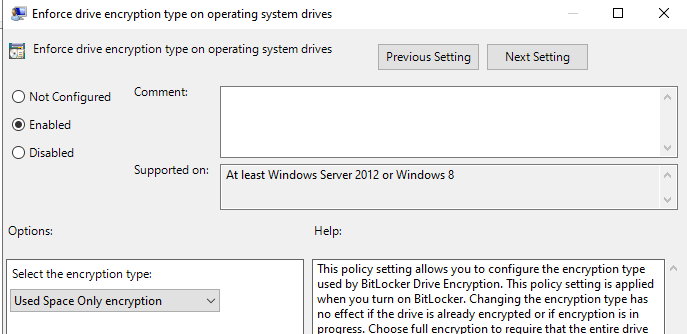
Computer Configuration→Administrative Templates→Windows Components→BitLocker Drive Encryption→Operating System Drives- Enforce drive encryption type on operating system drives → Enabled → Used Space Only
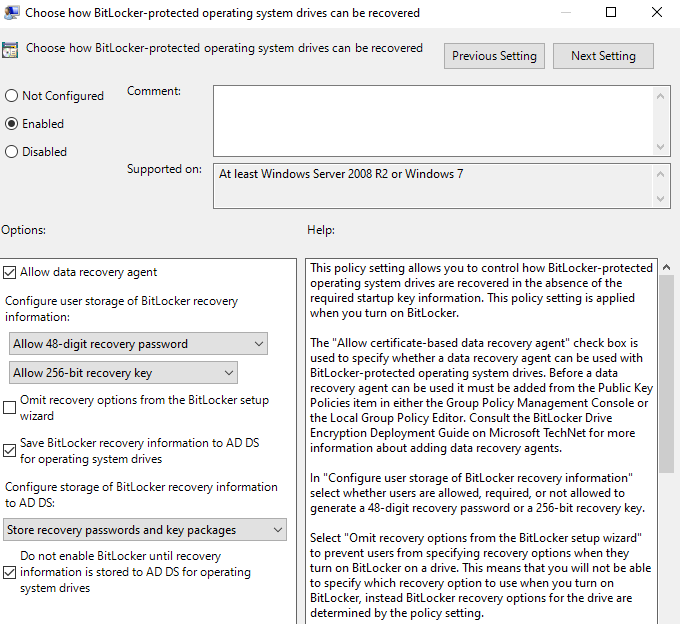
Computer Configuration→Administrative Templates→Windows Components→BitLocker Drive Encryption→Operating System Drives- Choose how BitLocker-protected operating system drives can be recovered → Enabled
- Save BitLocker recovery information to AD DS for OS drives
- Store recovery passwords and key packages
- Choose how BitLocker-protected operating system drives can be recovered → Enabled
Computer Requirements
TPM Management
Configuring BitLocker Windows – Most devices ship with TPM (especially TPM 2.0) already enabled. TPM is a prerequisite for BitLocker.
- How to enable TPM: TPM Chip Activation
UEFI
Configuring BitLocker Windows – UEFI mode is recommended (mandatory for Windows 11). Validate older Windows 10 devices.
Configuring BitLocker Windows – UEFI detection script:
BitLocker Activation
Manual
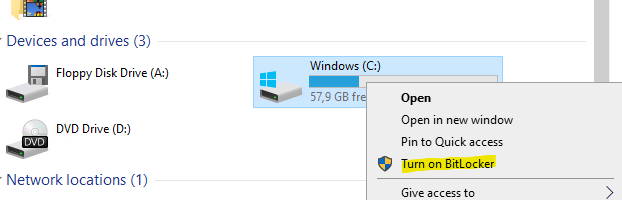
Configuring BitLocker Windows – From File Explorer, you can enable/disable BitLocker on supported volumes.
Via Script
Configuring BitLocker Windows – Tip: If a reboot is pending, wait before enabling BitLocker. Suspend mode may be unreliable in that state.
Configuring BitLocker Windows – Example activation snippet:
Function Get-PendingReboot {
    $isReboot = $False
    if (Test-Path "HKLM:SOFTWAREMicrosoftWindowsCurrentVersionWindowsUpdateAuto UpdateRebootRequired") { $isReboot = $True }
    if (Test-Path "HKLM:SYSTEMCurrentControlSetControlSession ManagerPendingFileRenameOperations")       { $isReboot = $True }
    if (Test-Path "HKLM:SOFTWAREWOW6432NodeLANDeskmanagementsuiteWinClientVulscanReboot")               { $isReboot = $True }
    if (Test-Path "HKLM:SOFTWAREMicrosoftWindowsCurrentVersionComponent Based ServicingRebootPending")  { $isReboot = $True }
    Return $isReboot
}

# ******************** Encrypt Volume ***************************
if (((Get-tpm).TpmReady -eq $True) -and (Get-PendingReboot -eq $false)) {
    # ******************* C drive *******************************
    # Encrypt volume C
    If ($StateC -eq "FullyDecrypted") {
        Write-Host "Enable BitLocker on C Drive"
        Add-BitLockerKeyProtector -MountPoint "C:" -TpmProtector
        Enable-BitLocker -MountPoint "C:" -EncryptionMethod XtsAes128 -RecoveryPasswordProtector -SkipHardwareTest -ErrorAction SilentlyContinue
    }
}
Configuring BitLocker Windows – Full script: ActivateBitlocker (GitHub)
If BitLocker Is Already Enabled
Configuring BitLocker Windows – If BitLocker was enabled before the GPO, force a key backup to AD:
$BLV = Get-BitLockerVolume -MountPoint "C:"
Backup-BitLockerKeyProtector -MountPoint "C:" -KeyProtectorId $BLV.KeyProtector[1].KeyProtectorId
Retrieve the BitLocker Key
Configuring BitLocker Windows – From Active Directory Users and Computers, the BitLocker recovery key is visible on the computer object.
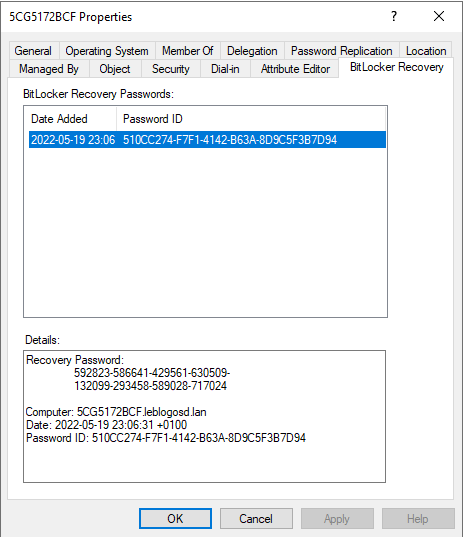
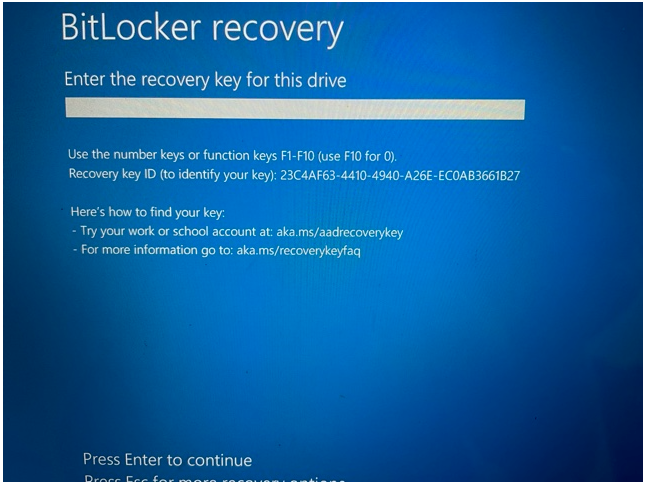
Configuring BitLocker Windows – If the device cannot start, it will prompt for the recovery key.