Tanium Client Upgrade Strategy: Rings, Action Lock, and Safe Rollout
Use rings, validation gates, and Action Lock together for a Tanium Client upgrade. This keeps the blast radius small and makes rollback decisions easier.
Rings and Action Lock
- Rings reduce blast radius by validating the upgrade in small, controlled groups before broad rollout.
- Action Lock protects sensitive endpoints where no console-initiated action should run unless it is explicitly allowed.
- Module configuration defines whether Patch, Deploy, or custom packages should respect or bypass Action Lock during the rollout.
Prerequisites
- Computer Groups are ready for the rollout: Unit Test, Pilot Test, and Deployment.
- The target Tanium Client package has already been validated in a lab or non-production environment.
- Rollback owners and validation criteria are defined before the first production ring starts.
- You know which endpoints must remain protected by Action Lock during the rollout.
Ring Strategy
| Ring | Target Group | Goal |
|---|---|---|
| Ring 1 | Unit Test | Validate the client package on a very small set of endpoints. |
| Ring 2 | Pilot Test | Validate the package on a larger sample close to production. |
| Ring 3 | Deployment | Roll out to the rest of production after validation. |
Do not move to the next ring only because the deployment finished. Move only after you check client health, extension loading, endpoint reachability, and rollback readiness.
Configure Upgrade Rings
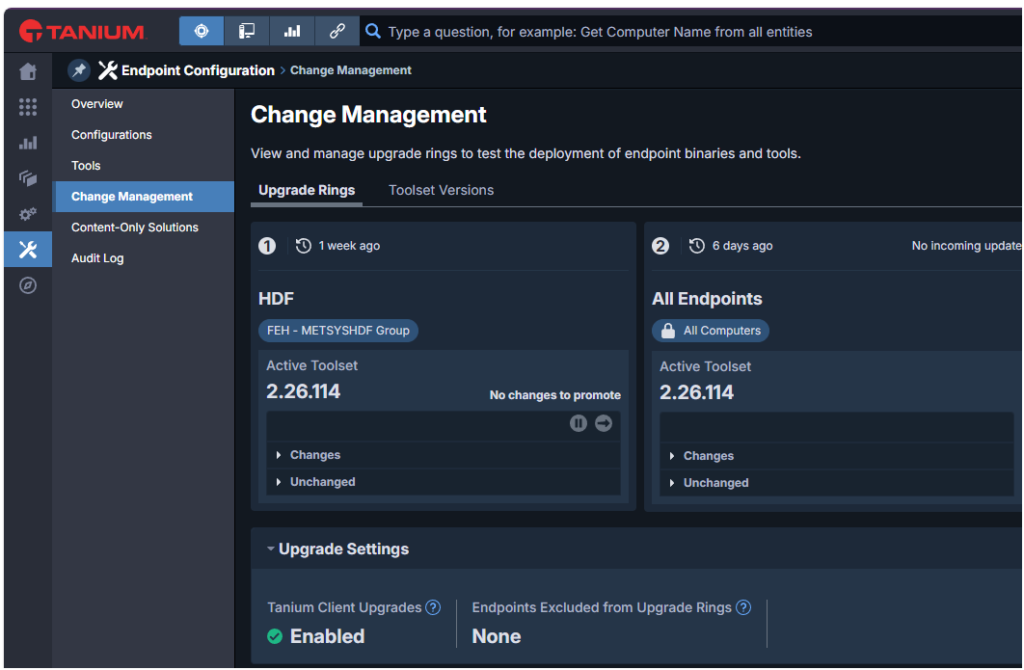
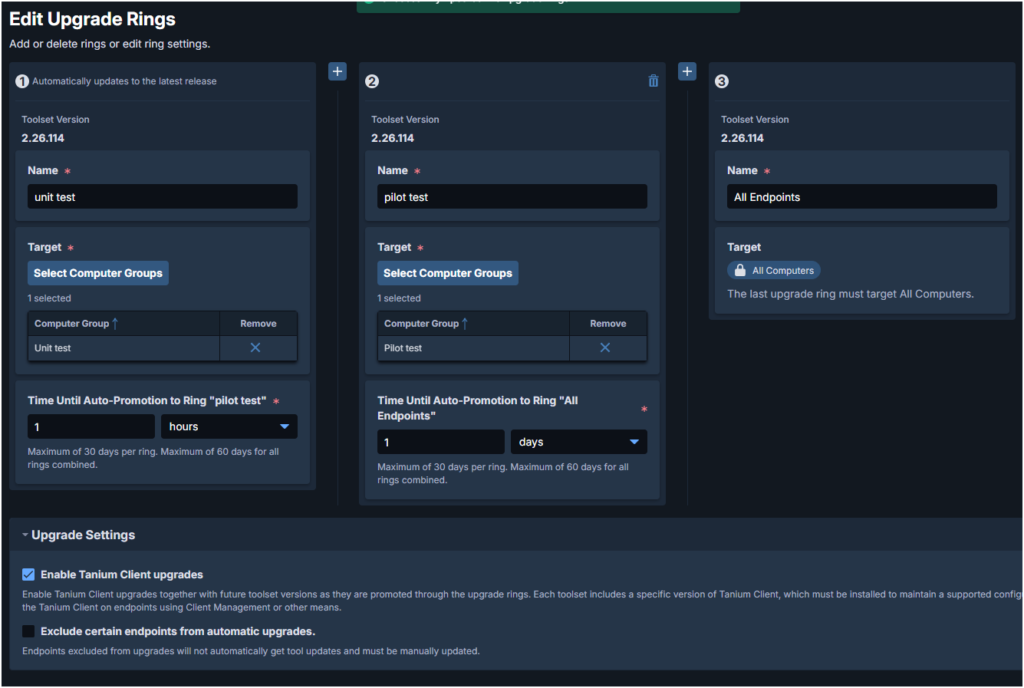
- Open Endpoint Management -> Change Management in the Tanium Console.
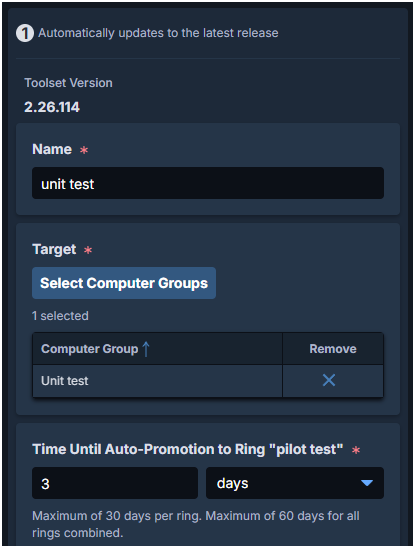
- Edit Ring 1, enable Tanium Clients Upgrades, and assign the Unit Test Computer Group.
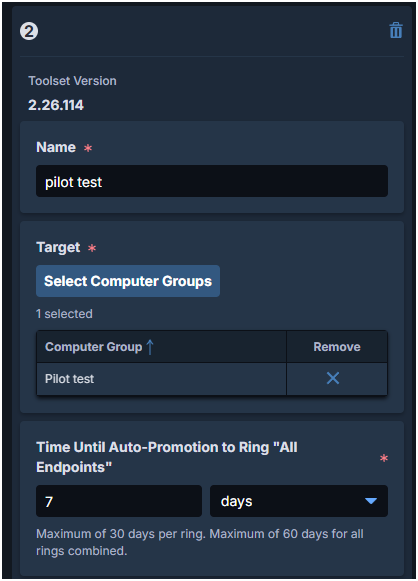
- Edit Ring 2 and assign the Pilot Test Computer Group.
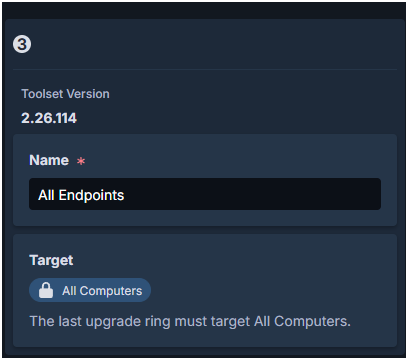
- Edit Ring 3 and assign the broad production group, typically All Computers or your production scope equivalent.
- Save the configuration and verify ring membership before launching the client upgrade.
Action Lock
Action Lock blocks console actions on an endpoint, including deployments, patches, scans, and scripts. Use it to protect critical systems or keep exception devices outside the rollout.
Locked endpoints ignore actions unless the action uses Ignore Action Lock. This protects devices that must not join the rollout automatically.
Enable Action Lock
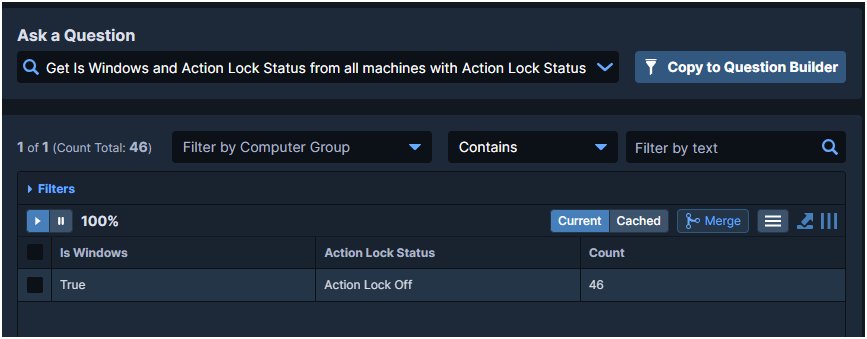
- Check the current status before enabling the lock.
Get Is Windows and Action Lock Status from all machines with Action Lock Status contains Action Lock Off
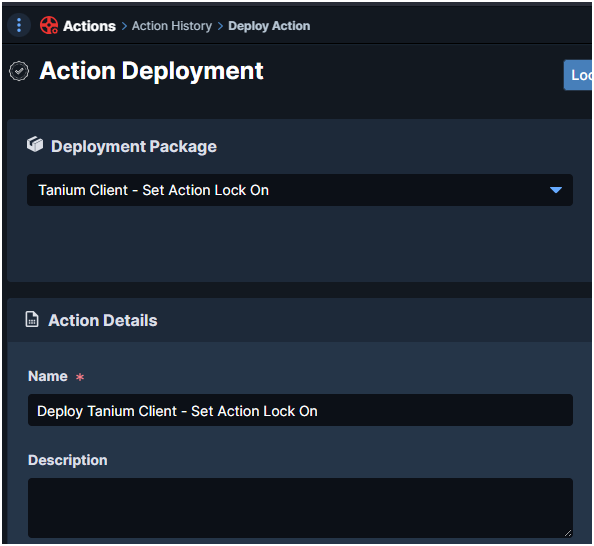
- Deploy the package Tanium Client – Set Action Lock On (Windows).
CLI alternative on the endpoint:
TaniumClient.exe config set ActionLockFlag On
Disable Action Lock
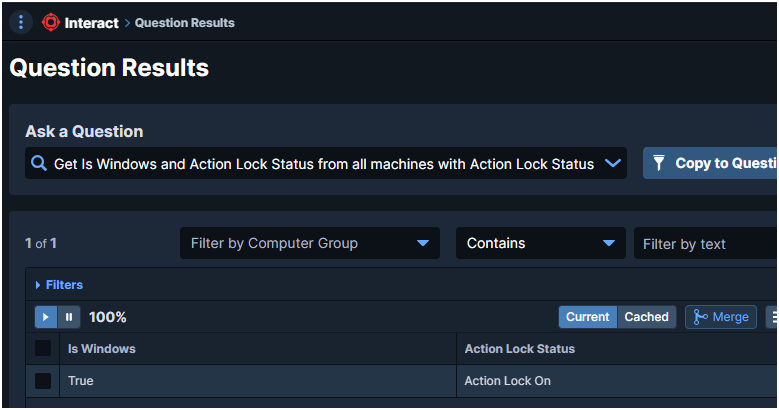
Use the saved question below to find locked endpoints before removing the control:
Get Is Windows and Action Lock Status from all machines with Action Lock Status contains Action Lock On
- Deploy package: Tanium Client – Set Action Lock Off.
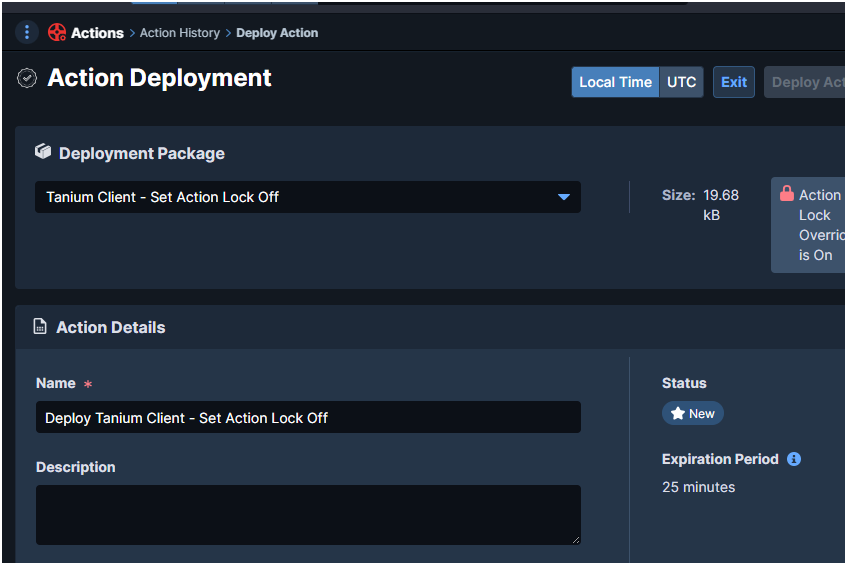
Module Configuration on Locked Endpoints
Action Lock is useful only if module behavior is intentional. Review how Patch, Deploy, and custom packages behave on locked systems before starting the rollout.
Patch
Patch can be configured to either fully respect Action Lock, scan only, or ignore the lock entirely.
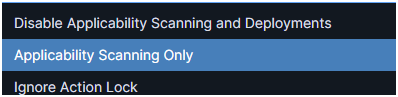
- Disable Applicability Scanning and Deployments
- Applicability Scanning Only (default)
- Ignore Action Lock
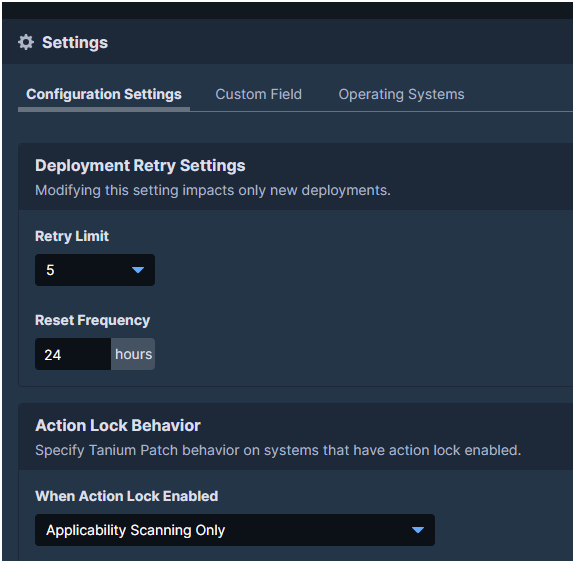
Deploy
Deploy uses the same logic. Here you decide if standard deployments are blocked, partly allowed, or forced through on locked endpoints.
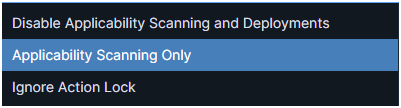
- Disable Applicability Scanning and Deployments
- Applicability Scanning Only (default)
- Ignore Action Lock
Core Packages and Cloned Packages
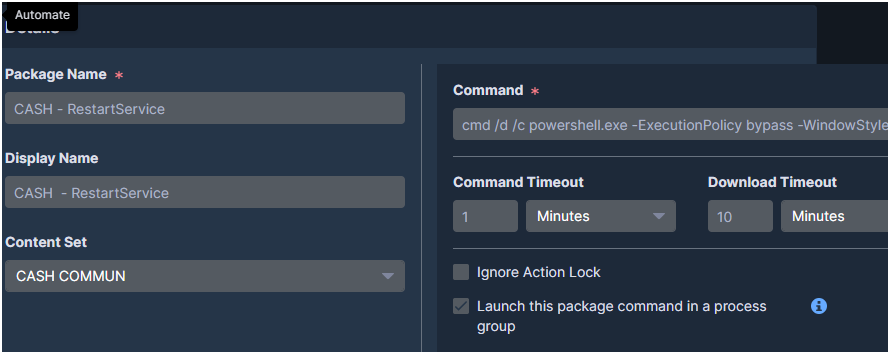
If one package must run on locked endpoints, enable Ignore Action Lock in the package definition. Use this only for controlled exceptions.

Rollout Flow
- Start with Ring 1 on non-critical endpoints and validate client health, extension loading, and endpoint communication.
- Move to Ring 2 only after Ring 1 behavior is stable and your rollback decision path is still clear.
- Use Action Lock on systems that must be protected from the rollout by default.
- Use Ignore Action Lock only for approved exceptions where the upgrade must proceed despite the lock.
- Promote to Ring 3 only after validation, not merely after package completion.
Temporarily Disable a Client Extension
If the client upgrade succeeds but a specific extension causes issues, you can temporarily stop that extension from loading for troubleshooting.
- Deploy Action: Modify Tanium Client Setting
- RegType:
REG_DWORD - ValueName:
DisableExtension_<ToolName> - ValueData:
1 - Then run: Endpoint Configuration – Restart Client Extensions [Windows]
The targeted extension will no longer load. To resume normal behavior, set ValueData = 0 and restart client extensions again.
Valid tool names: client, comply, config, core, dec, discover, enforce, extras, index, performance, recorder, reveal, risk, software_manager, stream, support, threatresponse, tsdb, integrity_monitor