Large Windows WIM Files for UEFI USB Deployments with MDT
Step-by-step guide to Large Windows WIM Files for UEFI USB Deployments with MDT, including configuration, deployment, troubleshooting and practical
Useful external reference: Microsoft Learn.
Introduction:
Useful external reference: Microsoft Learn.
Windows 11 WIM files often exceed 4 GB in size. If you’re using MDT for deployments via USB, this can pose challenges.
Useful external reference: Microsoft Learn.
Splitting WIM into SWM:
Useful external reference: Microsoft Learn.
While it’s possible to split WIM files into SWM format, using an SWM image isn’t native in MDT. Here’s how to utilize an SWM image:
Useful external reference: Microsoft Learn.
- Importing the ISO: Start by importing your ISO with the WIM image as usual.
- Splitting the WIM: Next, split the WIM image into the SWM format using the following command:
Dism /Split-Image /ImageFile:nasMDTOEMOperating SystemsWindows11wimsourcesinstall.wim /SWMFile:nasMDTOEMOperating SystemsWindows11wimsourcesinstall.swm /FileSize:1024
- Removing the WIM File: After splitting, delete the original WIM file.
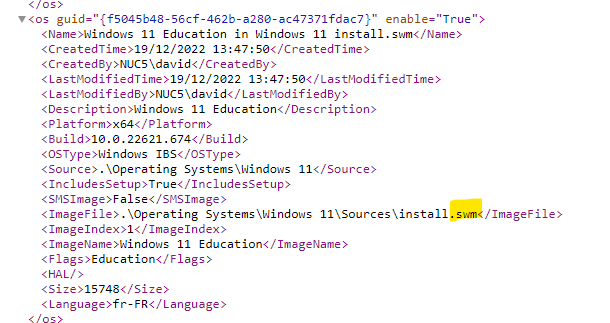
- Editing the OperatingSystems.xml: Navigate to the ‘control’ folder and edit the ‘OperatingSystems.xml’ file. Replace the ‘install.wim’ filename with ‘install.swm’.